
Telegram has a native checklist feature built directly into the app. You can create interactive, shared task lists inside any chat without downloading anything new or setting up a separate account. The feature requires Telegram Premium to create and interact with, and it works in groups, private chats, and your own Saved Messages.
If you have ever tried to coordinate a project through scattered messages like “did you finish the design?” or “don’t forget the invoice,” you already know how fast that breaks down. Telegram checklists solve that by giving everyone in the conversation an actual list they can check off in real time, right where the conversation is already happening.
This guide covers everything about using Telegram checklists for team and personal tasks: how to set them up, how permissions work, and where they genuinely help versus where a dedicated tool still makes more sense.
Key Takeaways
- Telegram checklists let you build shared task lists inside any chat, group, or your Saved Messages
- The feature is exclusive to Telegram Premium subscribers for both creating and interacting with lists
- Each checklist supports up to 28 items, and each item can have its own custom emoji
- You control who can mark tasks as done and who can add new items through granular permissions
- Non Premium users can view checklists but cannot check items off or add new ones
- For larger projects with dependencies and deadlines, a dedicated task app still makes more sense
What Is the Telegram Checklist Feature?
Telegram introduced checklists in its July 2025 update (version 11.13.0), one of the more practical additions in a year packed with new Telegram features.
The feature turns a message into a live, interactive list where items can be ticked off in real time. Instead of typing out tasks as plain text that nobody updates, you send a checklist object that everyone in the chat can see updating as work gets done.
A few things worth knowing before you start:
- Each checklist supports up to 28 individual tasks
- Every task can have a custom emoji for visual organization
- Checklists work in group chats, one on one conversations, and your Saved Messages
- The feature is available on iOS, Android, Telegram Desktop, and Telegram Web
- Telegram Premium is required to create checklists and to interact with them as a participant
- People without Premium see the list in read only mode and cannot check anything off
It is a focused, lightweight tool. It is not a project management platform and was never meant to be. That focus is actually what makes it practical for everyday use.
How to Create a Checklist in Telegram (Step by Step)
The whole process takes under a minute once you know where to look.
- Step 1: Open the chat where you want to send the checklist. This can be a group, a one on one conversation, or your Saved Messages.
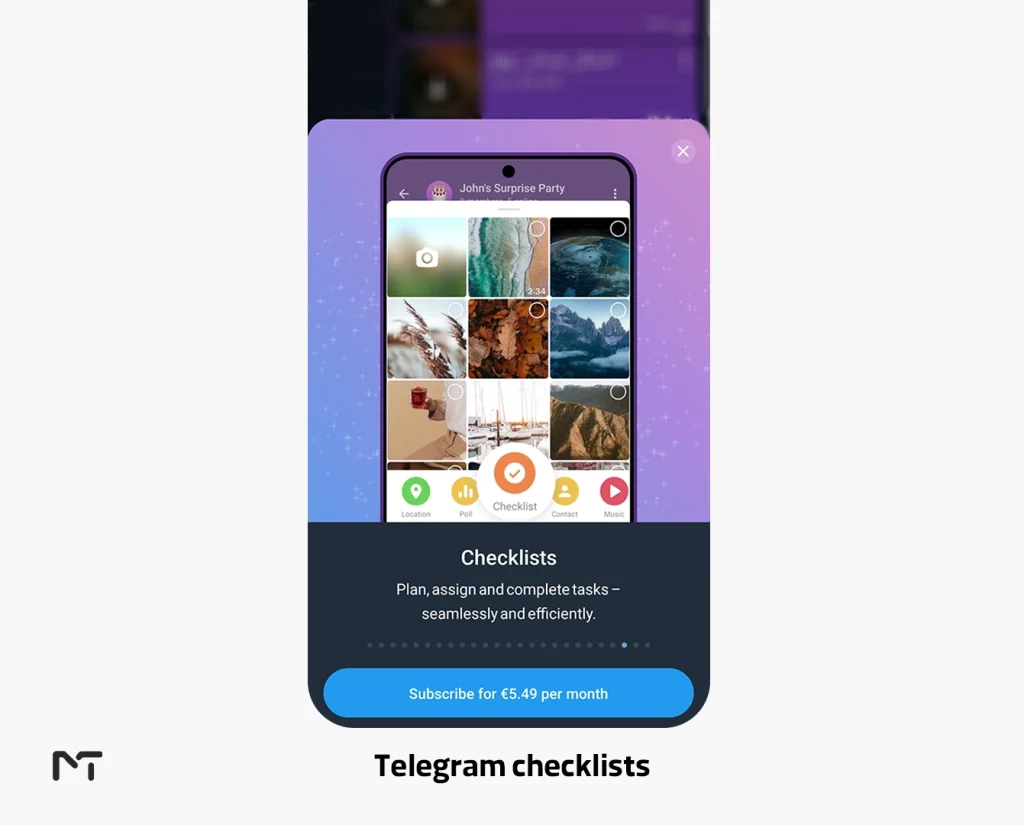
- Step 2: Tap the attachment icon (the paperclip on mobile, the file icon on desktop).
- Step 3: Select Checklist from the attachment menu.
- Step 4: Give your checklist a clear name. “Weekly Sprint Tasks” is more useful than “Tasks.” People in the group should know what they are looking at without context.
- Step 5: Add your items, up to 28. You can add an emoji before each one if you want to visually group or prioritize them.
- Step 6: Set your permissions before sending. This step matters more than most people expect, and it is covered in detail below.
- Step 7: Send. The checklist appears as an interactive message and updates live as people check things off.
Don’t see the Checklist option in your attachment menu? Two things to check: first, make sure your Telegram app is updated to version 11.13.0 or later. Second, confirm your account has an active Telegram Premium subscription. The option does not appear for free accounts.
How Telegram Checklist Permissions Work
Before sending, you choose two independent settings:
Who can mark items as done. You can restrict this to yourself only, or allow all group members to check things off.
Who can add new items. You can keep the list closed so only you can add tasks, or open it up so anyone in the chat can contribute.
These two controls work independently. You could let everyone mark tasks as done while keeping the ability to add new items only to yourself. This is the most practical setup for most team scenarios: the list structure stays intact, but progress tracking is genuinely collaborative.
For personal checklists in Saved Messages, none of this matters since you are the only user in that space.
Telegram Checklists for Teams: Practical Use Cases
Once you have the mechanics down, the question is where checklists actually earn their place in a team’s day. The answer depends on how your team already works, but these four scenarios cover the most common fits.
Project Task Tracking
Create a checklist at the start of a project or sprint and post it in the relevant group. List the key deliverables: design, copy, review, publish. As each person finishes their piece, they check it off. Everyone can see where things stand without asking for a status update. For small teams already communicating in Telegram, this removes an entire layer of coordination overhead.
Content and Editorial Workflows
Marketing and content teams often coordinate inside the same channel where content is discussed. A checklist per piece (draft, edit, design assets, final approval, scheduled) keeps everyone aligned without switching to a separate tool. When the last box is checked, the piece is ready.
Meeting Action Items
After a team call, the summary message gets buried within hours. A checklist sent right after the meeting, with each action item clearly listed and the right permissions set, stays functional as people complete their tasks. Long press it and pin it to the top of the chat so it stays visible.
Onboarding New Team Members
New person starting this week? A pinned checklist with items like “set up email account, join all relevant channels, read the handbook, meet the team” gives them a clear and trackable first week path without pulling anyone away from their work to check in.
Telegram Checklists for Personal Tasks
Checklists are not just for teams. If you already have Telegram open throughout the day, using it for personal task tracking means one less app to switch between. Here are the use cases that work best on an individual level.
Daily To Do List in Saved Messages
Your Saved Messages is Telegram’s built in private notepad. Sending a checklist there gives you a simple daily task list inside an app you are already opening multiple times a day. Create one each morning with your three to five priorities and work through it. No additional app, no extra account.
Shopping and Errands
A shared grocery list between two people works well here. One person creates the checklist and shares it in a private chat. As you pick things up, you check them off and the other person sees it update in real time. Practical and genuinely low friction.
Habit Tracking
A recurring daily checklist (gym, water intake, deep work block, reading) works as a lightweight habit tracker without downloading anything new. Keep one going in your Saved Messages. Check off each habit as you complete it. Simple, but effective if the habit list is short.
Travel Packing
Send a packing checklist to Saved Messages before a trip and work through it as you pack. Because Telegram syncs across devices, checking something off on your phone is immediately reflected on your desktop.
What Non Premium Users Can and Cannot Do
Non Premium users in your group can read every item on a checklist. What they cannot do is mark items as done or add new tasks. The list appears as read only for them.
This is worth knowing before you build a team workflow around checklists. If most of your team is on free accounts, the people doing the actual checking will need to be the ones with Premium. In many teams, that is the project leads or managers, which often aligns naturally. But it is worth confirming before you roll it out across a group.
If checklists are the main reason you are considering Premium, they work best when at least the key people in your group, project leads or task owners, have active subscriptions. For solo use in Saved Messages, one Premium account is enough to get full value.
Non Premium members who need to actively manage tasks in Telegram do have alternatives. Several Telegram bots built for remote work and team collaboration offer task assignment and tracking without a Premium requirement.
Limitations Worth Knowing Before You Rely on Checklists
Telegram checklists are useful but bounded. Keep these in mind:
- 28 item cap per list. Fine for daily tasks, limiting for large projects.
- No due dates or reminders built in. You would need to pair a checklist with Telegram’s separate reminder feature for deadline based tasks.
- No subtasks or nested items. Everything sits on a single level. No dependencies, no child tasks.
- No recurring tasks. You recreate or duplicate the list manually for repeating routines. If recurring tasks are a core need, a Telegram bot built for workflow and productivity handles this better than the native checklist.
- Premium required for interaction. In mixed teams, this creates friction for free account members.
Telegram Checklists vs Dedicated Task Apps
For small, fast moving tasks inside an existing conversation, Telegram checklists are genuinely the lowest friction option. For anything more complex, a dedicated tool is worth the setup time.
| Feature | Telegram Checklist | Trello | Asana | Todoist |
|---|---|---|---|---|
| Setup time | Seconds, no new app | Minutes, separate app | Minutes, separate app | Minutes, separate app |
| Item limit | 28 per list | Unlimited | Unlimited | Unlimited |
| Due dates and reminders | No native support | Built in | Built in | Built in |
| Subtasks | Not supported | Supported | Supported | Supported |
| Recurring tasks | Not supported | Supported | Supported | Supported |
| Collaboration | Real time in chat | Board based | Workflow based | Limited on free tier |
| Best for | Quick coordination inside existing chats | Visual project boards | Larger team workflows | Personal productivity |
| Cost | Premium required | Free tier available | Free tier available | Free tier available |
The honest answer: if your tasks fit inside 28 items and you are already talking to your team on Telegram, use the checklist. If you are managing multi week projects with dependencies and deadlines across a larger team, a dedicated tool still makes more sense and is worth the friction of setting it up.
Tips to Get More Out of Telegram Checklists
Use emoji to signal priority. Add a colored circle emoji before each task (🔴 urgent, 🟡 this week, 🟢 someday) so you can scan the list at a glance without reading every item.
Pin the checklist in your group. Long press the checklist message after sending and pin it to the top of the chat. It stays visible even as other messages pile up.
Send separate checklists per project. One list per active project keeps things clean. When a project wraps, the checklist is complete. Much easier to track than one giant master list.
Use Saved Messages to try it first. Before bringing checklists into a group, practice in your own Saved Messages. You will get comfortable with the permissions and format without any audience pressure.
Keep lists short. The 28 item limit is actually a useful constraint. If your list needs more than 28 tasks, it is probably two projects, not one.
Find a buried checklist fast. If you forgot to pin the checklist and it is now buried under dozens of messages, use the in chat search. Tap the search icon inside the chat and type the name you gave the checklist. It surfaces immediately without scrolling.
Frequently Asked Questions
Is the Telegram checklist feature free?
No. Creating and interacting with checklists requires Telegram Premium. Non Premium users can view checklists in read only mode but cannot check items off or add new ones.
How many items can a Telegram checklist have?
Each checklist supports up to 28 individual items, and each item can include its own custom emoji.
Can non Premium users check off items?
No. Non Premium participants can see the list but cannot mark tasks as done or add new items. The checklist is read only for them.
Can I edit a checklist after sending it?
Yes. Long press the message and select Edit. You can rename items and remove tasks. Try to finalize the list before sending though, as edits can sometimes reset the checked state on existing items.
Can I use Telegram checklists on desktop?
Yes. The feature is available on the Telegram desktop app and web version on updated clients. The attachment menu works the same way as on mobile.
Is there a way to set up recurring tasks in Telegram?
Not natively within the checklist feature. For repeating routines, most people either duplicate the checklist manually each day or pair it with Telegram’s built in reminder feature for time based nudges.
What happens if I delete the checklist message?
The checklist disappears for everyone in the chat. There is no recovery option, so treat completed checklists as records before deleting them.
Final Thoughts: Telegram Checklists for Team and Personal Tasks
Telegram’s checklist feature is one of those quiet additions that solves a real problem without making a big deal of itself. For teams already working inside Telegram, it removes the friction of switching apps just to track a handful of tasks. For individuals, it turns the app you are already using into a light but functional personal organizer. Not every workflow needs a dedicated project management tool. But for fast coordination, short task lists, and everyday personal organization, checklists handle the job cleanly without asking you to change how you already communicate. Start simple: open your Saved Messages, tap the attachment icon, and create your first checklist.
You will know within five minutes whether it fits the way you work. And if you want to go deeper into what Telegram can do beyond messaging, there is a lot more to explore in mastering Telegram as a full productivity and communication platform. Managing a Telegram group and looking to grow or organize it more effectively? The team at Membertel is here to help. Reach out at @MembertelSupport with any questions.














Leave a Reply