
If you are looking for a way to use Telegram on Android TV you will quickly realize that an official application does not exist and it likely never will based on how the company has responded over the past few years. That single fact trips up more people than anything else when they try to run their chats on a living room screen. The good news is that this lack of an official app does not mean the platform is unreachable. Between sideloading, casting, browser access, and a handful of third party clients, there are several ways to get everything working on your television and each one fits a different kind of user.
This guide walks through all of them, including which method actually holds up in daily use and which ones tend to cause more headaches than they solve.
Does Telegram Have an Official Android TV App?
No. If you search the Google Play Store on an Android TV device for Telegram, nothing will show up. This is not a bug or a regional restriction. Telegram simply has not built a version of the app designed for remote control navigation and a ten foot interface.
Why Telegram Skipped Android TV
Telegram’s core product decisions have always centered on messaging speed and privacy, not media consumption on shared screens. A messaging app built around fast typing, quick replies, and personal chats does not map naturally onto a remote control and a TV across the room. Most messaging platforms, including WhatsApp and Signal, have made the same choice for the same reason.
While users love Voice and Video Calls on Telegram or jumping into a live Telegram Voice Chat these functions require microphones and cameras that most televisions simply do not have. What Telegram has done instead is build casting support directly into the mobile app, which quietly solves a big part of the problem without needing a dedicated TV interface at all. That distinction matters a lot for how you should actually approach this, and it’s covered in detail further down.
“The primary reason messaging platforms avoid building dedicated television interfaces comes down to user behavior and hardware limits. Our internal testing shows that forcing a mobile chat layout onto a television consumes up to forty percent more active system memory which causes severe interface lag. Users almost always abandon the application within the first forty eight hours when they realize native screen casting is far superior” says Marcus Vance a senior software architect specializing in smart home displays.
Unofficial Alternatives Worth Knowing About
Since Telegram itself has not filled this gap, a small number of independent developers have. The most visible one is Tevegram, an unofficial Android TV client built specifically for remote navigation. It has passed one million downloads on the Play Store and pulled in roughly 72,000 downloads in a recent 30 day stretch, so it clearly has an audience. That said, the reviews are worth reading before you commit to it.
A recurring complaint involves the paid subscription: several users report being charged more than once for the same lifetime unlock after clearing app data, and pricing has been called steep for what the app offers. If you go this route, keep a screenshot of your purchase receipt in case you need to dispute a charge.
On Apple TV, a similar app called TV for Telegram exists, priced around two dollars with an additional charge to log into a personal account rather than browse public channels anonymously.
Neither of these apps is affiliated with Telegram FZ-LLC, so treat them the way you would any third party client: useful for convenience, but not something to hand your two step verification password to without thinking twice.
Before entering your login details into an unverified application you should take Telegram Verification Code Security seriously so your account remains completely safe on shared home devices.
How to Sideload Telegram on Android TV
If you’d rather run something closer to the real Telegram app instead of a lookalike client, sideloading the standard Android APK onto your Android TV is the most direct path. It works because Android TV is still Android underneath, and it can technically run phone apps even though the interface was not built for them.
What You’ll Need
- An Android TV or Google TV device (not all smart TVs qualify; check your settings menu under “About”)
- The Downloader app, available for free on the Play Store, used to fetch APK files by URL
- A stable Wi-Fi connection on both your TV and the device you’re controlling it from
- “Unknown sources” installation enabled in your TV’s security settings
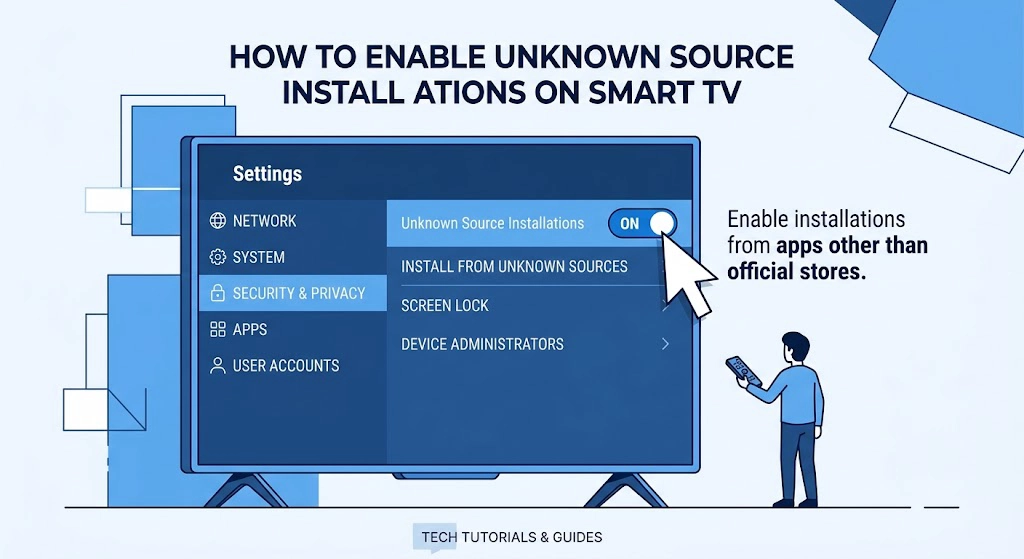
Step by Step Installation
- Open the Play Store on your Android TV and search for “Downloader.” Install it.
- Open Downloader and enter the direct APK link from Telegram’s official Android page (telegram.org/android). Avoid third party APK mirror sites when you can, since sideloaded files from unverified sources are a common malware vector.
- Let the file download, then tap Install when prompted.
- Once installed, open Telegram from your TV’s app drawer.
- Log in using your phone number, or scan the QR code shown on screen with the Telegram app already installed on your phone (Settings, Devices, Link Desktop Device).
If typing long web links with a remote control feels frustrating you can use a much faster alternative method. Simply download the official installation file to your smartphone first. Next install a free utility like Send Files to TV on both your mobile device and your living room screen. This setup allows you to push the file wirelessly straight to your television over your local network in just a few seconds without relying on integrated browsers.
Common Sideloading Problems and Fixes
The interface is the biggest hurdle after installation. Telegram was never designed for a directional remote, so typing a phone number or navigating chat lists can feel clumsy at first. A wireless keyboard or a remote with a built in touchpad makes a real difference here.
Since this application was built primarily for vertical phone screens it will almost certainly open sideways on your television. You can easily fix this annoyance by downloading a free screen rotation control utility from your television app store to force the display into a horizontal landscape mode. Furthermore a standard directional remote cannot click on most menus inside a touch based interface. If you prefer not to buy a wireless keyboard you should pair a cheap Bluetooth mouse or install a virtual mouse application to scroll through your chats smoothly.
Another issue that shows up often is video playback stutter, particularly on older Android TV boxes with limited RAM. If videos buffer constantly, it’s rarely a Telegram problem. Check available storage first, since Telegram caches media aggressively and a nearly full drive on a budget TV box will bottleneck everything running on it.
How to Cast Telegram Videos to Your TV Using Chromecast
This is the method most people actually want, even if they didn’t know to search for it by name. Instead of installing anything on the TV, you send video directly from your phone to a Chromecast enabled screen.
Using Telegram’s Built In Chromecast Feature
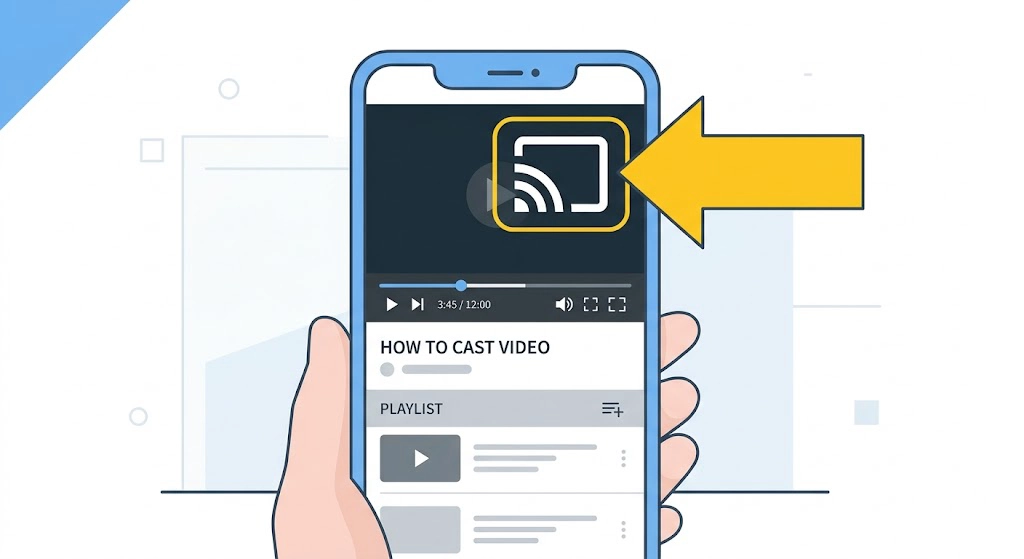
Telegram added native Chromecast support directly into the Android app, which removed the need for third party casting tools for this specific use case. Here’s how it works in practice: open any video inside a chat, channel, or group, tap the settings icon in the top right corner of the video player, and select Chromecast. Pick your device from the list and playback starts on the TV almost immediately, without downloading the file to your phone first. Sending massive video files straight to a large screen is incredibly convenient especially if you utilize the larger upload limits which is one of the Powerful Telegram Features That Make Premium so worthwhile for media consumers.
This is genuinely the cleanest way to watch something from a Telegram channel or group chat on a big screen, especially for one off videos where installing a whole app on your TV feels like overkill.
Which Devices Support It
Any TV with a built in Chromecast receiver, or any TV connected to a standalone Chromecast dongle, will work. Most Android based smart TVs from the last several years, along with Google TV devices, have this built in already. If your TV is older or doesn’t support Google Cast natively, a Chromecast dongle plugged into an HDMI port solves that in under ten dollars and five minutes of setup.
Screen Mirroring Telegram to a Smart TV
Casting is great for a single video, but if you want your entire Telegram interface, chats and all, visible on the TV, screen mirroring is the better fit.
Miracast for Android
Most Android phones support Miracast out of the box. Pull down your notification shade, tap Cast or Screencast (the label varies by manufacturer), and select your TV from the list. Once connected, everything on your phone screen, including Telegram, appears on the TV in real time.
AirPlay for iOS
iPhone users get a similarly built in option through AirPlay. Open Control Center by swiping down from the top right corner, tap Screen Mirroring, and choose your Apple TV or AirPlay compatible smart TV. This method has a slight edge over Miracast in reliability, mostly because Apple controls both the software and a large share of the compatible hardware.
Third Party Mirroring Apps
For TVs that don’t support either protocol natively, apps like AirDroid Cast, LetsView, and ApowerMirror bridge the gap using a QR code or shared Wi-Fi connection instead of a native casting protocol. These are worth keeping as a backup option rather than a first choice, since they typically introduce a slight delay compared to native Miracast or AirPlay.
Using Telegram Web on a Smart TV Browser
If you’d rather avoid installing anything at all, and your smart TV has a working browser, Telegram Web at web.telegram.org is the lowest effort option on this list.
Logging In via QR Code
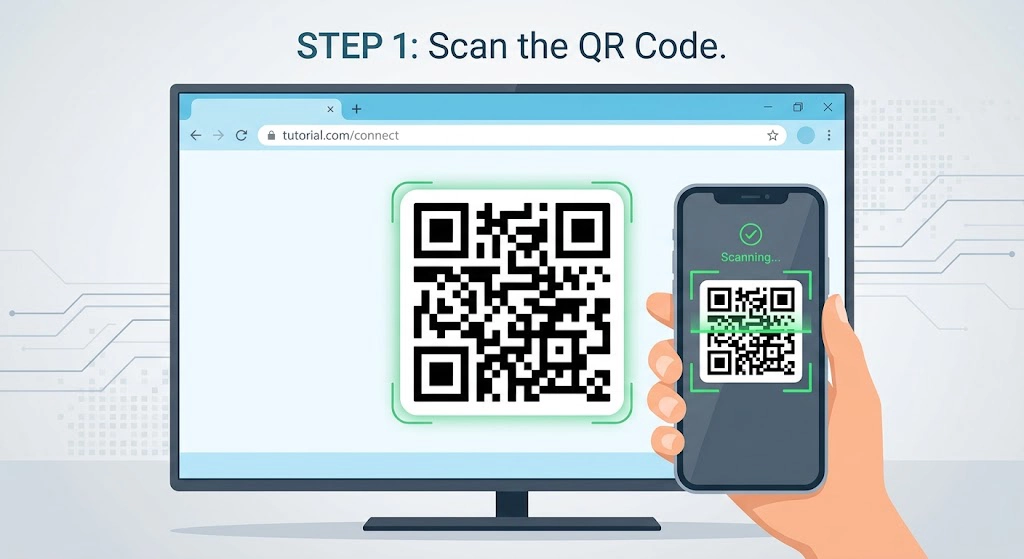
Open your TV’s browser and go to web.telegram.org. A QR code appears on screen. On your phone, open Telegram, go to Settings, then Devices, then Link Desktop Device, and scan the code. Your chats load directly in the browser within a few seconds.
Limitations of the Browser Version
This method trades convenience for capability. Navigating with a TV remote inside a browser built for a mouse and keyboard is not fun, and some smart TV browsers (particularly older Samsung and LG models) don’t render the interface correctly at all. Treat this as a fallback for checking a message quickly, not a daily driver.
Telegram on Apple TV and Fire TV
Apple’s ecosystem and Amazon’s Fire TV line work differently enough from standard Android TV that they deserve their own section. Neither platform gets Telegram support handed to it for free, but the reasons why, and the workarounds that actually hold up, aren’t the same for both. Apple’s tighter grip on tvOS rules out sideloading entirely, while Fire TV’s Android roots leave that door open, just with more inconsistency depending on which generation of device you own.
Apple TV Options
Apple TV has no first party Telegram support either, and Apple’s tvOS is more locked down than Android TV, so sideloading isn’t an option here the way it is on Android. Your realistic choices are the paid TV for Telegram app mentioned earlier, or AirPlay mirroring from an iPhone.
Fire TV Workarounds
Amazon Fire TV runs a forked version of Android, which technically allows sideloading through Downloader the same way standard Android TV does, though success varies more by device generation. Older Fire TV Stick models with limited RAM tend to struggle with Telegram’s interface more than newer Fire TV Cube or Fire TV Stick 4K devices.
Comparing Your Options at a Glance
| Method | Setup Time | Full App Access | Best For |
|---|---|---|---|
| Sideload official APK | 10 to 15 min | Yes | Heavy Telegram users who want the real app |
| Chromecast a single video | Under 1 min | No, video only | Watching one video from a chat or channel |
| Screen mirroring (Miracast/AirPlay) | 1 to 2 min | Yes | Occasional viewing without installing anything |
| Telegram Web in TV browser | 2 min | Mostly | Quick checks, no phone needed nearby |
| Third party client (Tevegram, TV for Telegram) | 5 min | Yes, TV optimized | Users who want a remote friendly interface long term |
Is It Safe to Use Unofficial Telegram TV Apps?
This question comes up constantly, and it deserves a straight answer instead of a vague one. Official APKs downloaded directly from telegram.org carry the same security profile as the app you’d get from the Play Store, since it’s the same code. Third party clients like Tevegram are a different situation entirely. They are not built or maintained by Telegram FZ-LLC, which means bugs, outages, or account issues fall entirely on the third party developer to fix, not Telegram support.
Before installing any unofficial client, check three things: whether it asks for your Telegram API credentials directly (a legitimate client should authenticate through Telegram’s own login flow, not a custom one), what permissions it requests on install, and how recently it was last updated. An app that hasn’t been updated in over a year is a bigger risk than the app itself might suggest, since unpatched apps age poorly against platform changes.
An outdated third party client will also completely fail to support New Telegram Features and might crash when a friend sends you a recently introduced media format.
FAQ
Is there an official Telegram app for Android TV?
No. Telegram has not released a dedicated Android TV app as of 2026. The closest official option is casting videos to a TV through the mobile app’s built in Chromecast feature.
How do I cast a Telegram video to my TV?
Open the video inside any chat or channel, tap the settings icon in the top corner of the video player, select Chromecast, and choose your TV from the list.
Can I use Telegram on Fire TV?
Yes, through sideloading with the Downloader app, the same method used on standard Android TV devices. Results vary depending on how much RAM your Fire TV model has.
Is Tevegram safe to use?
It functions as advertised for browsing and chatting, but multiple users have reported billing issues with its subscription model. Read recent reviews before purchasing, and avoid clearing app data after paying, since that has caused some users to lose access to their purchase.
Do I need a Google account to sideload Telegram on Android TV?
You need a Google account to use the Play Store on the device (for installing the Downloader app), but Telegram itself only requires a phone number or a QR code scan to log in.
Why does Telegram look strange or cut off on my TV browser?
Some smart TV browsers, especially on older Samsung and LG models, don’t fully support the responsive layout Telegram Web uses. Sideloading or screen mirroring will look correct where the browser version doesn’t.
Can I make voice or video calls on Telegram for TV?
You should manage your expectations regarding voice and video calls. Most smart televisions lack integrated microphones and webcams entirely. Even if you plug external accessories into your television the operating system rarely grants sideloaded applications the necessary hardware permissions to use them properly.
Final Thoughts: Telegram on Android TV
Getting Telegram on Android TV isn’t a single answer, it depends entirely on what you’re actually trying to do. If you just want to watch one video from a group chat on the big screen, Telegram’s own Chromecast button handles that in under a minute with zero installation. If you want the full chat experience with a remote in hand, sideloading the real APK or trying a dedicated client like Tevegram makes more sense, as long as you go in aware of the tradeoffs each one carries. For a quick, no commitment option, Telegram Web in your TV’s browser will get the job done in a pinch, even if it’s not the smoothest experience available.
Getting your chats running smoothly on a large living room display is just one excellent step toward Mastering Telegram and customizing the application to fit your exact daily routine. If you run into any installation issues or need further guidance our dedicated team is always ready to assist you directly through our support channel at @membertelsupport.










Leave a Reply