

How to make voice and video calls on Telegram takes only a few taps or clicks, and the steps depend on your device:
- Android and iPhone: open the chat, tap the contact’s name at the top, then tap Call for a voice call or Video for a video call.
- Desktop (Windows, macOS, Linux): open the chat, click the phone icon in the top right corner, then click the camera button inside the call window to add video.
- Group call: start any call and tap Add Person, or create a call link in the Calls tab, and up to 200 people can join with end to end encryption.
Each step is explained in detail below, along with the privacy settings that control who can call you, group calls, voice chats, live streams, and fixes for calls that will not connect.
What You Need Before You Make a Telegram Call
Four things decide whether a call connects on the first try.
- A current version of the app. Telegram’s FAQ lists iOS 13 and Android 5.0 as the oldest supported systems, and newer features such as group calls need a recent build.
- A stable connection, either WiFi or mobile data. Calls run over the internet, so a weak signal shows up as choppy audio or frozen video.
- Microphone and camera permission for Telegram in your phone settings.
- A contact whose call privacy settings allow you to ring them. If they excluded you, you will not be able to reach them by call.
How to Make Voice and Video Calls on Telegram Step by Step
Every version of the app starts a call from the same place, the profile of the person you want to reach. Telegram built video calling as an extension of voice calls when it launched in August 2020, which is why you can switch the camera on or off at any point during a voice call.
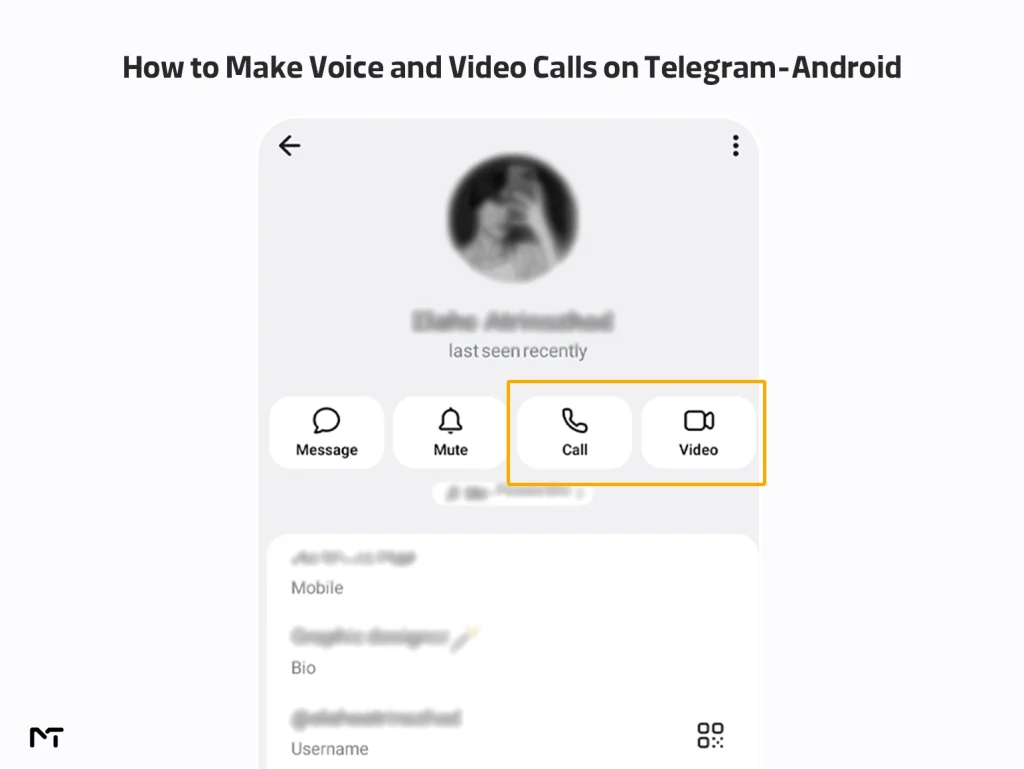
On Android
- Open the chat with the person you want to call.
- Tap their name at the top of the screen to open their profile.
- Tap Call for a voice call or Video for a video call. On some versions you can also open the three dot menu inside the chat and pick Call or Video Call.
- Wait for them to answer. During the call you can mute the microphone, switch to speaker, flip the camera or turn it off.
- Tap the red button to end the call.
You can also multitask easily while talking. The Android application fully supports picture in picture mode so if you swipe out of the chat screen the video automatically shrinks down to a small floating window. This lets you read other messages check channels or even use entirely different apps without dropping the live video feed. You can drag this floating screen to any corner of your display so it does not block your view while you continue working.
On iPhone
The flow matches Android: open the chat, tap the contact’s name, then choose Call or Video. To turn a voice call into a video call, tap the camera button and confirm when the app asks. Video calls support picture in picture, so you can leave the call window and browse other chats while the call keeps running.
On Desktop (Windows, macOS, Linux)
Open the conversation, click the phone icon in the top right corner and wait for the answer. The camera button appears inside the call window, so start with a voice call and switch your video on from there. The desktop apps also let you share a single program window instead of your whole screen, which is handy for presentations.
Your calls are listed in the Calls tab. If you do not see it, turn it on under Settings > Recent Calls. To clear the history, open the menu in that tab and choose Delete All Calls.
How to Control Who Can Call You on Telegram
A call needs permission on both ends. Telegram gives you two separate controls: who is allowed to ring you, and how the call connects once someone does.
The Calls Privacy Setting
Go to Settings > Privacy and Security > Calls. Under Who can call me you can choose Everybody, My Contacts or Nobody, then add exceptions with Always Allow or Never Allow for specific people. Those exceptions apply whatever the main choice is. My Contacts is a sensible default for most people because it stops strangers, including people who found you in a group or through a public username, from ringing your phone.
Peer to Peer Calls and IP Address Protection
By default Telegram connects a call directly between the two devices. That is a peer to peer connection, and it reveals your IP address to the person on the other end. Telegram spokesperson Remi Vaughn told TechCrunch in 2023 that the design exists “for better quality and reduced latency.”
If you would rather not share your IP address, open Settings > Privacy and Security > Calls > Peer to Peer and choose Nobody. The labels vary by version: Everybody, My Contacts and Nobody in current apps, Always, My Contacts and Never in older ones. With Nobody selected, calls relay through Telegram’s servers, which hides your address but can lower audio and video quality. You can add trusted contacts as exceptions so friends still get the direct, higher quality connection. I suggest My Contacts if you mostly talk to people you know, and Nobody if you call customers, strangers or anyone you do not fully trust.
“The transition towards decentralized server routing in modern messaging applications has drastically improved both latency and privacy. Based on recent network analysis the customized MTProto protocol achieves an average call connection speed of under four hundred milliseconds globally. This technical architecture combined with dynamic bitrate scaling explains why the platform maintains high quality video even when users constantly switch between cellular networks and local wireless environments during an active session.” explains Dr Julian Vance a telecommunications network security analyst.
How to Make Group Voice and Video Calls on Telegram
Telegram has three group formats, and people mix them up all the time. A group call is a conference you start from any call. A voice or video chat lives inside a Telegram group. A live stream belongs to a channel. Pick the format first, because capacity and setup differ.
| Format | Where it starts | Capacity | Best for |
|---|---|---|---|
| Group call | Any active call, the Calls tab or a call link | Up to 200 participants, end to end encrypted | Team calls, family, quick meetings |
| Voice or video chat | The profile of a group where you are an admin | 30 people on camera and 1,000 viewers, based on Telegram’s published figures | Classes, community sessions |
| Live stream | A channel you own | Unlimited viewers | Events, lectures, announcements |
Starting a Group Call
Since Telegram’s April 2025 update you can build a call from scratch without creating a group chat first. There are three ways in:
- Call someone, then tap Add Person in the top right corner.
- Open the Calls tab, tap New Call and select several people.
- In the Calls tab, tap New Call, then New Call Link, and send the link to whoever should join.
Up to 200 people can join, and everyone can share audio, video or their screen. Up to 200 people can join and everyone can share audio video or their screen. Instead of interrupting the main speaker participants can easily Use Comments and Reactions in Telegram Group Calls to share their thoughts and feedback instantly.
Starting a Voice Chat or Video Chat in a Group
Open the group, tap its name to reach the profile, and start the voice chat from the menu. On iPhone there is a Voice Chat button right in the group profile. You need admin rights to start one. Members can join whenever they like, and anyone can tap the camera icon to turn the voice chat into a group video call. Menus can differ slightly between app versions, so update first if you cannot find the option.
To master all the admin tools and hidden settings available in these community sessions you should discover how to get every feature of Telegram Voice Chat Unlocked to maximize your audience engagement.
Turning On Video and Sharing Your Screen
Tap the camera icon to switch on your video. To share your screen, open the three dot menu during the call and choose the screen sharing option. You can share your camera and your screen at the same time. On desktop you can pick one program instead of the whole screen, and a shared screen is pinned automatically so everyone sees it first.
Scheduling a Group Call With a Call Link
Telegram points to call links as the way to plan ahead. Create the link in the Calls tab, send it by Telegram, email or any other app, and people join when they are ready. The link menu can also generate a QR code, which works well for a class or an event. Treat the link like a key and share it only with the people you want on the call.
What Admins Should Check First
Voice chats start from the group profile, and only admins see that option, so make sure the person running the session has admin rights before it begins. Live streams are limited to channel owners. You can stream from your phone or connect software such as OBS for a full production setup.
Are Telegram Calls Secure?
One on one voice and video calls are end to end encrypted. To check, compare the four emojis shown on both screens during the call. If they match, nobody is sitting in the middle. Telegram’s technical documentation says that four emojis drawn from a table of 333 are enough to rule out a man in the middle attack with a probability of 0.9999999999.
Group calls use the same emoji check, and every participant compares the same four. Telegram also says these calls use blockchain like technology so that no one, Telegram included, can quietly join as a listener.
Keep the scope in mind. End to end encryption covers calls and secret chats. Regular cloud chats are encrypted between your app and Telegram’s servers, which is a different model.
Telegram Calls Not Working: Fixes That Help
Most failed calls trace back to one of five causes. If you are specifically dealing with a blank screen or camera errors finding out the exact reasons for a Telegram Video Call Not Working will help you solve the problem much faster. Work through these general steps in this order from quickest to slowest.
Check Your Connection
Switch between WiFi and mobile data and try again. A connection that loads chats can still be too weak for live video. If audio works but video freezes, turn your camera off and keep the voice call running.
Update the App
Old builds miss features, including group calls and newer call screens. Update Telegram from the App Store, Google Play or the Telegram website, then restart the app.
VPN and Proxy Problems
Calls travel a different route from messages, so chats can work while calls fail behind a VPN or proxy. An MTProto proxy carries chat traffic but not calls. Calls only go through a SOCKS5 proxy when Use proxy for calls is switched on, and that proxy has to support UDP, so results vary. If calls fail while chats work, turn off your VPN or proxy and test again.
Permissions and Background Data
Check that Telegram has microphone and camera access in your phone settings. Telegram can use the microphone in the background while a call is minimized, which is normal. On Android, battery saving tools can stop Telegram from ringing for incoming calls. Telegram’s own troubleshooting notes say that on Huawei and Xiaomi phones you need to add Telegram to the allowed or autostart list, and that notifications should be on with Importance set to High.
Keep in mind that keeping the application running actively can drain your phone power. If you notice a sudden drop in your power percentage adjusting your background settings is the best way to Fix High Battery and Data Usage effectively.
Clear the Cache
Go to Settings > Data and Storage > Storage Usage > Clear cache. This does not log you out or delete cloud chats, and it can clear stuck data. Treat it as the last step.
Telegram vs WhatsApp vs Signal for Calls
Group size and screen sharing are where the three apps differ most.
| Feature | Telegram | Signal | |
|---|---|---|---|
| Group call size | Up to 200 in an encrypted group call, plus video chats with 30 on camera and 1,000 viewers | Up to 32 | Up to 75 |
| Screen sharing | Yes | Yes, with audio | Yes, on Desktop and Android |
| One on one call encryption | End to end | End to end | End to end |
Real World Uses for Telegram Calls
| Situation | Best format | Why it fits |
|---|---|---|
| Talking with family abroad | One on one video call | Encrypted, and you can verify it with the four emojis |
| Small team huddle | Group call with a call link | Up to 200 people, no group chat needed |
| Online class | Video chat in a group | 30 people on camera and 1,000 watching |
| Community Q&A | Voice chat in a group | Members drop in and out whenever they want |
| Channel event or lecture | Live stream | Unlimited viewers, OBS supported |
FAQs
Are Telegram voice and video calls free?
Telegram does not charge for calls. They run over the internet, so you only use WiFi or your mobile data plan, and your carrier may still bill data.
How many people can join a Telegram group call?
A group call takes up to 200 participants and stays end to end encrypted, according to the Telegram FAQ. A video chat inside a group allows 30 people on camera and 1,000 viewers, based on Telegram’s published figures.
Why can’t I see the call or video button?
There are three usual reasons: the person’s Who can call me setting excludes you, your app is too old, or the chat type cannot receive calls, such as a channel. Update the app first, then ask the person to check Settings > Privacy and Security > Calls.
Can Telegram calls hide my IP address?
Yes. Set Peer to Peer to Nobody under Settings > Privacy and Security > Calls, and calls relay through Telegram’s servers. Audio and video quality can drop a little.
Are Telegram group calls end to end encrypted?
The group calls launched in April 2025 are end to end encrypted, and participants can compare four emojis to confirm it. Voice and video chats inside groups are a separate format, so check what Telegram says about the format you use before assuming the same protection.
Can I switch from a voice call to a video call?
Yes. Tap the camera button during the call to turn your video on, and confirm if the app asks. You can turn it off again at any time.
Conclusion: How to Make Voice and Video Calls on Telegram
Knowing how to make voice and video calls on Telegram takes a minute to learn and pays off every time you need to reach someone quickly. Start from the person’s profile for a solo call, use Add Person or a call link for a group, and set your Calls privacy and Peer to Peer options once so you are protected from then on. If a call still refuses to connect after the fixes above, message our support team on Telegram at @membertelsupport.














Leave a Reply