

If you want to know how to stop auto add group in Telegram, the short answer is a single setting called Invites. Open Settings, tap Privacy and Security, tap Invites, and change Who can add me from Everybody to My Contacts. From that moment only people saved in your contacts can put you into a group or channel. Below you will find the exact steps for Android and iPhone, a way to keep one pushy contact out, what this setting cannot block, and what to do if a spam group has already added you.
Why Telegram Adds You to Groups Without Asking
Out of the box, Telegram lets any user add you to a group or channel as long as they can find you. Finding you takes very little. Your number saved in their phone, your public username, or your name in the member list of a public group you both belong to is enough.
Telegram’s own FAQ describes a platform with more than a billion active users and groups that can hold up to 200,000 members. At that scale, adding strangers in bulk is cheap for anyone promoting a crypto call channel, a giveaway or a “guaranteed returns” signal room. Scripts built for exactly this job are freely available on code sharing sites, and even their documentation warns that accounts adding too many people get banned. That says a lot about how common the practice is.
Kaspersky’s Telegram privacy walkthrough for Android puts this setting among the first ones to change, and I agree with that order. It takes under a minute and removes the most common way people end up in groups they never wanted.
Telegram itself describes the Invites screen as a way to restrict who can add you to groups and channels with granular precision, and that is a fair summary of how much control you really have.
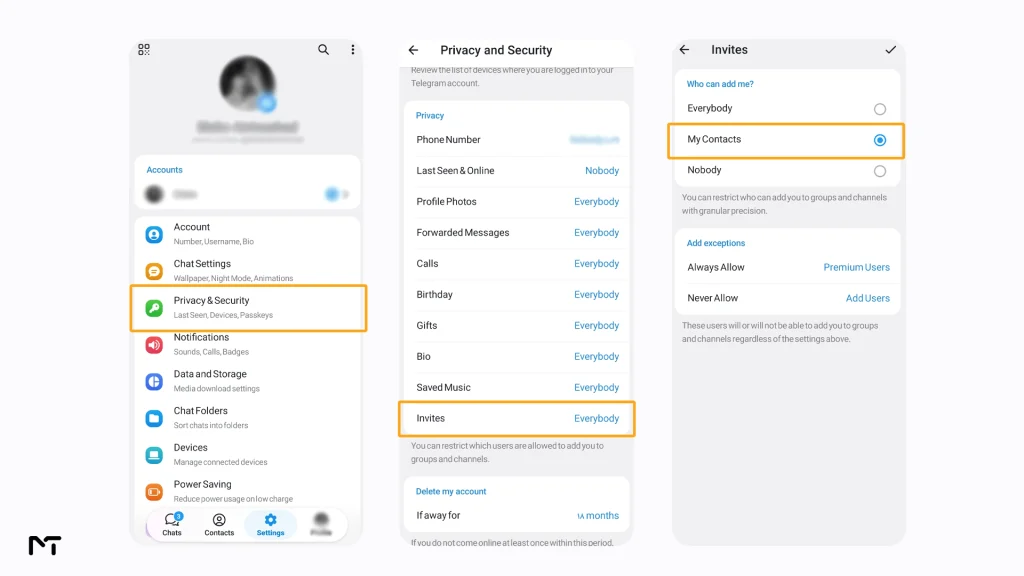
How to Stop Auto Add Group in Telegram on Android
- Open Telegram and tap Settings in the bottom bar.
- Tap Privacy & Security.
- In the Privacy section, scroll down and tap Invites. The value on the right shows who can add you right now, which is usually Everybody.
- Under Who can add me?, choose My Contacts.
- Tap the checkmark in the top right corner to save.
The same screen has an exceptions area below the three options, which we will use in a moment.
How to Stop Auto Add Group in Telegram on iPhone
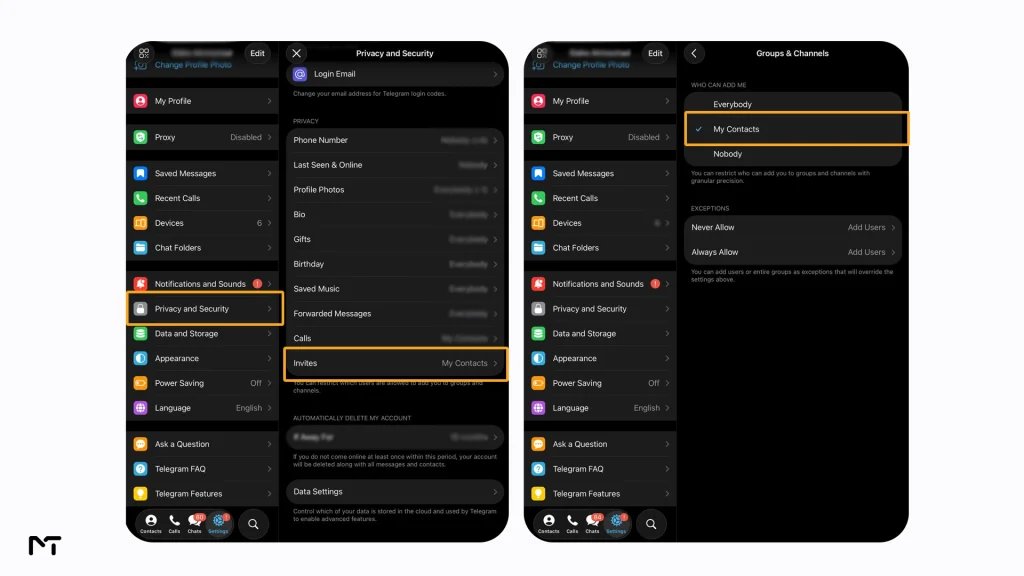
- Open Telegram and tap Settings in the bottom bar.
- Tap Privacy and Security.
- In the Privacy section, scroll down and tap Invites.
- On the next screen, which is titled Groups & Channels, select My Contacts under Who can add me. A checkmark appears next to your choice and it is saved right away.
A quick way to check that it worked is to ask someone who is not in your contacts to try adding you to a test group. If the setting is doing its job, they should not be able to add you directly and will usually be offered the option to send you an invite link instead.
How to Stop Auto Add Group in Telegram on Desktop
On a computer the setting lives in the same place as on your phone. Open Telegram Desktop, click the three lines in the top left corner and choose Settings. Go to Privacy and Security, open Invites (some versions call it Groups and Channels) and select My Contacts under Who can add me. The choice is stored on your account, so it applies on your phone and on every other device you are logged in on as well.
Pick the Right Option: Everybody, My Contacts or Nobody
| Option | Who can add you directly | When it makes sense |
|---|---|---|
| Everybody | Anyone who can find your account | Public figures and brands that actually want open invitations |
| My Contacts | Only people saved in your phone contacts | The right balance for almost everyone |
| Nobody | No one can add you directly | Maximum privacy, but you will join groups only through links you choose to open |
Nobody is the strictest choice and works well if you never want to be added to anything. The catch is that even real friends will have to send you an invite link. For most people My Contacts is the better balance, and the exceptions below let you fine tune it.
How to Stop People From Adding You to Telegram Groups One Person at a Time
Sometimes the problem is not strangers but one friend who creates a group for every small occasion and adds you to all of them. Setting My Contacts will not help there, because that friend is in your contacts.
Go back to the Invites screen and look at the exceptions area under the three main options. Tap Never Allow, choose the contact, or pick a whole group of people, and save. Everyone else in your contacts can still add you, and the person you chose can still message you normally. It is a softer step than blocking.
The opposite tool is Always Allow. It is handy for a colleague or a family member who is not saved in your phone but whom you do want to be able to add you. Look at this row on your own phone before you rely on the setting, because anyone you list here can add you even when My Contacts is selected. On Android the row may already show Premium Users, so open it and check what is listed.
If someone keeps pushing after that, the issue has stopped being about group invites. At that point it makes sense to block someone on Telegram altogether, which also removes their ability to add you.you.
What This Setting Does Not Stop
I would rather tell you the limits now than let you find them by accident.
- It only affects new additions. Groups you were added to before changing the setting stay on your chat list until you leave them.
- Anyone can still send you an invite link in a private message or paste one into a chat. Nothing happens unless you tap it.
- Bots and accounts that message you directly can still do so. The setting controls group and channel additions, not who can start a conversation.
- Public groups and channels you join yourself are not affected, and neither is anything you open through a link.
- Contacts you have saved can still add you unless you put them on the Never Allow list.
If a person who is on your Always Allow list or in your contacts keeps adding you, check those two lists first. That is the explanation in most cases where the setting seems to have failed.
Already Added to a Spam Group? Do This Right Now
Most of the groups that arrive uninvited follow a pattern. They promise fixed returns, push a private signal room, talk about a deposit that “already cleared” or ask you to message an admin. Treat all of that as a warning, however busy the chat looks.
- Do not tap links, reply to the admin or join a voice chat. Curiosity is exactly what these groups are built around.
- Open the group info and tap Leave group. In a large group your exit is usually not announced, though small groups behave differently, so it helps to know how to leave a Telegram group without anyone noticing before you tap.
- Report the group as spam from the same menu so Telegram can review it. The exact wording changes slightly between versions.
- If you know who added you and they are a stranger, block them. If they keep bothering you from alternative numbers, you should report someone on Telegram
to ensure the platform restricts their account for spam behavior. - If you already shared a login code, installed something they sent or paid anyone, treat the account as exposed and secure it immediately by changing your two step verification password and checking your active sessions.
After that, go back and apply the setting from the steps above so it does not happen again next week.
Shut the Door at the Source: Phone Number and Username
People add you because they can find you, so reduce how easy that is. In Privacy and Security, open **Phone Number**. When you hide your phone number on Telegram from people outside your contacts, Telegram shows a second option that controls who can find your account by searching your number. Set that one to My Contacts as well. Your username is different. It is public by design, which means anyone can search it. If you rely on it for business, keep it and lean on the group setting for protection. If you do not need it, removing it closes one more route.
Who Benefits Most From This Setting
Everyday users. Fewer random groups means fewer notification badges and fewer messages from strangers who now know your name.
Channel owners and marketers. If you run a public channel or sit in busy promotion groups, your username is visible to people who scrape member lists. You are exactly who crypto and giveaway promoters target. There is also a lesson on the other side of the table: forcing people into your own group backfires through leaves, reports and account limits. Invite links and join requests grow a community that actually stays.
Parents. A child with a public username is easy to pull into groups they should not be in. This setting is one piece of a wider set of Telegram parental controls for kids that are worth reviewing together.
Traders and investors. Fake signal rooms and pump groups often use forced additions to look busy and trusted. A closed door here removes the first step of the pitch. If you still end up in one of these rooms through a forwarded message, knowing how to spot a fake or scam forex signals channel will help you recognize the red flags before you risk any money.
Which Fix Does What
| Fix | What it stops | How long it lasts | Best for |
|---|---|---|---|
| Who can add me set to My Contacts | New additions from strangers | Until you change it | Everyone |
| Never Allow | Additions from one chosen person or group | Until you remove them | The friend who adds you to everything |
| Block | All contact, including additions | Until you unblock | Harassment and spam accounts |
| Leave and Report | One group you were already added to | Per group | Dealing with the damage after the fact |
| Hide phone number and number search | Being found by your number | Until you change it | Cutting the source of the problem |
Frequently Asked Questions
Will changing the setting remove me from groups I am already in?
No. It applies to new additions only. Leave the old groups manually from the group info screen.
Why was I still added after I chose My Contacts?
Usually because the person is saved in your contacts, appears on your Always Allow list, or has Telegram Premium while Premium Users is listed under Always Allow. It can also happen if you joined through a link yourself. Check the exceptions area first.
Does this also cover channels?
Yes. The Invites setting controls both groups and channels, which is why the iPhone screen is titled Groups & Channels.
Do I need Telegram Premium to use it?
No. The setting is available to every account at no cost.
Is it safe to leave a spam group?
Yes, and it is usually the best move. Leave without replying, report it and do not open the links inside.
Is the process different on Android and iPhone?
The logic is the same and the differences are small. On Android you save with the checkmark at the top, on iPhone your choice is saved as soon as you tap it, and the exceptions appear in a different order.
Can someone still invite me to a group after I restrict it?
They can send you an invite link, but nothing happens unless you open it. That keeps the decision in your hands.
Final Thoughts on How to Stop Auto Add Group in Telegram
Knowing how to stop auto add group in Telegram comes down to one setting and about a minute of your time. Change Who can add me to My Contacts, use Never Allow for the one person who ignores the rules, tighten your phone number visibility, and leave and report any spam group that slipped in before you made the change. If a screen on your phone looks different from the steps above, message @membertelsupport on Telegram and we will help you find the right option.














Leave a Reply