
The Telegram AI text editor is a tool built into the message bar that fixes your grammar, rewrites a message in a different tone, or translates it. To use it, type more than three lines in any chat and tap the Ai icon above the Send arrow. Nothing to copy out, nothing to paste back. Since May 2026 you can also write your own styles from a prompt and share them with a link.
A lot of posts about this feature stop at “tap the icon,” which skips the parts that actually trip people up: the icon that never shows up, the mix up with the Rich Text Editor, and how to write a custom style that sounds like you instead of like a template. This guide follows Telegram’s own announcements from March 31 and May 7, 2026, and where I couldn’t confirm something, I’ll tell you plainly.
What the Telegram AI Text Editor Does
Telegram introduced the editor in its March 31, 2026 update, and it handles three jobs. It fixes your grammar, it rewrites your text in another style, and it translates your message into another language. Telegram says the processing runs on Cocoon, its decentralized network built with privacy in mind.
| Job | What it does | When it helps |
|---|---|---|
| Fix | Cleans up the grammar in your draft | A long message you typed in a rush |
| Style | Rewrites the same message in a chosen tone | One announcement for two different audiences |
| Translate | Converts the message into another language, with or without a style | Writing to members who speak something else |
In real life you’ll probably reach for it in three moments. You wrote a long update on your phone with one thumb and it reads rough. You need the same news to sound friendly in one chat and formal in another. Or you’re writing to someone in a language you only half speak. That’s the whole pitch, and honestly it’s a decent one. You should also remember that this specific tool only edits what you have already typed. If you actually want an assistant to generate ideas for you or answer questions from scratch you are better off setting up one of the top Telegram Bots for AI Chat instead.
If the rewrite sounds nothing like you or completely misses the point you are not stuck with it. Telegram keeps your original draft safely in the background. You can simply tap the original text preview right above the input box to undo the changes instantly. Just make sure to read the new version carefully because once you hit send there is no way to automatically revert the message in the chat.
How to Open the Telegram AI Text Editor
Telegram describes the trigger in one sentence: type more than three lines and the icon shows up. Here’s the full path.
- Update Telegram from the App Store, Google Play, or the desktop app first.
- Open any chat, group, or channel where you’re allowed to post.
- Start typing and keep going until your message runs past three lines.
- Look just above the Send arrow. A small Ai icon appears there.
- Tap it and the editor opens, ready for a fix, a style, or a translation.
If you work on desktop, Telegram Desktop’s changelog lists custom AI styles in version 6.8.0, dated May 7, 2026, so aim for that version or newer.
Why You Can’t See the Ai Icon
Nine times out of ten, the icon isn’t broken, it’s just waiting for you to write more. Here’s what to check, roughly in the order I’d check it.
| What’s going on | What to do |
|---|---|
| Your message is three lines or shorter | Keep typing. The icon needs more than three lines |
| Your app is out of date | Update Telegram, then reopen the chat |
| You’re looking for the wrong icon | The expand icon belongs to the Rich Text Editor, a separate tool |
| You use an unofficial Telegram app | Third party apps may not include the feature, so try the official one |
AI Icon Troubleshooting Checklist
- ✓ Did you type more than three lines?
- ✓ Is your internet connection stable?
- ✓ Are you sure you are not in a Secret Chat?
- ✓ Is your Telegram app updated to the latest version?
One more question comes up a lot: do you need Premium? Telegram’s announcements don’t list a Premium requirement for the AI editor, while they do say the Rich Text Editor is for Premium users only. Plans and limits can change after launch, though, so if something in your own app looks locked, trust what your screen shows over any guide, this one included.
You also need a stable internet connection for the editor to function. Since the heavy lifting happens on external servers trying to rewrite a message while offline in a subway will just leave you staring at a loading screen. If your connection drops the tool simply cannot reach the network to generate the new text.
The Built In Styles Explained
Telegram ships seven styles with the editor: Formal, Short, Tribal, Corp, Zen, Biblical, and Viking. Some are meant to be useful and some are clearly there for a laugh. Here’s how I’d sort them.
| Style | Good for | Skip it when |
|---|---|---|
| Formal | Official notices, messages to people you don’t know well | The chat is casual and a stiff tone would feel odd |
| Short | Quick updates, trimming a rambling draft | The details matter and cutting would lose them |
| Corp | A message to a business contact | You want to sound like a human being |
| Zen | A calm reply when a chat is getting heated | The message needs urgency |
| Tribal, Biblical, Viking | Jokes in friendly groups | Anything serious, anything with money or rules in it |
Fair warning: I’d test any style on a throwaway message before it goes near a channel with real members. The names tell you the mood, but you only know what a style does to your wording once you’ve seen it on your own text.
Translate and Style at the Same Time
Telegram says the Telegram AI text editor lets you add a style while translating, which is more useful than it sounds. Say you run a community with a lot of European members and you want your rule reminder in German, but polite instead of blunt. You write it in English, choose the translation, add the Formal style, and send.
Here’s the catch. Machine translation slips on idioms, product names, and numbers. If you manage a community in a language you don’t speak, have a native speaker read your important announcements once, even if it’s a friend who has two minutes. A rule reminder that accidentally sounds rude in another language is a bad way to start a week.
How to Create Custom AI Styles in Telegram
Custom styles came with the May 7, 2026 update, and the idea is simple: instead of picking from Telegram’s seven, you write your own instructions and the editor follows them. Telegram pitched it for teams that want consistent posts and promotions, and for communities that want a meme style of their own.
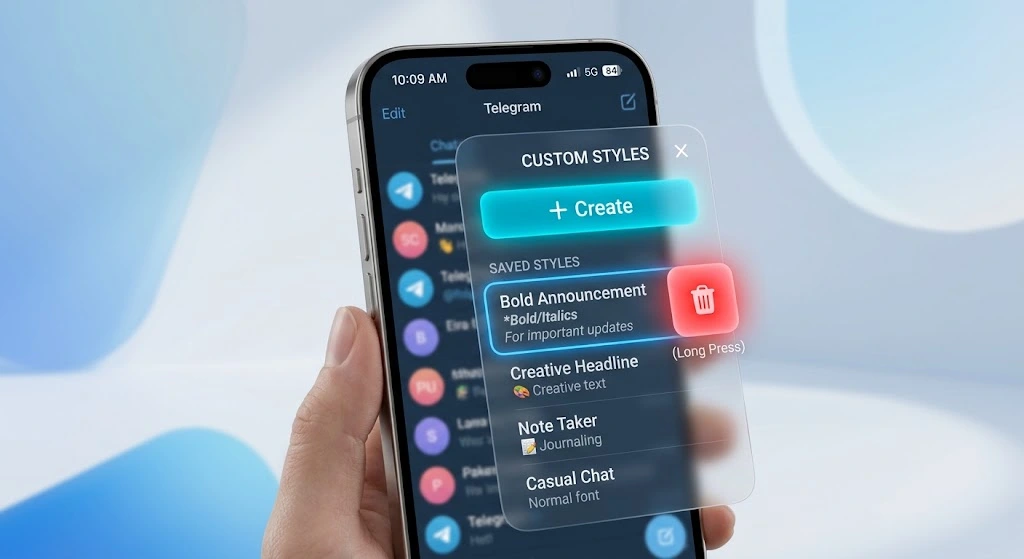
- Type a message longer than three lines and tap the Ai icon to open the editor.
- Open the Style tab.
- Tap Create, which Telegram marks with a plus button.
- Write your prompt, a plain description of how text should be rewritten.
- Save it and the style is available in your editor.
Every custom style gets its own shareable link, which matters more than the creation steps, and I’ll come back to it below.
Creating these styles is useful but your menu will eventually get cluttered with prompts you no longer need. Cleaning them up is very easy. Open the editor and go back to the Style tab then press and hold on any custom style you created. A delete button will appear allowing you to clear it out immediately.
Prompt Ideas for Channel Admins
A good prompt works like a short brief for a new team member. It says who the reader is, what the tone should be, what has to stay untouched, and how long the result should be. A few habits make a real difference:
- Give each style one job. A style that tries to be friendly, formal, and short all at once will be none of them.
- Tell it what to keep. Numbers, dates, links, names, and hashtags should stay exactly as you wrote them.
- Set a length. Two sentences and ten sentences are very different results.
- Say what to avoid, such as hype words or too many emojis.
The Perfect Prompt Formula
To get the best results every single time combine these four elements into one clear sentence.
For example tell the editor who it is acting as what you want it to do what it must not touch and how it should sound.
Here are four prompts you can steal and adjust.
Brand voice: Rewrite this message in a warm, direct voice, like a helpful admin talking to regular members. Keep every number, date, and link exactly as written. Use short sentences and no more than one emoji.
Promo post: Turn this into a short promotional post for a Telegram channel. Lead with the benefit, keep the offer details unchanged, and finish with one clear call to action. No hype words.
News update: Rewrite this as a three sentence news update. Neutral tone, no opinions, and keep all names and figures unchanged.
Support reply: Rewrite this as a polite customer support reply. Acknowledge the problem first, give the fix in clear steps, and keep the tone calm.
How to Share and Add a Style From a Link
Telegram gives each custom style a link. Anyone who opens it can preview the style by generating examples, and if they like what they see they can add it to their own editor right away. For a team, that means one person writes and fine tunes the prompt, drops the link in the admin chat, and everyone posts in the same voice. When the prompt needs a tweak, you fix it once instead of explaining it to five people.
Using Custom Styles to Standardize Channel Posts
Consistency is the boring superpower of good channels. Readers notice when one admin writes like a friend and another writes like a legal notice, even if they can’t say why. A shared style in the Telegram AI text editor fixes that without a style guide nobody reads.
Marcus Vance a community manager who oversees digital support groups for software companies noticed a massive shift during the initial rollout. He mentioned that once his team built a custom prompt enforcing a limit of fifty words and a neutral tone they saw a thirty percent drop in user complaints about confusing announcements. For his team the true value was not fixing typos but standardizing the collective voice of twelve different moderators working across various time zones.
| Who | Style idea | Watch out for |
|---|---|---|
| Channel admin | A daily recap in one steady voice | The editor changing a figure while it rewrites |
| Small support team | Calm, clear replies | Tone drifting too formal |
| Community with inside jokes | A meme style shared by link | Members using it on serious announcements |
| Freelancer | Translate and polish client updates | Idioms that don’t survive translation |
If your channel posts prices, signals, dates, or anything people act on, read the rewrite against the original before you hit Send. Tell the style to keep numbers unchanged, and then check anyway. An AI rewrite is a helper, not a proofreader you can switch your brain off for.
It also helps to remember how fast this area moves. Telegram says it shipped more than 75 features across 13 major updates in 2025, roughly one release every 26 days. That pace is exactly why guides go stale, and why I’d recheck any step against your own app before you rely on it.
Is the Telegram AI Text Editor Private?
Telegram says every request runs on Cocoon in a confidential environment, with “zero access” to user data. They base this confidence on how Telegram Cocoon distributes the processing work across random nodes instead of holding your words in one central database. That’s Telegram’s claim and I can’t audit it for you, so treat it as a promise, not a guarantee. My own rule for any writing tool applies here too: don’t paste passwords, recovery phrases, or private client details into it. For everyday channel posts and replies, that rule costs you nothing.
There is one major exception to keep in mind which is Secret Chats. Because the editor requires a connection to the Cocoon network to process your words Telegram disables the feature completely in fully encrypted conversations. You will never see the Ai icon in a Secret Chat no matter how many lines you type.
Telegram AI Text Editor vs Rich Text Editor
Both tools show up after you type more than three lines, which is exactly why people mix them up. They do different jobs. If your goal is to publish long form articles with proper formatting like bold headers and clean lists you should learn how to use the Telegram Rich Text Editor because the simple AI icon will not help you format anything.
| AI Text Editor | Rich Text Editor | |
|---|---|---|
| Icon | Ai, above the Send arrow | Expand icon (⛶) |
| Launched | March 31, 2026 | July 14, 2026 |
| Main job | Fix, restyle, and translate your words | Format long posts with headings, tables, lists, quotes, and code blocks |
| Premium | Not listed as required in Telegram’s announcement | Premium only, per Telegram |
| Message length | Not stated | Up to 32,768 characters |
To add to the confusion, the Rich Text Editor has its own Cocoon powered AI tools that generate text, formulas, and tables. So you’ll find AI inside both, but the Ai icon is the one that rewrites what you already wrote.
Telegram AI Text Editor FAQ
These are the questions I’d expect most readers to land here with.
Why can’t I see the Ai icon in Telegram?
The most common reason is length. The icon appears only after you type more than three lines. If that’s not it, update the app, and make sure you’re not looking for the expand icon, which belongs to the Rich Text Editor.
Can I create my own style in the Telegram AI text editor?
Yes, since the May 7, 2026 update. Open the editor, go to the Style tab, tap Create, and write your prompt. Each custom style gets a link you can share.
Is the Telegram AI text editor private?
Telegram says requests are processed on its Cocoon network with zero access to user data. Still, avoid pasting passwords or sensitive details into any editor.
Does the Telegram AI text editor work on desktop?
Telegram Desktop’s changelog lists custom AI styles in version 6.8.0, dated May 7, 2026, so update to that version or newer.
Can I translate a message and use a style together?
Yes. Telegram says you can add a style while translating, so you can send a message in another language and still control the tone.
Final Thoughts on the Telegram AI Text Editor
The Telegram AI text editor won’t write your channel for you, and it shouldn’t. What it does well is take the rough draft you already typed and make it cleaner, calmer, or shorter in two taps, and custom styles let a whole admin team sound like one person. Try a style on a throwaway message first, read the result before you post, and keep your prompts short and specific. While this built in tool is perfect for quick daily fixes it is only a small piece of the puzzle.
If you are trying to upgrade your entire channel management strategy exploring all the new Telegram AI Features will give you a massive advantage over standard communities. Thanks for reading all the way down, I know it was a long one. And if you run a channel and want a second pair of eyes on your setup, message @membertelsupport on Telegram.














Leave a Reply