

The best Telegram bots for Trello, Gmail and Google Drive integration are @trello_bot for task management, @GmailBot for email notifications, and a Google Drive upload bot paired with a light automation setup for file handling, since Telegram does not currently offer one single official bot that connects all three tools at once.
If you manage a busy Telegram channel, a client project, or a small team, you already know the real cost of switching between four or five apps just to check a task, read an email, or grab a file. This guide walks through the exact bots that work today, how to connect each one properly, and what to expect once they are running, including the parts that other guides tend to gloss over.
Best Telegram Bot for Trello Integration: @trello_bot
@trello_bot is built on the Integram platform, an open framework designed specifically to connect third party services to Telegram through the official Bot API. To start, open a chat with @trello_bot and send the /start command. The bot will reply with an authorization link that connects your Trello account through OAuth, so you never share your Trello password directly with the bot.
Once connected, the bot can:
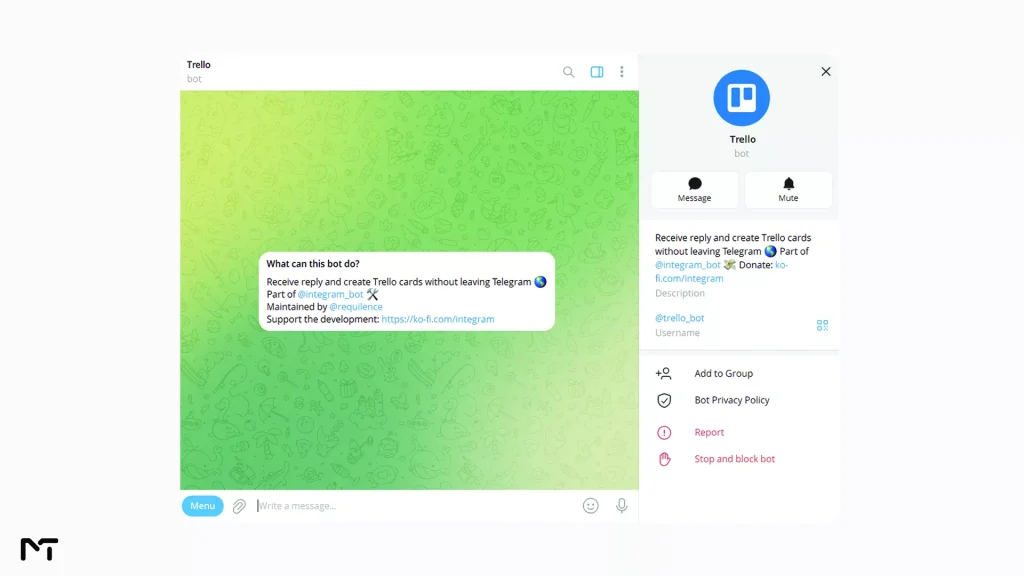
- Send you a message whenever a card is created, moved, or commented on
- Let you create a new card by typing directly in the chat
- Search existing cards using an inline query, so you can type @trello_bot followed by a card title in any chat
- Work inside group chats, which is useful if your team already coordinates through a Telegram group
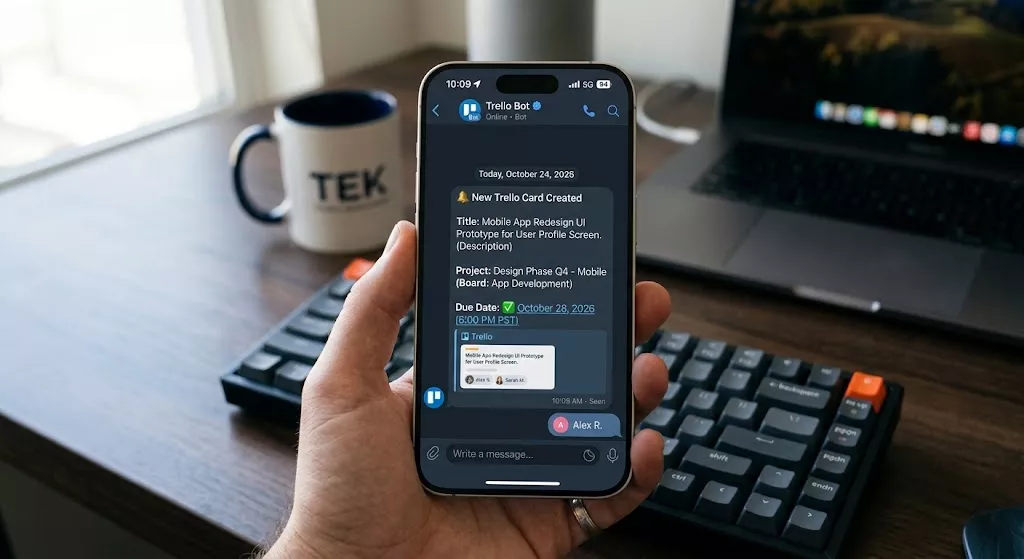
The main limitation is that some advanced Trello actions, like changing board level permissions, still require opening the Trello app itself. For day to day card tracking and quick updates, though, the bot covers most of what a small team actually needs.
If setting up an entire board feels like too much work for a simple project you might prefer using native Telegram checklists for team and personal tasks to keep track of daily duties right inside your chat.
Best Telegram Bot for Gmail Integration: @GmailBot
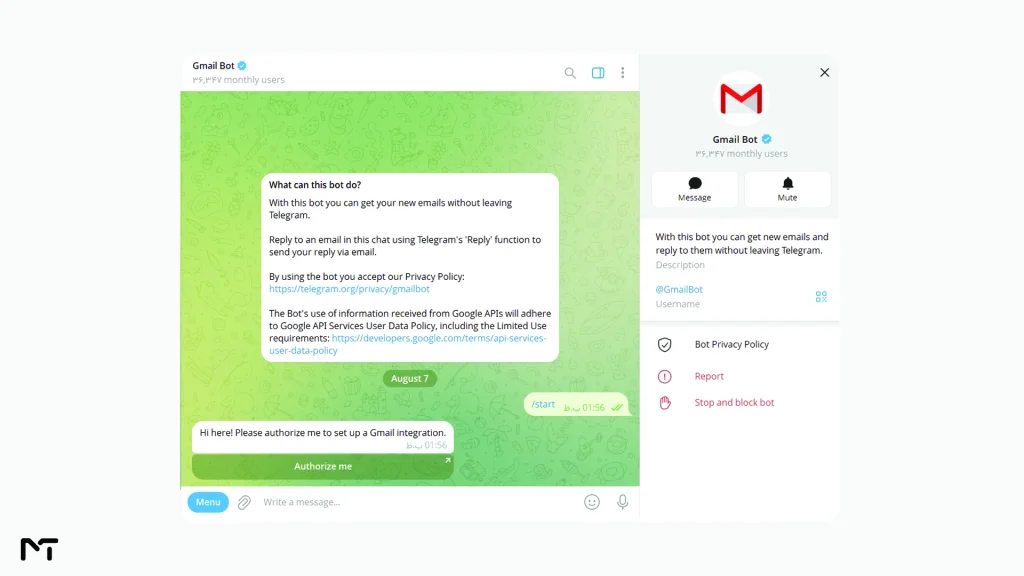
@GmailBot is an official Telegram bot, built and maintained under Telegram’s own privacy policy for Gmail integration. It lets you receive new emails as Telegram messages and reply to them using Telegram’s normal reply function, without opening a browser tab or a separate mail app.
To set it up, message @GmailBot and follow the authorization prompt, which uses Google’s standard sign in flow rather than asking for your password directly. You can then use the /settings command to filter which emails actually reach you, since forwarding every single email into Telegram gets noisy fast.
One honest point worth mentioning: a number of long time users have reported that new email notifications occasionally stop arriving after several days of continuous use, requiring you to reconnect the account to start working again. This is not a dealbreaker for most people, but it is worth knowing before you rely on it for anything time sensitive, like client replies.
If you find that the official tool drops too many important messages you can build a highly reliable alternative using a platform like Make or Zapier. By setting up a custom bot through the official BotFather tool you can forward new emails to your chat automatically. This custom route takes a bit more effort to build but it bypasses the official integration completely and guarantees your notifications arrive on time.
How to Sync Google Drive with Telegram
Unlike Trello and Gmail, Google Drive does not have one dominant, official Telegram bot that everyone recommends. Instead, you have two realistic paths depending on what you actually need.
If you mainly want to save files that arrive in Telegram straight to Drive, a dedicated upload bot works well. These bots let you forward a document, photo, or video to the bot, then automatically place it in a specified Drive folder using your own Google account connection.
If your daily work involves handling compressed client assets it is highly recommended to set up a dedicated Telegram bot to receive ZIP files so they can be processed and pushed to your drive automatically.
Before choosing your method you must keep the file size limits of the platform in mind. Standard accounts can only upload files up to two gigabytes while Premium users can send up to four gigabytes per document. If your daily workflow involves heavy video assets or massive zip archives you will need to upload those directly to Drive since any Telegram upload bot will simply fail to process them.
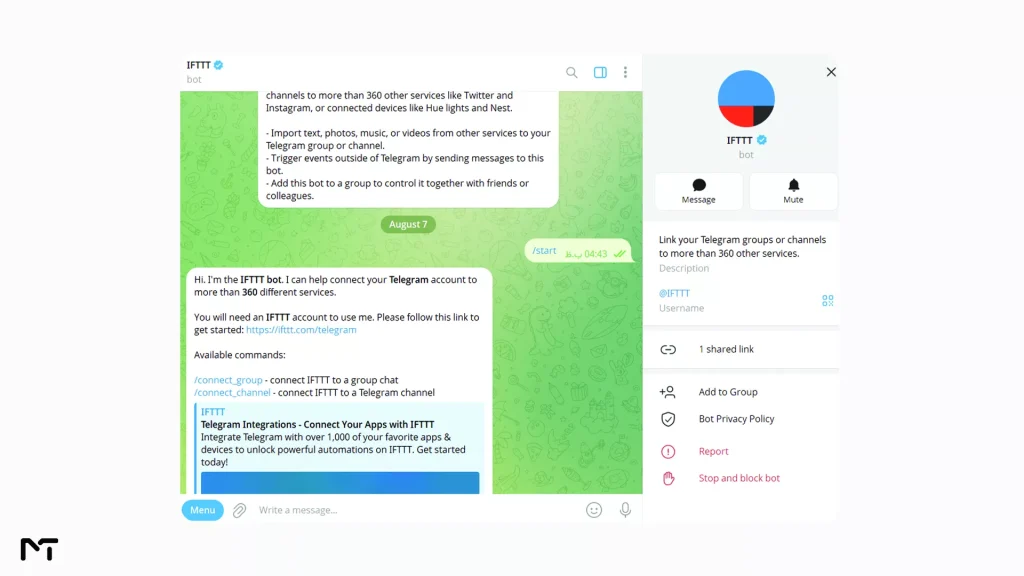
If you want true two way syncing, meaning a new file in Drive triggers a Telegram notification and vice versa, you will need to bridge the two through an automation platform such as IFTTT or Make. IFTTT actually runs its own Telegram bot for this purpose, reachable at @ifttt, which connects to over three hundred and sixty other services once you link your account on the IFTTT website. Both platforms let you build a simple rule, for example “when a file is added to this Drive folder, send me a Telegram message,” without writing any code.
Neither path is a native Telegram bot in the same sense as @trello_bot or @GmailBot, and being upfront about that difference is exactly what most competing guides skip over.
How to Connect Telegram to Trello, Gmail and Google Drive
Here is the complete setup, step by step, once you have decided which tools you want running together.
- Open Telegram and search for @trello_bot, then send /start and follow the Trello authorization link
- Choose which boards and notification types you want to receive, so your chat does not fill up with every minor update
- Open a separate chat with @GmailBot and authorize your Google account through the sign in prompt
- Use /settings inside @GmailBot to set up a filter, such as only forwarding emails from specific senders or labels
- For Google Drive, either connect a Drive upload bot to save incoming Telegram files automatically, or set up a free IFTTT applet linking your Drive folder to a Telegram notification
- Pin each bot’s chat inside Telegram so all three stay one tap away instead of getting buried under other conversations
To keep things even more organized you can create a custom chat category for these tools and share a Telegram folder with your staff ensuring everyone has access to the same integrations.
- Test each connection separately before relying on it, since Trello and Gmail authorization can occasionally expire and need a quick reconnect
Following this order avoids the most common setup mistake, which is authorizing all three tools at once and then not being able to tell which connection actually failed if something goes wrong.
Comparison: Telegram Bots for Trello, Gmail and Google Drive
| Bot or Method | Official Status | What It Does | Two Way Sync | Setup Difficulty |
|---|---|---|---|---|
| @trello_bot | Third party, built on Integram | Card creation, board notifications, card search | Yes | Easy |
| @GmailBot | Official, under Telegram’s privacy policy | Read and reply to Gmail messages | Yes, with occasional delays | Easy |
| Drive upload bot | Third party | Saves Telegram files to a Drive folder | One way | Easy |
| IFTTT or Make bridge | Third party automation platform | Connects Drive changes to Telegram alerts | Yes | Moderate |
Real World Use Case: Running Your Workday from Telegram
Picture a small marketing team managing client work through Telegram. A client sends a file in a private chat, which automatically saves to a shared Drive folder through the upload bot. An IFTTT rule notices the new file and pings the team’s Telegram group. Someone on the team creates a Trello card directly from that same chat using @trello_bot, assigning it to whoever is free. Later, when the client replies by email, @GmailBot brings that reply straight into Telegram, so nobody has to check three different apps to follow one simple task from start to finish.
This is the kind of setup freelancers, agencies, and small in house teams are increasingly building, since it keeps the entire workflow inside one app they already have open all day.
Building this exact type of automated loop is why using Telegram bots for remote work and team collaboration has become essential for modern agencies aiming to cut down on administrative delays.
According to digital workflow consultant Marcus Thorne routing core communication tools through a central messaging interface saves the average remote worker up to four hours every week. He notes that teams implementing a unified workspace see a massive drop in notification fatigue and a forty percent faster response time to urgent client requests simply by eliminating the need to constantly switch between browser tabs.
Is It Safe to Connect These Bots to Your Google and Trello Accounts?
All three tools discussed here use OAuth for authorization, which means you are granting permission through Google or Trello’s own login screen rather than typing your password into the bot itself. You can review and revoke access at any time from your Google Account permissions page or your Trello account settings.
If your work involves sensitive client data, especially under EU privacy rules, it is worth limiting which folders, boards, or email labels each bot can actually see, rather than granting full account access by default. Most of these bots let you scope permissions during the initial authorization step, so take the extra minute to review what you are approving instead of clicking through it.
It also helps to know that Telegram bots cannot message you first. A bot only starts sending you notifications after you personally open a chat with it and send /start, which is a built in Telegram Bot API restriction designed to prevent spam and unsolicited contact. In practice, this means none of the integrations in this guide can begin pulling your data or messaging your team until someone on your side deliberately switches it on.
One crucial security step you absolutely must take is enabling Two Step Verification on your actual messaging account. When you connect your main inbox and project boards to a chat app a compromised phone number could give a stranger access to your business data. Setting up a cloud password ensures that even if someone intercepts your SMS login code they cannot open your chats and read your incoming replies.
Frequently Asked Questions
Can I sync Telegram with Trello?
Yes. @trello_bot connects your Trello account to Telegram through OAuth and supports two way updates, meaning changes in Trello show up in Telegram and you can create or update cards from inside a Telegram chat. In case Trello does not perfectly match your channel management style there are several other Telegram bots for task management that offer different ways to assign duties and track team progress.
Is there a Gmail bot for Telegram?
Yes, @GmailBot is an official Telegram bot that lets you read and reply to Gmail messages without leaving the app, though some users report occasional notification delays after extended use.
How do I connect Google Drive to Telegram?
There is no single official Drive bot, so the most reliable options are a dedicated Drive upload bot for saving files, or an automation platform like IFTTT for full two way notifications between Drive and Telegram. Keep in mind that standard upload methods have size limits so if your agency handles heavy video projects you should explore specific Telegram bots to transfer large files quickly to avoid upload failures.
Are Telegram automation bots safe to use?
Generally yes, as long as they use OAuth authorization rather than asking for your password directly. Always review the permissions you are granting and revoke access for any bot you stop using.
Can I use all three integrations at the same time?
Yes, and running Trello, Gmail and Google Drive together inside Telegram is exactly what turns it into a lightweight daily control panel for small teams and freelancers managing multiple tools at once.
Conclusion: Best Telegram Bots for Trello
Finding the best Telegram bots for Trello, Gmail and Google Drive integration comes down to picking the right tool for each job rather than expecting one bot to do everything. Choosing the right Telegram bot for workflow and productivity turns your messaging app into a highly efficient workspace where communication and task execution happen in one place.
@trello_bot and @GmailBot handle two of the three cleanly on their own, while Google Drive needs either an upload bot or a simple automation bridge to get the same level of sync. Set them up one at a time, test each connection, and you will have a single Telegram window that keeps tasks, email and files within reach without constantly switching apps. Once you master these three core tools you can take it a step further and connect a Telegram bot to Google Sheets to automate your data entry and analytics as well.
Need help setting any of this up for your own channel or team workflow? Message @membertelsupport and we will walk you through it.












Leave a Reply