
You can share a Telegram folder by long pressing its name in your chat list, tapping Share, selecting the chats you want to include, and sending the generated invite link. Anyone who opens that link joins every group and channel in the folder in one tap.
That is the short version. But there is a lot more to this feature than most guides let on.
If you manage a team, run a Telegram channel, or just want to onboard someone into a stack of groups without sending ten separate links, shared folders are one of the most underused tools on the platform. This guide walks you through the full process on Android, iPhone, and Desktop, covers what you can and cannot share, explains the free vs. Premium limits, and helps you fix it when the Share option refuses to appear.
Key Takeaways
- One folder link lets a recipient join dozens of groups and channels in a single tap
- Folders that use broad filters (like “All Groups” or “Unread”) cannot be shared
- You can create multiple invite links per folder, each giving access to different chats
- Free accounts can share up to 2 folders; Telegram Premium unlocks up to 20
- New chats you add to a folder are not shared automatically unless you update the link
What Is a Shareable Telegram Folder?
A Telegram chat folder is a tab in your chat list that groups specific conversations together. You might have one for work, one for news channels, one for a specific project. That part most people know.
What fewer people realise is that any folder containing groups or channels can be turned into an invite link. When someone follows that link, they get a preview of the folder and, after accepting, they are added to every included chat at once. Keep in mind that joining several active channels instantly can bring in a lot of new content, which might make some users wonder why Telegram does not download in the background. The folder also appears in their own chat list as a separate tab.
This is different from a standard group invite link in one important way: a single folder link can replace ten, twenty, or even a hundred individual group links. For anyone managing a community, onboarding new team members, or curating a list of channels for an audience, that is a significant time saver.
How to Share a Telegram Folder
The steps are slightly different depending on your device. All three paths lead to the same result.
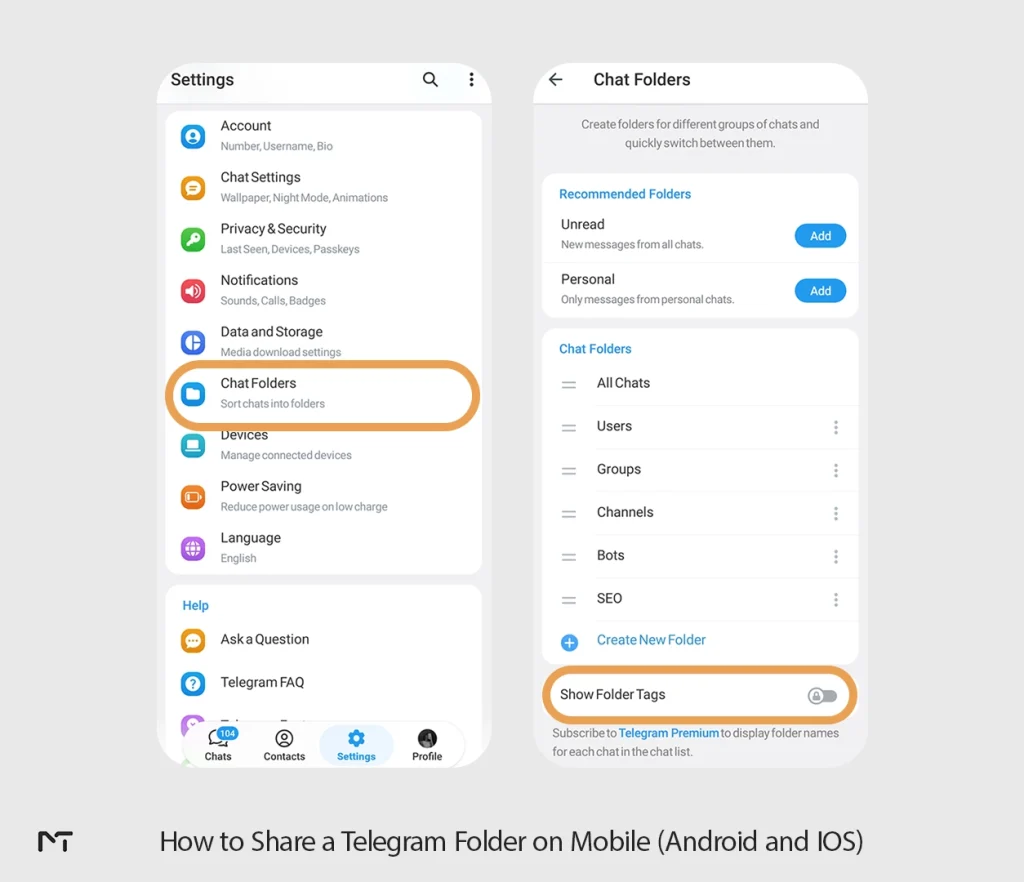
Share a Telegram Folder on Mobile (Android and IOS)
The process is straightforward and works perfectly across different devices through the main settings menu. Here is the exact path:
- Open Settings: Navigate to your Telegram settings and tap on Chat Folders.
- Select the Folder: Browse your list and tap on the specific folder you want to share.
- Create a Link: Tap Share to generate your custom invite link. Telegram also gives you the option to create a QR code if you prefer a visual invite.
- Choose Chats: A list of the included chats will appear. Select the specific public groups or admin level private channels you want the recipient to access.
- Share It: Copy the generated link and send it directly to your friends or team members.
Important Note: Folders built using automatic filters like “Groups”, “Channels”, or “Unread” cannot be shared. To make a folder shareable, you must manually select and add the chats to it. Additionally, while standard accounts can only share a maximum of two folders, you will need a Telegram Premium subscription to truly unlock this feature. A Premium account allows you to share up to twenty folders and generate up to one hundred unique invite links per folder.
If you want to give the link a specific name (useful when you have multiple links with different access levels), tap the link after it is created and select Edit Name.
On Desktop (Windows and Mac)
- Open Telegram Desktop and look at the left sidebar where your folder tabs appear.
- Right click the folder name.
- Select Edit Folder.
- Scroll to the Invite Links section and click Create New Link.
- Pick the chats to include and confirm.
The generated link looks like t.me/addlist/... and works across all platforms. Anyone with Telegram installed can open it, regardless of their device.
What You Can (and Cannot) Include in a Shared Folder
This is where most people run into confusion. Not everything inside your folder can go into a shared link.
| Content Type | Can Be Shared? |
|---|---|
| Public groups and channels | Yes |
| Private groups where you are an admin | Yes |
| Private channels where you are an admin | Yes |
| Individual private chats (one on one) | No |
| Bots | No |
| Folders using broad filters (All Groups, Unread, Contacts) | No |
The filter restriction is the most common surprise. If you built your folder using automatic rules like “include all groups” or “include all unread chats,” Telegram will not let you share it. The folder has to contain individually selected chats.
Private one on one conversations are excluded for obvious privacy reasons. Bots can be added manually by the recipient later, meaning if your community operations require members to use a Telegram bot to receive ZIP files. they will need to start the bot individually on their own devices.
One useful detail: sharing a folder link grants access even to groups that normally require a join request. This only works if you are an admin in that group. For public groups with join requests enabled, only admins can add them to a shareable folder.
How to Create Multiple Invite Links With Different Access Levels
This is the feature that makes shared folders genuinely powerful for channel owners and community managers, and almost no guide covers it properly.
Each folder can have multiple invite links, and each link can give access to a different set of chats within that folder. You name each link, and the name helps you keep track of who gets what.
A practical example: say you manage a network of Telegram groups for a company. You have a Work folder containing 15 groups. You can create:
- A Manager link that includes all 15 groups
- An Intern link that includes only 3 onboarding groups
- A Client link that includes 2 public announcement channels
Each person gets the right access in one tap. No separate links for each group, no manual adding, no confusion. Just keep in mind that onboarding clients into multiple media heavy groups at once might require you to occasionally help them fix Telegram media download and gallery bugs if their device storage gets overwhelmed.
To name a link on Android: after creating it, long press the link inside the folder settings and tap Edit Name. On iOS, tap the arrow next to the link and select Edit Name.
If you later want to upgrade someone’s access, just send them a different link. They will get a prompt to add the new chats to the same folder they already have.
Free vs Telegram Premium: Folder Sharing Limits
Telegram’s free tier includes folder sharing, but with tighter limits. Here is a direct comparison:
| Feature | Free Account | Telegram Premium |
|---|---|---|
| Shareable folders | 2 | 20 |
| Chats per folder | 100 | 200 |
| Invite links per folder | Up to 3 | Up to 100 |
For most personal use, two shareable folders is more than enough. If you run multiple communities, manage a team across many groups, or want to offer tiered access to different audiences, Premium’s 100 links per folder and 20 shareable folders become genuinely useful.
One thing worth knowing: the person receiving your link does not need Premium to join. Premium limits only apply to the person creating and sharing the folder.
Why Can’t I Share My Telegram Folder? (Troubleshooting)
If the Share option is greyed out, missing, or the link fails to generate, one of these is usually the cause.
The folder uses automatic filters
If you created the folder using rules like “All Groups,” “All Channels,” or “Unread,” Telegram blocks sharing. Go into the folder settings, remove those filter types, and manually add the specific chats you want instead. Once the folder contains only individually selected chats, the Share option becomes available.
You are not an admin in some of the included chats
For private groups and channels, Telegram requires you to have admin rights with the ability to add members. If even one chat in the folder fails this check, the sharing flow may stall. Remove any chats where you do not have invite permissions.
You cannot find the Share option
On Android, the Share option appears only when you long press directly on the folder tab name at the top of the chat list, not when you tap it normally. On iOS, it is inside Edit Folder under Invite Links. On Desktop, it requires a right click on the folder tab in the sidebar.
You have reached the free folder limit
Free accounts can have a maximum of 2 shareable folders. If you have already shared 2 folders and try to make a third one shareable, Telegram will prompt you to upgrade to Premium or remove sharing from one of the existing folders.
Frequently Asked Questions
Can the person I share a folder with see my private one on one chats?
No. Private conversations between two people cannot be included in a shared folder at all. Only groups and channels make it into a shareable link. Your personal chats stay completely private.
What happens if someone removes the shared folder from their account?
They leave all the chats that came with the folder in one tap (Telegram gives them this option when they remove it). If they want to rejoin, they need the invite link again.
Will new chats I add to my folder be shared automatically?
No. When you add new chats to a folder, existing members do not get them automatically. You need to update the invite link manually, at which point people who joined through the original link will see a suggestion to add the new chats.
Can I revoke a folder invite link?
Yes. Go into the folder settings, find the link under Invite Links, and delete it. Anyone who already joined through that link keeps their access to the chats. The link just stops working for new people.
How many people can join a folder through one link?
There is no published limit on the number of people who can use a single folder invite link. The link works like a standard group invite link in that sense.
Does sharing a folder share my folder’s name and organisation?
The recipient receives an invitation showing a preview of the folder contents. After joining, the folder appears in their chat list. They can rename it, add their own chats to their personal copy, or remove chats without affecting your version.
Wrapping Up
Sharing a Telegram folder takes about thirty seconds once you know where to look. The long press on the folder tab is the step most people miss, and the filter restriction catches almost everyone the first time.
If you manage a Telegram channel or community and you are regularly onboarding new members into multiple groups, a shared folder with named access links is one of the cleanest solutions the platform offers. Set it up once and send a single link every time.
For channel owners looking to grow their audience alongside better organisation, feel free to reach out to @MembertelSupport for guidance on Telegram growth strategies.














Leave a Reply