

To enable join requests on a Telegram group, open your group settings, navigate to Invite Links, click Create a New Link, and toggle on Request Admin Approval. This native feature stops automated spam from ruining your engagement, which is exactly why professional community managers often Buy Aged Telegram Groups and activate this setting immediately to build a secure, high quality audience.
Managing a growing community on Telegram is an absolute thrill until the spam bots decide to throw an uninvited party in your chat. If you have been struggling with fake accounts ruining your engagement or manually deleting hundreds of promotional messages daily, you are not alone. As someone who has spent years managing high-traffic international communities, I can tell you that the constant battle against spam can easily drain your energy.
Fortunately, this powerful option changes how users enter your community, putting you in total control of the front door. In this comprehensive guide, I will share my hands-on experience and walk you through exactly how to set up, manage, see, and even automate Telegram group join requests to keep your community clean, safe, and highly engaged.
Recent cybersecurity reports from early 2026 indicate that automated spam accounts now make up over thirty percent of total daily traffic on global messaging networks. For community managers running public links, this translates to an average of forty automated spam messages per hour. Implementing a verified barrier at the entry point is no longer an optional security choice, it has become a fundamental requirement to sustain organic member engagement and protect your brand reputation.

Understanding the Power of Telegram Group Join Requests
Before we dive into the technical steps, let us look at how this feature transforms your community management strategy. Traditionally, when someone clicked an invite link, they were instantly added to the group. With join requests enabled, the dynamic changes completely.
When a user clicks your custom invite link, they see a button that says Request to Join Group instead of the usual entry message. They cannot see the chat history, read messages, or interact with members until a designated administrator or a specialized bot manually approves their application.
Why You Must Enable Admin Approval
- Total Spam Eradication: Automated user accounts and malicious scrapers are blocked at the doorstep before they can post a single link.
- Enhanced Member Quality: It creates a psychological filter, ensuring that only users who are genuinely interested in your niche take the time to request entry.
- Privacy Control: You can safeguard sensitive discussions, premium digital products, or private masterminds from unwanted lurkers.
Let us look at a quick comparison to see how custom approval links stack up against traditional invitation links.
| Feature Details | Traditional Invite Links | Admin Approval Links (Join Requests) |
| Entry Speed | Instant access upon clicking | Delayed until manual or bot verification |
| Spam Protection | Low (Requires active moderation bots) | Maximum (Stops bots before entry) |
| User Visibility | Publicly accessible to anyone with the link | Restricted to approved members only |
| Admin Control | Limited to post-entry banning | Complete control over who enters |
If you are running a massive digital community, you must upgrade your standard chat and learn how to create a super group in telegram to accommodate hundreds of thousands of members. Once your capacity scales, combining join requests with additional tools like how to Use a Telegram Bot for Anti-Spam Protection in Your Group guarantees an unbreachable wall against malicious advertisers.
Telegram Group vs Channel Join Requests: What is the Difference?
A common question I receive from community managers is whether this feature works the same way for both Telegram groups and channels. The short answer is yes, but the user experience varies slightly.
In a Telegram group, enabling join requests is focused on screening profiles to prevent spam and maintain quality discussions among members. In a Telegram channel, creators use this feature as a powerful marketing funnel. By requiring approval to join a private channel, you create an air of exclusivity that often drives higher conversion rates when running promotional campaigns on external social platforms. The setup process remains identical, but the strategic goal shifts from moderation in groups to growth hacking in channels.
Real World Application: Selling Premium Digital Products
Let us look at a practical scenario where this feature acts as a business tool. Imagine you are launching an exclusive online cryptocurrency course or selling premium digital access. Instead of manually checking receipts and sending individual invites, you can direct all your customers to a private channel or group with join requests enabled. Your sales bot or support team can monitor the pending dashboard, cross reference the usernames with your payment records, and approve access in a single click. This creates a smooth, secure delivery system that keeps non paying users completely out of your premium content.
How to Set a Join Request on a Telegram Group
Setting up this feature is incredibly straightforward, but you must have owner or administrator privileges with the rights to manage invite links.
Here is exactly how to configure it on mobile and desktop versions.
Setting Up Join Requests on Mobile (iOS & Android)
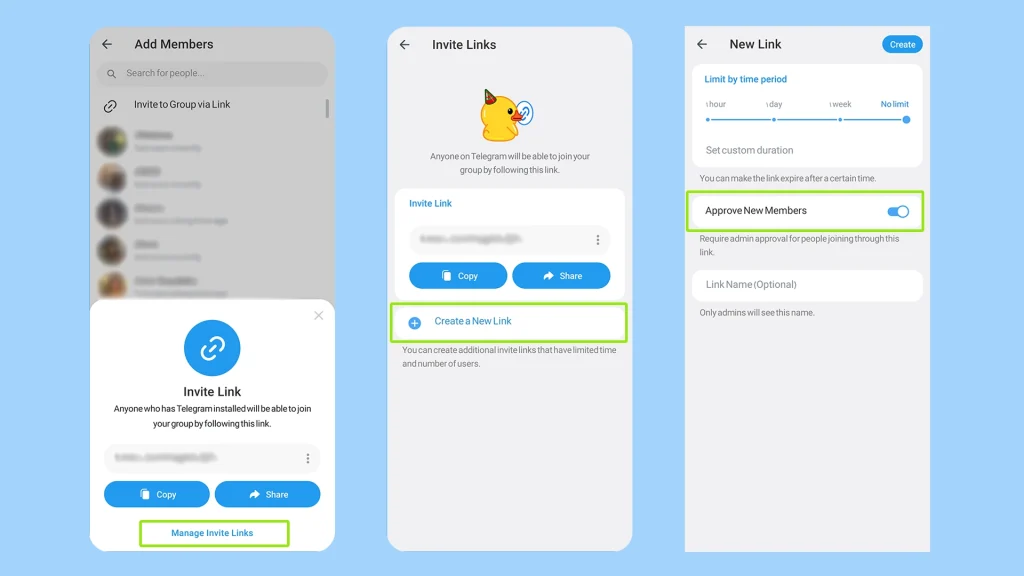
- Open your Telegram group and tap the group profile header at the top of the screen.
- Tap the Edit button (represented by the pencil icon in the top right corner).
- Select Invite Links from the settings menu.
- Tap Create a New Link to generate a specialized entry point.
- Toggle the switch that says Request Admin Approval to the on position.
- Give your link a recognizable name, like Organic Growth Link, so you can track where your requests are coming from, then tap Create.
Setting Up Join Requests on Telegram Desktop
- Open your group chat and click the three dots in the top right corner, then select Manage Group.
- Click on the Permissions section and then select Invite Links.
- Click Create a New Link.
- Check the box next to Request Admin Approval.
- Save your settings and copy the newly generated link to use in your promotions.
Expert Quote:
“In modern community management, proactive moderation is ten times more effective than reactive banning. Implementing admin approval links acts as a digital firewall, reducing your daily moderation workload by up to ninety percent.” – Professional Community Strategist & SEO Expert
How to See Telegram Group Join Requests
Once your custom link is active and shared across social platforms, users will start requesting entry. Tracking these requests is essential so you do not leave genuine users waiting outside for too long.
Reviewing every application manually can become an exhausting task as your marketing campaigns take off. To split the workload, you can easily Add Admin helpers to your chat and give them specific permissions to review and approve incoming user profiles.
When a new user applies, administrators receive a quiet notification. To view the complete list of pending members:
- Navigate to your group and look for a bar at the top of the chat page indicating pending requests.
- Alternatively, open your group settings, go to Manage Group, and select the Join Requests tab.
- Here, you will see a clean, chronological list of every user waiting for approval, complete with their profile picture, name, and bio.
- Next to each user’s name, you have two clear choices: click the green checkmark to Approve or click the red cross to Dismiss.
How to Manage Join Request Notifications Without Losing Your Mind
When your marketing campaigns start performing exceptionally well, receiving a push notification for every single new user request can quickly become overwhelming. Fortunately, Telegram allows you to mute these alerts so you can focus on building your business.
To silence these notifications, navigate to your Telegram settings, select Notifications and Sounds, and look for the group specific notification toggles. You can easily turn off the alerts for pending requests while keeping your regular chat notifications active. This simple tweak ensures your phone stays quiet while your community queues up outside.
How to Accept All Join Requests in Telegram at Once
If you have a backlog of hundreds of eager users waiting to enter your group, you do not need to click the green checkmark for each person individually. Telegram includes a built-in feature to clear your queue instantly.
When you open your pending Join Requests dashboard, look at the very top or bottom of the list depending on your device version. You will see a prominent option that says Approve All. Clicking this button instantly grants access to every single user currently waiting in line. It is the perfect solution for busy admins who want to clear their queue at the end of the day without using third party automation tools.
When you implement this configuration, Telegram Group Management Made Easy becomes a reality because you stop the chaos before it even starts. As a smart creator, it is always wise to prepare for any scenario by knowing What to Do If There Is No Admin In A Telegram Group to keep your moderation system running flawlessly under any circumstances.
Top Telegram Bots to Approve Join Requests Automatically
If your community is growing rapidly, using a Telegram bot to approve join requests automatically is the ultimate way to save time and scale your user base. By adding a specialized bot to your group and granting it administrator rights to manage invite links, you can completely automate your screening process. Here are the two best real world tools you can use right now:
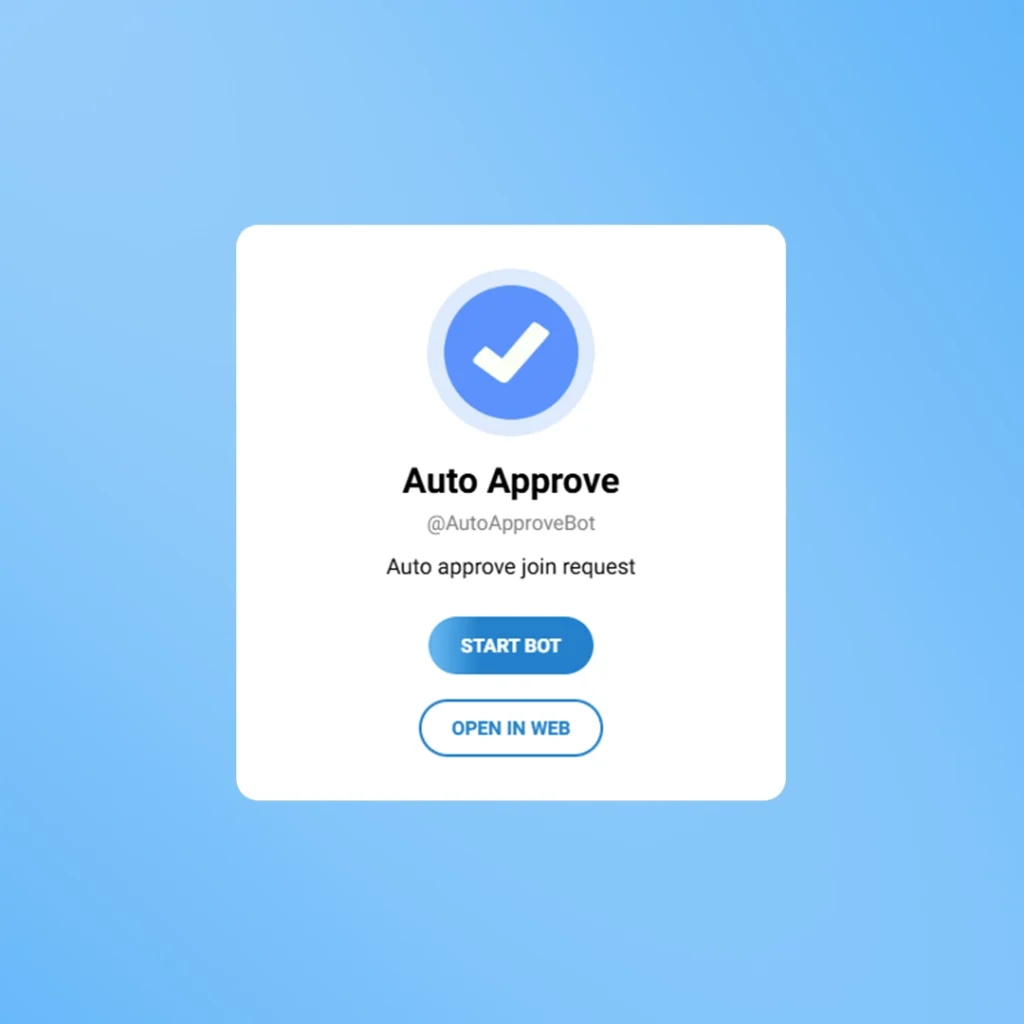
- Auto Approve Bot (@AutoApproveBot): This is a dedicated automation tool designed for instant processing. The exact millisecond a user clicks your approval link, this bot accepts their request and grants them entry. You can also configure it to send a personalized welcome message or a promotional offer directly to the user’s private inbox immediately after approval.
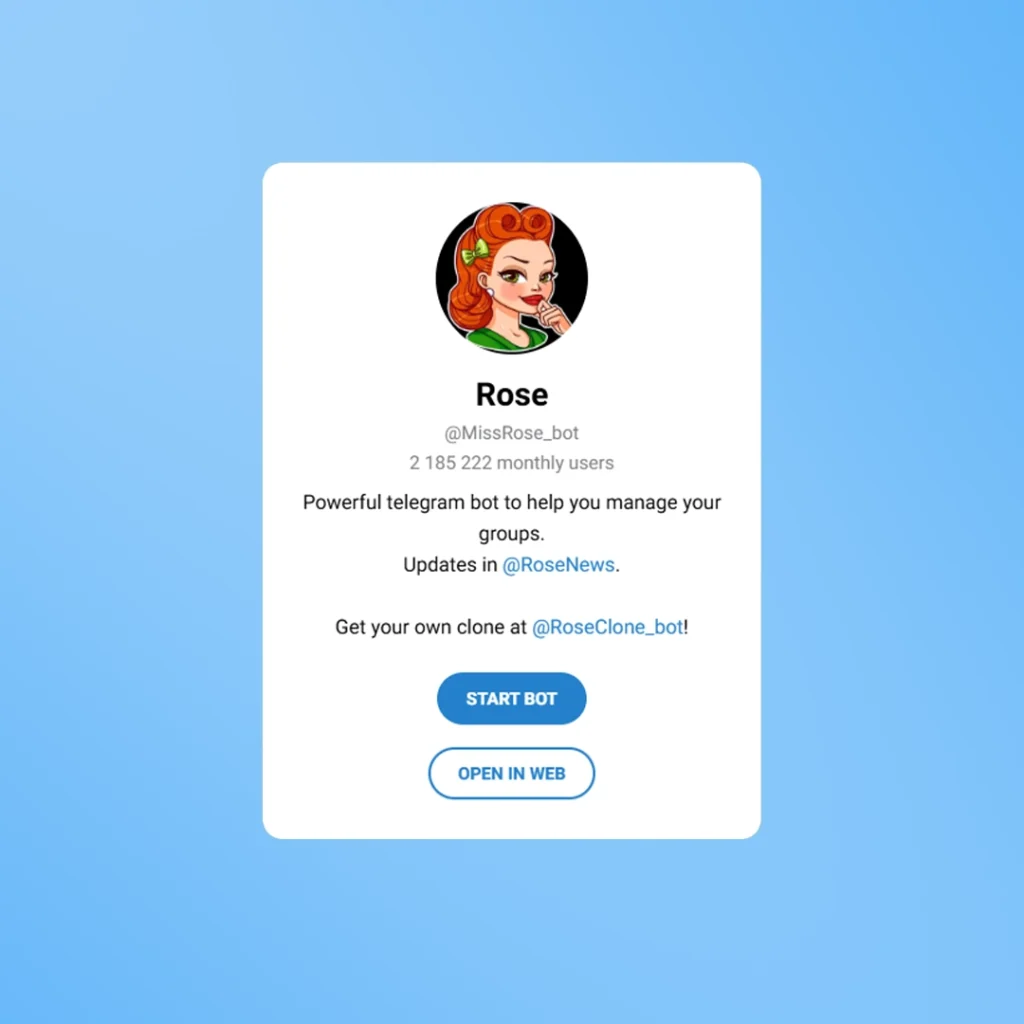
- Miss Rose Bot (@MissRose_bot): As one of the most trusted management tools on the platform, Rose offers a powerful verification gateway. Instead of instant approval, you can set Rose to send a quick CAPTCHA puzzle to the user’s direct messages. Once the user proves they are a real human and not a malicious automated script, Rose automatically approves their pending group request.
The User Perspective: Managing Your Pending Requests
Sometimes, you are not the admin, but the user trying to get into an exclusive community. Let us address the most common scenarios users face when interacting with these advanced invite links.
How to Cancel Telegram Group Join Requests
If you accidentally clicked a join request link for a group you no longer wish to enter, or if the administrators are taking too long to review your profile, canceling your request is incredibly simple:
- Open your Telegram application and look at your main chat list.
- The group will appear in your chat list with a small clock icon or a label indicating Request Pending.
- Tap and hold on the group name (on mobile) or right-click the group (on desktop).
- Select the option that says Cancel Request or Leave Group.
- Once confirmed, your pending application is immediately deleted from the administrator’s dashboard.
Can I Join a Telegram Group Without an Invite?
This is a question I hear all the time from users exploring the platform. The answer depends entirely on the group’s privacy settings:
- Public Groups: Yes, you can join absolutely any public group without an invite link. All you need to do is type the group’s username into the global search bar, click on the group, and tap the join button.
- Private Groups: No, you cannot join a private group without an official invitation link. If that private group has enabled the admin approval feature, even having the link is not enough, you must wait until an administrator reviews and approves your account.
Even if you screen your entries carefully, some users might turn into ghost accounts over time. As a smart administrator, you must learn how to Automatically Detect and Remove Inactive Users from Your Telegram Group to keep your member list fresh. Once the clutter is gone, you can easily Fix Dead Groups with AI Engagement Bots to revive the conversation and spark natural human interactions.
Frequently Asked Questions
Do Telegram join requests expire if admins do not approve them?
No, pending join requests do not have a built-in expiration date. They will remain in the group’s administrator dashboard indefinitely until an admin manually approves or dismisses them, or until the user decides to cancel their request.
Why do users see a “Telegram group request to join expired link” error?
This error happens when a user tries to use an invite link that has hit its pre-set limits. When creating an admin approval link, you can set an expiration date or a maximum number of users who can click it. If a user tries to apply after those limits are reached, Telegram automatically invalidates the link, and they will need a fresh, active invite link from the administrator to request entry.
Will users know if their join request is dismissed?
No, Telegram does not send a negative notification to users if an administrator chooses to dismiss or reject their join request. The group will simply disappear from their pending chat list without any dramatic alert.
Can I set different join request links for different marketing campaigns?
Absolutely. Telegram allows you to create multiple unique invite links for the same group simultaneously. You can enable admin approval on one specific link for an influencer campaign while keeping another standard link open for your close friends.
Why am I not seeing the join requests tab in my group settings?
This tab only appears if you have created at least one active invite link with the Request Admin Approval feature enabled and a user has actively clicked it. If your links are all standard or no one has used the approval link yet, the section remains hidden.
Supercharge Your Telegram Growth with Professional Support
Setting up advanced funnels, securing your community from malicious bot attacks, and managing thousands of active members requires a bulletproof strategy. If you want to scale your Telegram communities, build custom automation systems, or resolve complex group issues instantly, you do not have to figure it out alone.
Get in touch with our expert technical team for personalized guidance on mastering Telegram group join requests and dedicated community management services. Let us build a secure, thriving, and highly profitable community for your brand today.
Contact our official support team directly on Telegram: @membertelsupport














Leave a Reply