

Telegram Communities is a new feature that lets you link several groups, channels, or bots together under one shared space, so members can move between related chats without needing a separate invite link for each one. It rolled out as part of Telegrams July 2026 update, and it hanges how admins who run more than one chat around the same topic can organize everything in one place.
Quick Answer How to Create a Telegram Community
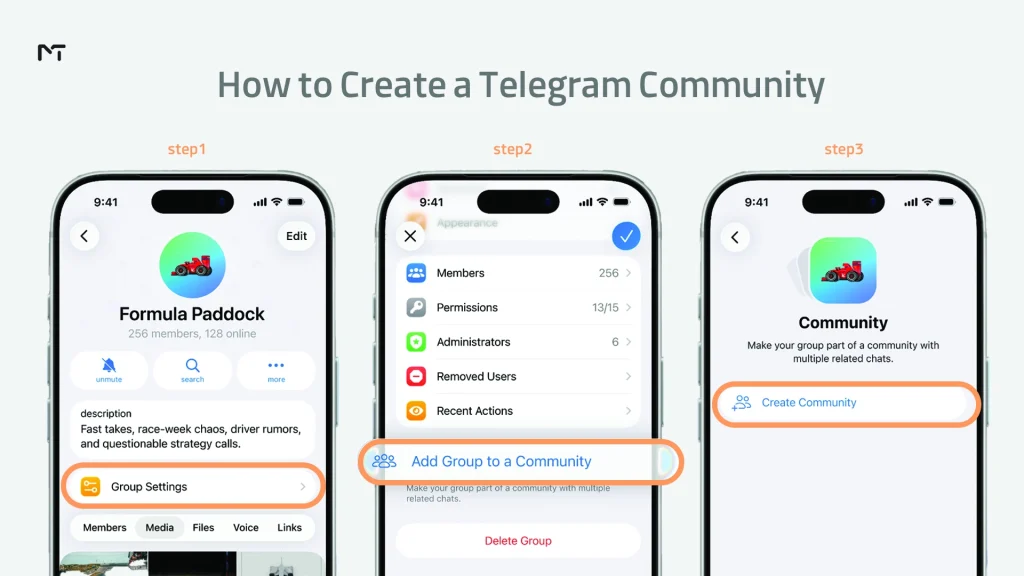
If you want to set this up right away, here is a short step by step guide:
Open the settings menu of your primary group or channel.
Tap on the new Communities option.
Select Create a New Community.
Choose the existing chats you want to link together.
Save your settings to make your shared space live.
Organizing your chats is a great start, but a new community still needs a solid audience to look credible. If your linked groups seem empty, new visitors might leave without exploring. To solve this, many admins choose to Buy Telegram Members to build instant social proof, which encourages real users to trust the community and join the conversation.
If you manage a group and a channel that cover the same audience, or a handful of smaller chats around one project, this feature was built with you in mind. Telegram announced Communities alongside a set of other updates on its official blog, and everything covered here reflects what was published there.
Key Takeaways
- Telegram Communities link groups, channels, and bots into one shared space.
- Members can join other chats in the community without a separate invite link.
- Chats can be set to Visible for everyone or Hidden for admins and existing members only.
- Admins can control whether members are allowed to add new chats to the community.
- The community can show up as one combined chat or as separate chats in your chat list.
What Are Telegram Communities?
A Telegram community works as a container for several independent chats that share a common theme. Instead of scattering your announcement channel, your discussion group, and your support chat across different invite links, you connect them all under one community name and photo.
Once someone joins any chat inside the community, Telegram recognizes them as a community member. From there, they can browse and join the other chats that are part of it, provided those chats are set to Visible.
How Communities Differ from Regular Groups and Channels
A regular Telegram group or channel is a single, self contained chat. A community is a layer above that. It does not replace your groups and channels, it organizes them. Each chat inside a community keeps its own members, its own admins, and its own settings. Joining the community does not automatically add someone to every chat inside it, it just makes those chats easier to find and join.
This is different from how Telegram Topics work, since Topics split one large group into separate discussion threads. Communities instead connect entirely separate chats that already exist on their own.
Furthermore, Communities are fundamentally different from Telegram’s Shareable Chat Folders. While a Chat Folder is a personal organizational tool that any user can create to bundle links for themselves or others, a Community is an official, admin managed space. It connects the chats at a structural level, making them inherently discoverable from the community’s profile without relying on a shared folder link.
What You Can Link Inside a Community
At launch, Telegram Communities support linking groups, channels, and bots into a shared space. This means a project with a public announcement channel, a private team group, and a support bot can present all three as one connected experience for its audience.
A Real Example of How Communities Work
Picture someone running an online cooking course. They have a channel where they post new recipes, a group where students discuss and share photos of what they cooked, and a private group just for people who paid for the advanced tier.
Before Communities, a new student had to find and join all three separately, often missing one because the invite link was buried in an old post. With a community, the course creator links all three chats together under one name, sets the recipe channel and discussion group to Visible, and keeps the paid tier group Hidden. A new student joins the recipe channel, sees the discussion group listed right there, and joins it in one tap.
The paid group stays invisible until the creator adds that student to it directly or approves a join request on a Telegram group reserved for premium members. Once they are in, the creator can use Telegram member tags to categorize students based on their cooking skill level or give them special titles like VIP Chef.
This is the kind of setup Communities were built for, several chats with different purposes, all belonging to the same audience, without forcing everyone into the same room.
Why You Might Not See Communities Yet
Telegram rolls out features like this gradually rather than to every account at once. If you have updated your app and still do not see the option to create a community in your group or channel settings, it usually means one of the following.
Your app version is behind. Communities require a recent build, so check that Telegram is fully updated on your device before assuming the feature is missing.
The rollout has not reached your account yet. Telegram often releases features in stages over several days or weeks, even after announcing them publicly, so seeing it appear later than expected is normal.
You are looking in the wrong place. The option sits inside the settings of an existing group or channel rather than as a separate button in the main app menu, so it is easy to miss on a first look.
If none of these apply and enough time has passed since the rollout began, checking Telegram’s official update channel is the most reliable way to confirm the current availability for your platform.
How to Create a Telegram Community
Setting up a community takes just a few steps, and you do not need to rebuild any of your existing chats to do it.
Setting Up Your Community
- Open the group or channel you want to use as the starting point for your community.
- Go to the chat settings and look for the option to create or join a community.
- Choose to start a new community, or attach the chat to a community that already exists.
- Select which of your other chats you want to link in.
Naming and Customizing It
Give your community a clear name and a recognizable photo, since this is what members will see in their chat list. A name that matches what your audience already knows you by, rather than a generic label, will make it easier for people to recognize and trust the community when they see it.
You can also decide whether the community appears as one combined item in the chat list that expands when opened, or as separate chats listed individually. Larger communities with many linked chats often benefit from the combined view, since it keeps the chat list from feeling cluttered.
Visible and Hidden Chats: Controlling What Members See
Every chat you link into a community can be set to one of two states. This is one of the most useful parts of the feature, since it lets you decide exactly how much of your community structure is open to everyone versus reserved for a smaller group.
| Chat type | Who can see and join it | Best used for |
|---|---|---|
| Visible | All community members | Public announcements, general discussion, open support chats |
| Hidden | Only admins and existing members of that specific chat | Internal team chats, moderator only discussions, invite only groups |
If you want your entire audience to be able to explore every part of your community, keep chats set to Visible. If you run a smaller internal group, such as a moderator team or a paid tier, setting that chat to Hidden keeps it out of view for the general audience while still letting it function as part of the same community.
Deciding between these visibility options requires the same careful thinking as choosing between public vs private Telegram channels when you first start building your audience.
How the Community Looks on Your Chat List
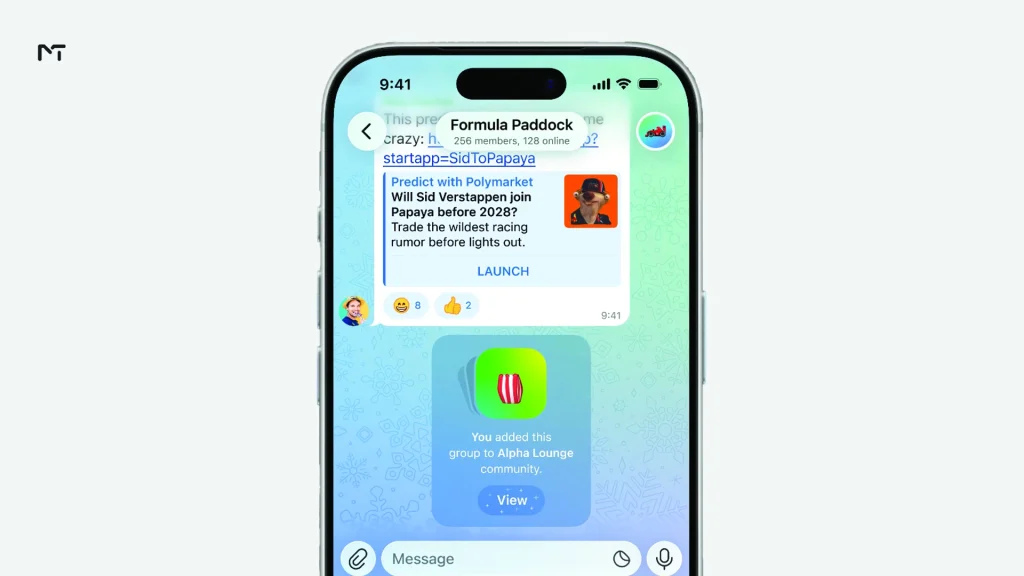
Once you successfully link a chat, Telegram sends an automated message right into that specific group or channel. A prominent system notification appears inside the chat history, letting everyone know that the group has been added to your community, complete with a View button. This immediate alert makes it incredibly easy for your existing members to discover the new shared space right away.
When members tap that View button, they are taken directly to the community hub. Here, Telegram automatically organizes the available chats into three clear categories to make navigation effortless:
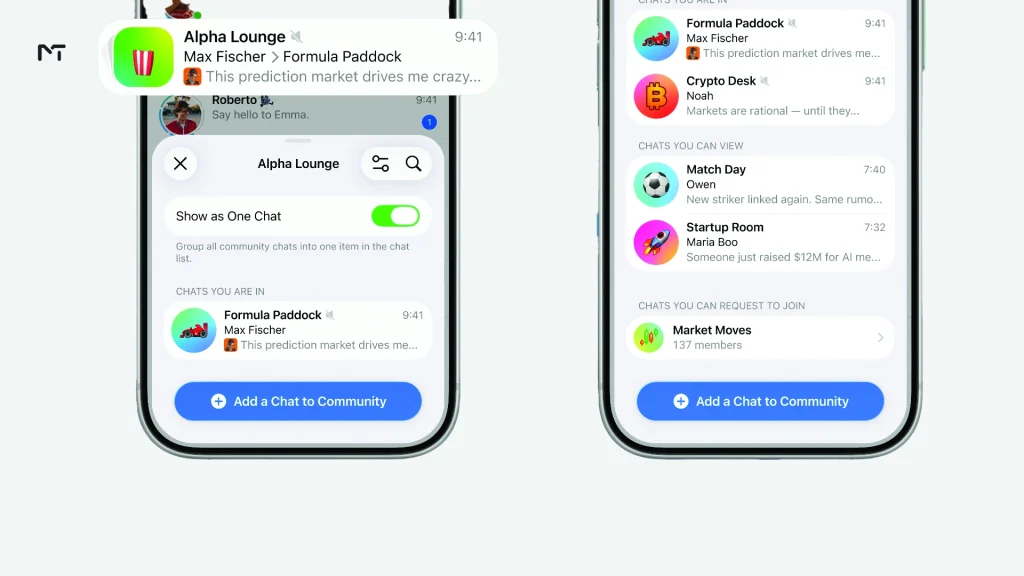
- Chats You Are In: This section displays the specific groups or channels within the community that the user has already joined.
- Chats You Can View: This highlights public or visible chats that are part of the community but the user has not joined yet, allowing them to preview the content.
- Chats You Can Request to Join: This shows restricted or private groups where users need admin approval to enter, making it perfect for premium tiers or exclusive discussions.
Finally, to keep the main Telegram screen from getting cluttered, users can enable the Show as One Chat toggle in their settings. This groups all the connected chats into a single unified item in their main chat list. When a new message arrives, the notification clearly shows both the community name and the specific chat it came from, keeping everything organized.
Managing Who Can Add Chats to Your Community
By default, any member of the community can suggest or add a new chat to it. This works well for small, trusted groups where members might genuinely have a related chat worth linking in.
For larger or public facing communities, this default setting can get messy fast. Admins can restrict this permission so that only they can add new chats. When this restriction is on, member suggestions still come through, they just appear as suggestions that an admin has to approve rather than chats that get added automatically.
If you are running a community tied to a business, a brand, or a paid service, restricting who can add chats is worth doing from the start. It keeps the community focused on what you actually intended it for, instead of filling up with unrelated chats that members add on their own.
You might also want to look into Telegram AI guardian bots for groups to automatically filter out spam if your visible chats get too crowded.
Should You Combine Your Groups and Channels into a Telegram Community?
Not every account needs this feature right away. If you run a single group or a single channel with no other related chats, there is nothing to link together yet, and a community will not add much value.
Where it makes a real difference is for admins juggling more than one chat around the same audience. A channel used for announcements, paired with a group for discussion and a bot for support, is exactly the kind of setup Telegram Communities was designed to simplify. Members no longer need to hunt down three separate invite links, they find everything through one shared space. While admins can always use the top tools to manage Telegram groups and channels, relying on built in features like Communities makes the whole process much smoother.
If you are actively growing several linked Telegram chats and want your members to move between them without friction, setting up a community is one of the simplest ways to make that happen. For admins focused on channel growth in general, keeping your linked chats organized this way also makes it easier to track where your engagement is actually coming from. Also, keep in mind that community structures are flexible. If a linked group or channel is no longer relevant, admins can easily remove it from the community settings. Unlinking a chat does not delete the chat itself or remove its existing members; it simply disconnects it from the shared space, allowing it to function independently again.
FAQ about Telegram Communities
What is Telegram Communities?
Telegram Communities is a feature that links several groups, channels, or bots together into one shared space, so members can discover and join related chats without needing separate invite links for each one.
How do I create a community on Telegram?
Open the group or channel you want to start with, go to its settings, and choose the option to create a new community or join an existing one. From there you can select which other chats to link in.
What is the difference between Visible and Hidden chats in a community?
Visible chats can be seen and joined by any community member. Hidden chats are only accessible to admins and the people already inside that specific chat.
Will joining a community flood my phone with notifications?
No. Your notification settings remain completely separate for each chat within the community. Joining the shared space does not automatically unmute channels or groups. You retain full control to mute highly active discussion groups while keeping notifications turned on for the main announcement channel, just like regular chats.
Can any member add a chat to my community?
By default, yes. Admins can turn this off in the community settings so that only admins can add chats, with member suggestions requiring approval instead.
Is Telegram Communities available to everyone?
Yes, this feature is part of Telegram’s standard update and is not limited to Premium subscribers, unlike some of the other tools introduced in the same update.
Conclusion
Telegram Communities gives admins a simple way to connect the groups, channels, and bots they already run without merging them into one messy chat. With control over which chats are Visible or Hidden, and who is allowed to add new ones, it is a practical tool for anyone managing more than one related Telegram chat.
Mastering Telegram community management is a lot simpler when you have all your essential chats unified under one umbrella. With this structure, Telegram group management made easy is no longer just a concept but a practical reality for busy admins.
If you want help growing and organizing the Telegram presence behind your community, reach out to us at @membertelsupport.













Leave a Reply