
The most effective way to merge or remove duplicate contacts on Telegram is to delete the extra entries inside the app first, then turn off contact sync so they do not come back, and finally clean up your phone device own contact list using the built in merge tools on iPhone or Android. Telegram itself does not have a one tap merge button, so the real fix happens in two places at once.
Why Do You Get Duplicate Contacts on Telegram
Duplicate contacts on Telegram almost always start outside Telegram. The app reads whatever is stored in your phone’s address book and uses that list to show you who is already on Telegram. When your phone’s contact list already has doubles, Telegram simply mirrors them.
Contact Sync Creates Overlapping Entries
When you install Telegram and allow it to sync contacts, it uploads your address book to match phone numbers with existing accounts. If you have ever saved the same person twice under slightly different spellings, once with a country code and once without it, both versions get pulled in and shown as separate contacts.
Logging Into Telegram on Someone Else’s Phone
If you have ever logged into your Telegram account on a friend’s or coworker’s device with sync turned on, their address book gets added to your contact list too. This is a common and often overlooked reason people find names they do not recognize sitting next to duplicates of people they do know.
The Same Person Saved Under Two Numbers
Someone who changes their SIM card or adds a second number often ends up saved twice in your phone, once under each number. Telegram treats those as two separate people since it matches contacts by phone number, not by identity.
Running multiple Telegram accounts on the exact same device is another major reason for overlapping names. When you operate a personal profile and a business profile within the same app, Telegram blends the synced address books from all active numbers. This means someone saved on your work phone might suddenly appear next to the same person saved on your personal number. To prevent this cross contamination, you must isolate the sync settings for each logged in profile and only allow one primary account to read your device address book.
The cleanest way to avoid this overlap entirely is to use a dedicated phone number for Telegram when setting up your business profile, ensuring your professional contacts remain completely isolated from your personal address book.
Avoid Third Party Apps and Bots
You might be tempted to download third party contact manager applications that promise to clean up your Telegram list automatically. Granting these unauthorized applications access to your address book poses a significant privacy risk and often causes more synchronization errors. Sticking to the native tools provided by Apple and Google remains the safest and most reliable method to protect your personal data without risking an account ban.
Does Telegram Have a Built In Way to Merge Contacts
No. Telegram does not offer a native merge feature anywhere in its settings. You can delete a contact, and you can turn contact sync on or off, but there is no button inside the app that combines two duplicate entries into one. Any real merging has to happen either through the manual steps below or through your phone’s own contacts app, since that is where the actual address book data lives.
This is worth knowing before you spend time searching Telegram’s settings menu for a merge option that simply is not there.
How to Remove Duplicate Contacts on Telegram Directly Inside the App
Before touching your phone’s address book, start with what Telegram itself lets you control. Deleting the extra entry and shutting off sync are the two actions available inside the app, and doing both in order is what actually stops duplicates from piling back up.
The Three Step Blueprint to Clean Up Contacts
Clean the App
Delete the extra entries directly inside your Telegram contacts menu.
Stop the Sync
Navigate to Data Settings and disable synchronization so they do not return.
Fix the Root Cause
Use native merge tools in your phone address book to combine identities.
Delete a Duplicate Contact on iPhone, Android, and Desktop
- On mobile
- Open the specific chat or locate the person inside your Contacts tab.
- Tap their name at the top of the screen to open their main profile.
- Select the three dot menu on Android or tap Edit on your iPhone.
- Choose Delete Contact to instantly remove that specific entry from the application.
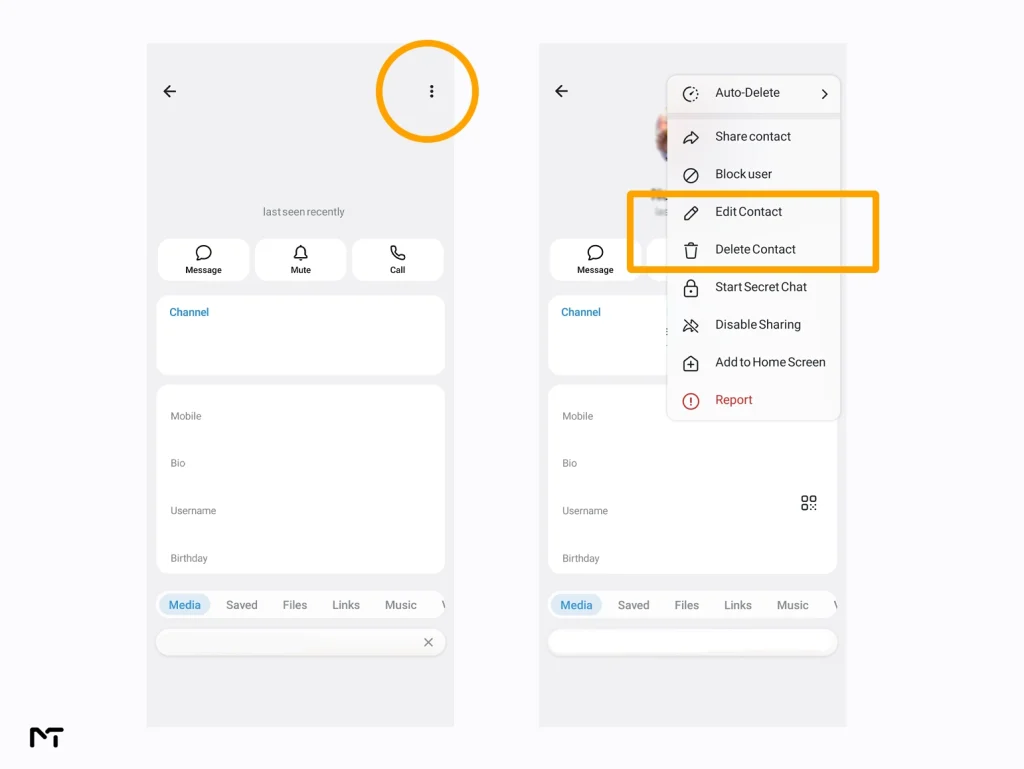
- On Telegram Desktop
- Open the chat with the specific contact on Telegram Desktop.
- Click their name at the top to open the side profile panel.
- Click the three dot menu located in the top right corner.
- Select Delete Contact to complete the removal process.
Telegram only lets you remove contacts one at a time through the official app, so if you have a long list of duplicates, sorting your Contacts tab by Last Seen first makes it easier to spot old or dead entries before you start deleting.
Stop Deleted Contacts From Coming Back
This is the step most guides skip, and it is the reason people delete a duplicate only to see it reappear a few days later. Go to Settings, then Privacy and Security, then Data Settings. Turn off Sync Contacts so Telegram stops pulling fresh copies from your phone, then tap Delete Synced Contacts to clear the copies Telegram already stored on its side. Without this step, Telegram will simply reimport your address book the next time it syncs and any duplicate you removed will show up again.
Getting this step right is crucial because if you do not completely turn off Telegram contact syncing, the app will quietly rebuild that messy list in the background the next time you open it.
According to Marcus Vance, a senior cloud architecture analyst, messaging applications are rarely the root cause of duplication issues. Over sixty percent of contact sync errors on cloud platforms stem from messy local databases rather than server glitches, he explains. When users fail to organize their native phonebooks or disable background syncing before a cleanup, the app simply redownloads the same overlapping data. Cutting off that continuous sync loop is the mandatory first step for any permanent fix.
Merge Duplicate Telegram Contacts on iPhone
Since the actual duplicate entries live in your phone’s Contacts app, not inside Telegram, merging them there is what fixes the problem at the source.
Use View Duplicates on iOS 16 and Later
Apple added automatic duplicate detection starting with iOS 16. Open the Contacts app, tap My Card at the top, then go back to the main list. If duplicates exist, a View Duplicates prompt appears. Tap it to see every pair Apple has matched, then tap Merge All to combine them, or review each pair individually and merge only the ones you trust.
Use Link Contacts for Entries With Different Names
Automatic detection only catches entries with matching names. If the same person is saved once under their real name and once under a nickname, Apple will not group them automatically. Open the contact, tap Edit, scroll down to Link Contacts, and choose the other entry for that same person. Keep in mind that linking is not the same as a full merge, since Apple’s own documentation notes that linked contacts still exist as separate records behind the scenes even though they appear as one card in your list.
Merge Duplicate Telegram Contacts on Android
Android handles this through Google Contacts rather than through the phone’s contacts app alone, and the same cleanup works whether the duplicates came from Telegram, your SIM card, or a messy import from years ago.
Use Merge and Fix in the Contacts App
Open your phone’s Contacts app, select the Google Account that has the duplicates at the top right, then tap Fix and Manage, followed by Merge Duplicates. Review the suggestions and tap Merge for the ones that are correct, or tap Merge All if every suggestion looks accurate.
Merge Duplicates Through Google Contacts on the Web
Go to contacts.google.com in a browser and sign in with the same account. In the left sidebar, click Merge and Fix. Google scans your entire list and groups anything it believes is the same person. You can accept suggestions one by one or click Merge All to clear them in bulk. Changes made here sync back to your phone automatically, which also updates what Telegram shows the next time it reads your address book.
| Where the duplicate lives | Typical cause | How to fix it |
|---|---|---|
| Inside Telegram’s contact list | Address book synced from another device or an old upload | Delete the contact in Telegram, then turn off Sync Contacts |
| iPhone Contacts app | Same name saved twice, or two numbers for one person | Use View Duplicates or Link Contacts |
| Android or Google Contacts | Imports from SIM, email, or manual entry | Use Merge and Fix in Contacts or on contacts.google.com |
How to Remove Duplicate Contacts on Telegram for Good
Once your list is clean, a few habits keep it that way. Save new numbers using one consistent format, either always with the country code or never with it, since mixed formats are one of the biggest causes of duplicates coming back. Review your phone’s Contacts app for a Merge or View Duplicates prompt every few months rather than waiting until the list is messy again. And if you regularly log into Telegram on shared or borrowed devices, turn off Sync Contacts before entering your phone number so someone else’s address book never gets pulled into yours.
If you manage a business account or a channel on Telegram, a clean contact list also makes it easier to tell real leads and clients apart from noise when you are scrolling through your list looking for someone specific. While you are cleaning up your address book for business leads, it is also a smart security habit to hide your phone number from public view so that your new clients or group members only see your chosen username.
Frequently Asked Questions
Does Telegram have a built in merge feature for contacts?
No. Telegram only offers delete and sync controls. Merging has to be done through your phone’s Contacts app or through Google Contacts on the web.
Why does Telegram show duplicate contacts in the first place?
Almost always because your phone’s own address book already has duplicate entries, and Telegram simply mirrors whatever it finds when it syncs.
Will merging contacts on my phone affect my Telegram chats?
No. Merging or deleting a contact changes how the entry appears in your address book and in Telegram’s contact list, but it does not delete your chat history with that person.
How do I stop Telegram from reimporting contacts I already deleted?
Turn off Sync Contacts in Settings, then Privacy and Security, then Data Settings, and tap Delete Synced Contacts to remove the stored copies on Telegram’s side.
Can I merge Telegram contacts across different phone numbers automatically?
Not inside Telegram itself. iPhone’s Link Contacts and Android’s Merge and Fix tool can combine entries with different numbers as long as you confirm they belong to the same person.
Final Thoughts: Merge or Remove Duplicate Contacts on Telegram
Whether your goal is to merge or remove duplicate contacts on Telegram, the process always comes down to fixing it inside the app first and then finishing the job on your phone’s own contacts list. Once Sync Contacts is turned off, the list tends to stay clean on its own. If you run into anything specific to your account setup, the team at @membertelsupport can walk you through it.














Leave a Reply