

Telegram notifications not working almost always comes down to one of three places: your phone’s system permissions, Telegram’s own in app settings, or a battery saving feature quietly blocking the app in the background. It’s rarely a Telegram server issue, and once you know where to look, most people fix Telegram notifications not working in under five minutes.
That’s frustrating when you’re waiting on a message from a client, a signal from a trading group, or just a reply from a friend, and your phone stays completely silent. The good news is that Telegram gives you three separate layers of notification control (your device, the app, and individual chats) and the fix usually lives in whichever layer got flipped off by accident, an update, or a phone manufacturer’s aggressive battery management.
This guide walks through every cause on both Android and iPhone, including the brand specific quirks that trip people up on Samsung, Xiaomi, and Huawei devices, plus how to confirm the fix actually worked.
Why Are Telegram Notifications Not Working in the First Place?
Telegram relies on a push notification system that has to pass through two gatekeepers before an alert ever reaches your lock screen. The first gatekeeper is your operating system, which decides whether Telegram is even allowed to send anything. The second is Telegram’s own notification engine, which decides what to send based on your settings for chats, groups, and channels.
If either gatekeeper says no, you get silence, and it looks identical from the outside whether the block happened at the system level or inside the app. That’s why the most reliable troubleshooting approach checks both layers in order rather than guessing.
There’s also a third, smaller layer that catches a lot of people off guard: per chat notification exceptions. Telegram lets you mute an individual conversation, group, or channel independently of your global settings, so notifications can work perfectly everywhere except for the one thread you actually care about.
According to recent network diagnostic studies over eighty percent of missing alerts on modern smartphones stem directly from system level power management rather than app server outages. Phone manufacturers prioritize battery life metrics over background sync reliability so the operating system quietly suspends network access for messaging apps shortly after the screen turns off says Jonathan Brewer a Mobile Software Architect.
Fix Telegram Notifications Not Working on Android
Android is where most notification complaints come from, mainly because Android phone makers add their own battery management layers on top of the operating system. Stock Android (like Google Pixel) rarely causes problems, but Samsung, Xiaomi, Huawei, and OnePlus devices are notorious for silently restricting background apps to save battery life, and Telegram needs to run in the background to receive pushes in real time.
Step 1: Check System Level Notification Permissions
Start at the source. Go to your phone’s Settings, then Apps, then find Telegram and tap Notifications. Make sure the master toggle for “Allow notifications” is turned on, and check that individual categories like messages and calls aren’t disabled underneath it. On some Android skins this menu is labeled slightly differently, but it always lives under the app’s own settings page.
⚡ Settings → Apps → Telegram → Notifications → turn on “Allow notifications”
If you notice that messages appear fine but your phone never rings for incoming voices you will likely need to check why your Telegram video call not working issue is tied to these exact same permission toggles.
Step 2: Turn Off Battery Optimization for Telegram
This single step resolves the majority of Android notification complaints. Battery optimization features are designed to close apps that aren’t actively open, which directly interferes with Telegram’s ability to receive pushes while your screen is off. While it is definitely important to fix high battery and data usage on Telegram completely restricting its background activity will always break your alerts.
⚡ Samsung: Settings → Battery and Device Care → Background Usage Limits → Sleeping apps → remove Telegram from the list
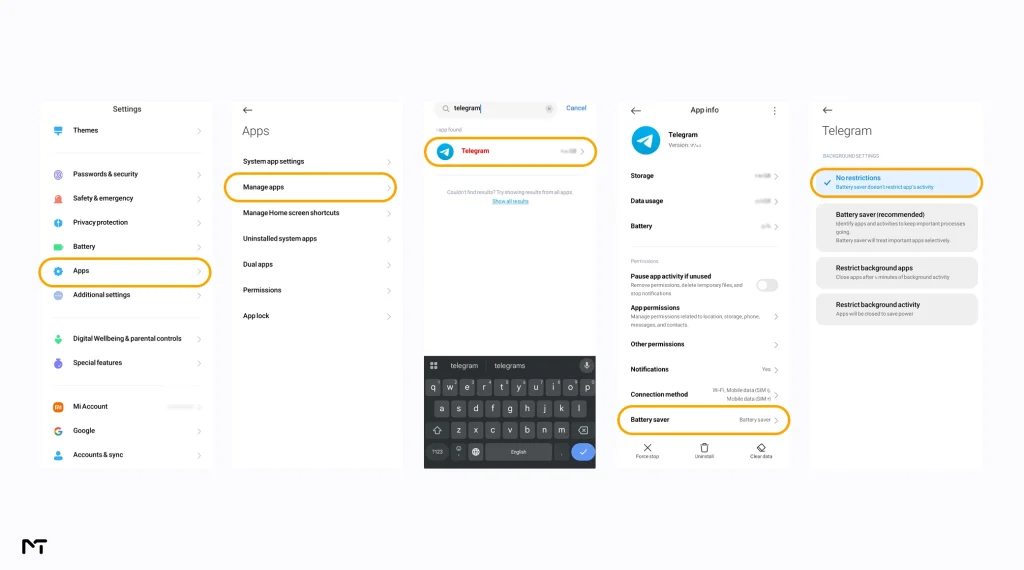
⚡ Xiaomi: Settings → Apps → Manage Apps → Telegram → Battery Saver → No restrictions, then enable Autostart
⚡ Huawei: Phone Manager → App Launch → Telegram → Manual → turn on Auto Launch, Secondary Launch, Run in Background
⚡ OnePlus: Settings → Battery → Battery Optimization → Telegram → Don’t optimize
⚡ Stock Android: Settings → Apps → Telegram → Battery → Unrestricted
| Brand | Where to Disable Battery Restrictions |
|---|---|
| Samsung | Settings, then Battery and Device Care, then Background Usage Limits, remove Telegram from “Sleeping apps” |
| Xiaomi (MIUI) | Settings, then Apps, then Manage Apps, find Telegram, then Battery Saver, set to “No restrictions,” and separately enable Autostart |
| Huawei | Phone Manager, then App Launch, find Telegram, and switch from Automatic to Manual, enabling Auto Launch, Secondary Launch, and Run in Background |
| OnePlus (OxygenOS) | Settings, then Battery, then Battery Optimization, find Telegram, select “Don’t optimize” |
| Stock Android / Pixel | Settings, then Apps, then Telegram, then Battery, select “Unrestricted” |
If you skip this table and only fix system permissions, notifications may work fine for a day or two and then quietly stop again once the phone’s battery manager resets its rules after a reboot or a system update. It’s worth revisiting this setting after any major Android update.
Step 3: Rule Out Do Not Disturb
Swipe down to check your quick settings panel for an active Do Not Disturb mode. Many Android phones also let you schedule DND automatically overnight or during work hours, so check your DND schedule settings too, not just the current toggle state, since a scheduled window can be the reason notifications disappear at specific times of day rather than all the time.
⚡ Quick Settings panel → check for the Do Not Disturb icon ⚡ Settings → Sounds and Vibration → Do Not Disturb → Schedule → check for an active schedule
Step 4: Check Muted Chats and Exceptions Inside Telegram
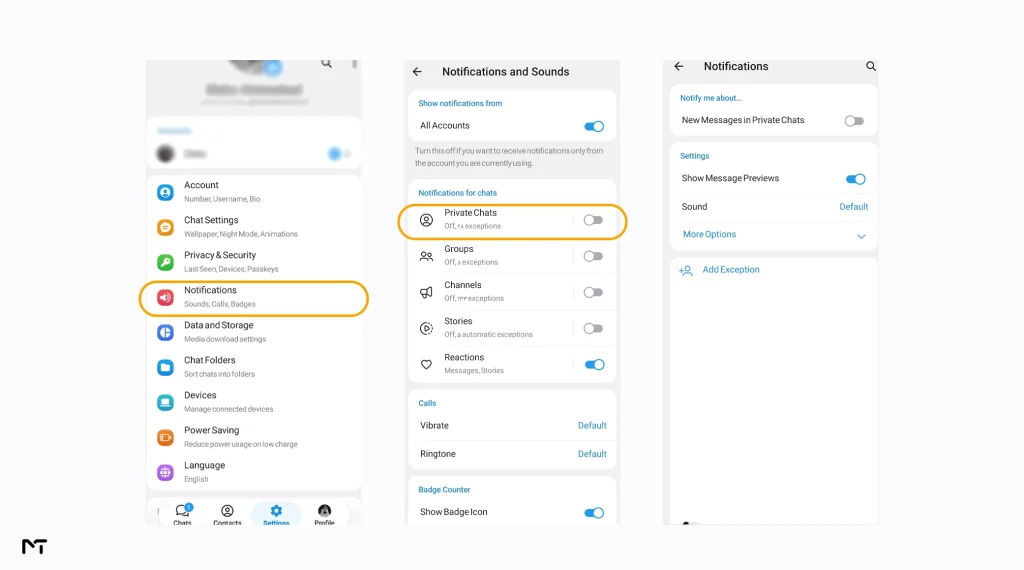
Open Telegram, tap the menu icon, go to Settings, then Notifications and Sounds. Scroll to the Exceptions section under “Notifications for chats.” If a specific contact or group shows up here with notifications turned off, that explains why one thread stays silent while everything else works normally. Tap the entry and switch it back on, or simply remove it from the exceptions list.
⚡ Telegram → Menu → Settings → Notifications and Sounds → Exceptions → find the chat and turn it back on
Fix Telegram Notifications Not Working on iPhone
iOS handles background apps differently from Android, so the causes shift slightly, but the troubleshooting order stays the same: system first, then the app, then individual chats.
Step 1: Allow Notifications in iOS Settings
Open Settings, scroll to Telegram, and tap Notifications. Confirm “Allow Notifications” is toggled on, and check that Lock Screen, Notification Center, and Banners are all enabled under Alerts. If Sounds is turned off here, you’ll still see the notification visually but won’t hear anything, which is a common source of confusion when people assume notifications are “broken” but they’re actually just silent.
⚡ Settings → Telegram → Notifications → turn on Allow Notifications → check Lock Screen, Notification Center, Banners under Alerts
Step 2: Check for an Active Focus Mode
Focus modes (Do Not Disturb, Work, Personal, Sleep, or any custom Focus a person has built) silently filter which apps can send alerts. Swipe down from the top right corner to open Control Center and look for a moon or Focus icon indicating an active mode. If one is on, go to Settings, then Focus, select the active mode, and add Telegram to the allowed apps list under Apps.
⚡ Control Center → check for an active Focus icon ⚡ Settings → Focus → select the active mode → Apps → add Telegram to the allowed list
Step 3: Enable Background App Refresh
Go to Settings, then General, then Background App Refresh, and make sure it’s enabled both globally and specifically for Telegram. Without it, iOS can suspend Telegram’s connection whenever the app isn’t open, which delays or blocks incoming pushes.
⚡ Settings → General → Background App Refresh → turn on the global toggle and the one for Telegram
Step 4: Review In App Notification and Sound Settings
Inside Telegram, tap Settings, then Notifications and Sounds. Check that Message Notifications is enabled and that Private Chats, Groups, and Channels each have sound assigned if you expect audible alerts. If one specific chat stays silent, tap that chat’s name at the top, go to Notifications, and confirm it isn’t muted or set to “Alert Off.”
⚡ Telegram → Settings → Notifications and Sounds → check Message Notifications and Sound for Private Chats, Groups, Channels
Step 5: Enable Telegram Background Connection
Telegram includes a specific background connection menu to fight back against aggressive Android battery managers. Open the Telegram app settings tap Notifications and Sounds then scroll down to the Background Connection section. You will find two toggles called Keep Alive Service and Background Connection. Turning both of these on forces your phone to maintain a steady link to the messaging servers. This guarantees your alerts arrive instantly without noticeably draining your battery.
⚡ Telegram → Settings → Notifications and Sounds → Background Connection → turn on Keep Alive Service and Background Connection
Advanced Fixes When the Basics Don’t Work
Before you try any of these deeper methods it is always smart to ask is Telegram not working entirely or just the notifications. A massive server outage will stop everything so a quick check online can save you hours of useless troubleshooting. If you’ve checked every setting above and notifications are still inconsistent, a handful of deeper fixes usually resolve what’s left.
- Reset all your notifications. Sometimes the internal settings get completely messed up and hunting down individual chat options takes way too much time. You can wipe the slate clean in just a few seconds. Open Telegram Settings choose Notifications and Sounds scroll to the very bottom and tap Reset All Notifications. This instantly restores the default alert behavior for all your private chats and groups without deleting any messages or logging you out.
⚡ Telegram → Settings → Notifications and Sounds → scroll to the bottom → Reset All Notifications
- Update the app and your operating system. An outdated Telegram build can carry notification bugs that get patched in later releases, and the same applies to your phone’s OS version. Check the App Store or Google Play for a pending Telegram update before trying anything more drastic.
- Clear Telegram’s cache (Android only). Go to Settings, then Apps, then Telegram, then Storage, and tap Clear Cache. This doesn’t touch your chat history, only temporary files that can occasionally interfere with background processes. Clearing this data is also one of the best ways to fix Telegram app crashes that silently kill the program while your phone is locked.
⚡ Settings → Apps → Telegram → Storage → Clear Cache
- Restart the phone. It sounds basic, but a restart resets background app states and connection handling, which fixes intermittent notification delays more often than people expect.
- Check your internet connection. Weak WiFi or unstable mobile data delays push delivery even when every setting is correct. Try toggling airplane mode on and off, or switching between WiFi and mobile data, to see if notifications start arriving again. Your phone might also be blocking Telegram from receiving alerts to conserve your monthly cellular data plan. On an iPhone check if Low Data Mode is active under your WiFi or Cellular settings. Android users should search their device settings for Data Saver. Also if you use a virtual private network or custom proxy settings they can easily drop the background connection when your screen locks. Try disabling them temporarily to see if the messages come through. In fact if you open the app and see a perpetual loading circle at the top you must first fix Telegram connecting problem issues before any pushes can resume.
⚡ iPhone: Settings → WiFi or Cellular → check Low Data Mode
⚡ Android: Settings → Network and Internet → check Data Saver
- Reinstall only as a last resort. Uninstalling and reinstalling Telegram resets in app preferences and can occasionally clear a stuck background process, but it won’t fix battery optimization or system permission problems, and your chat history stays safe in Telegram’s cloud either way. Try every other fix first since reinstalling takes longer and rarely addresses the root cause on its own.
How to Confirm Telegram Notifications Are Actually Fixed
Don’t just assume a setting change worked. Lock your phone, then have a friend send you a message, or send one to yourself from Telegram Web or a second device. Wait to see whether the alert appears on your lock screen with sound within a few seconds. If it does, you’re done. If it doesn’t, work back through the system permissions and battery settings above, since it’s common to fix one layer while missing another.
Mobile support specialists who deal with messaging app complaints regularly point out that most “broken” notification reports turn out to be a single toggle, most often battery optimization on Android or a Focus mode on iPhone, rather than an actual app failure. That matches what shows up here: the fix is almost always in your settings, not in Telegram’s code.
Check Your Smartwatch Connection
If you wear an Apple Watch or a Galaxy Watch your phone screen will often stay completely dark when a new message arrives. The operating system assumes you are looking at your wrist and purposely routes the alert directly to the watch to avoid vibrating twice. Try taking your smartwatch off or disabling Bluetooth temporarily to see if the notifications start appearing on your phone screen again. If they do your settings are perfectly fine and the watch was just doing its job.
Frequently Asked Questions
Why is my Telegram not sending notifications even though sound is on?
If sound is enabled inside Telegram but you’re still not hearing alerts, check your phone’s system level notification permissions first, since a system block overrides in app settings entirely. If system permissions look fine, check whether Do Not Disturb or a Focus mode is silently active.
Does closing Telegram on desktop affect notifications on my phone?
Yes, in some cases. If Telegram Desktop or Telegram Web is open and active on a computer, notifications can sometimes route there instead of your phone. Closing the desktop app or browser tab often restores phone notifications immediately.
How do I turn notifications back on for a muted chat?
Open the muted chat, tap the contact or group name at the top, select Notifications, and toggle it back on, or open Settings, then Notifications and Sounds, then Exceptions, and remove the chat from that list.
Will Telegram Premium fix notification problems?
No. Telegram Premium adds features like larger file uploads and exclusive stickers, but it doesn’t change how push notifications are delivered. Notification issues are almost always a device or app setting problem, not something a paid subscription resolves.
Why do I only get notifications for some chats and not others?
This is almost always a per chat mute or exception set inside Telegram rather than a device wide problem. Check the Exceptions list under Notifications and Sounds to find which specific chats have been silenced.
Final Thoughts
Telegram serves over a billion monthly active users worldwide, and notification complaints remain one of the most searched issues among them, largely because phone manufacturers keep adding new battery saving layers that interfere with background apps. If you want to fix Telegram notifications not working for good, work through system permissions, then Telegram’s own notification settings, then individual chat exceptions, in that order, and it will resolve the issue in the vast majority of cases, whether you’re on Android or iPhone. Save this guide and start from the top the next time an alert goes missing, since the fix is usually faster than it feels in the moment.
Still stuck after trying every fix above? Message @membertelsupport on Telegram and our team will walk through the settings with you directly.














Leave a Reply