

If your app is stuck on the loading screen, you can quickly fix the Telegram Connecting Problem by refreshing your internet configuration and removing internal software glitches. Do not worry, your chats are completely safe and your account is not banned. This is almost always a minor network mismatch, a crowded app memory, or phone wide VPN routing conflicts. Before diving into advanced steps, ensure your app is updated to the latest 2026 build via Google Play or App Store, and verify your phone has at least 500MB of free space. To get back online right now, follow this rapid troubleshooting sequence: Check Server Status (Verify if Telegram is down) -> Toggle Network (Switch from Wi-Fi to Mobile Data) -> Clear App Cache (Wipe temporary files) -> Disable Dead Proxies (Turn off old MTProto settings) -> Reboot Device (Refresh system RAM).
Whenever I see that spinning wheel and the frustrating connecting status, I know my app is struggling to establish a secure handshake with the servers. Over my years of managing channels, I have realized that something simple is usually blocking the path. It could be an issue with your local internet provider, a temporary glitch in your app installation, or a massive worldwide outage. Let me share the exact steps I personally use to get things back up and running smoothly.
First Check If Telegram Servers Are Alive
Before I start tweaking any settings on my phone or computer, I always make sure the problem is actually on my end. Sometimes Telegram faces massive traffic spikes or server maintenance that knocks the service offline for millions of users simultaneously.
To check if Telegram is having connection issues worldwide, I immediately head over to independent website trackers like DownDetector. I also check official social media channels where users instantly post updates when a glitch occurs. If I see a massive spike in reports from other users, I know the servers are down. In this scenario, there is nothing wrong with your device, and you simply need to wait for the technical team to deploy a fix.
My Network Level Solutions to Fix the Connection
If the servers are fine but my app still refuses to load, I know the issue lies within my network infrastructure. Local internet providers often change their routing paths, which can accidentally block the specific ports that Telegram uses to sync your data.
Switch Your Connection Mode
The fastest troubleshooting trick I use is changing how my device connects to the internet. If I am on home Wi-Fi, I turn it off and switch to my mobile cellular data. If I am already using mobile data, I try connecting to a reliable Wi-Fi network. This simple switch forces your device to request a brand new IP address, which frequently bypasses local network restrictions.
My Personal Channel Manager Tip
If you are running multiple large Telegram channels like I do, switching networks too rapidly while trying to post can sometimes trigger a temporary flood wait security flag. Always close the app completely before toggling between Wi-Fi and mobile data to let your network session reset cleanly.
Update Your DNS Settings
Your default internet service provider DNS can sometimes struggle to resolve Telegram server addresses. Changing your DNS to a fast public option like Cloudflare or Google works wonders for me.
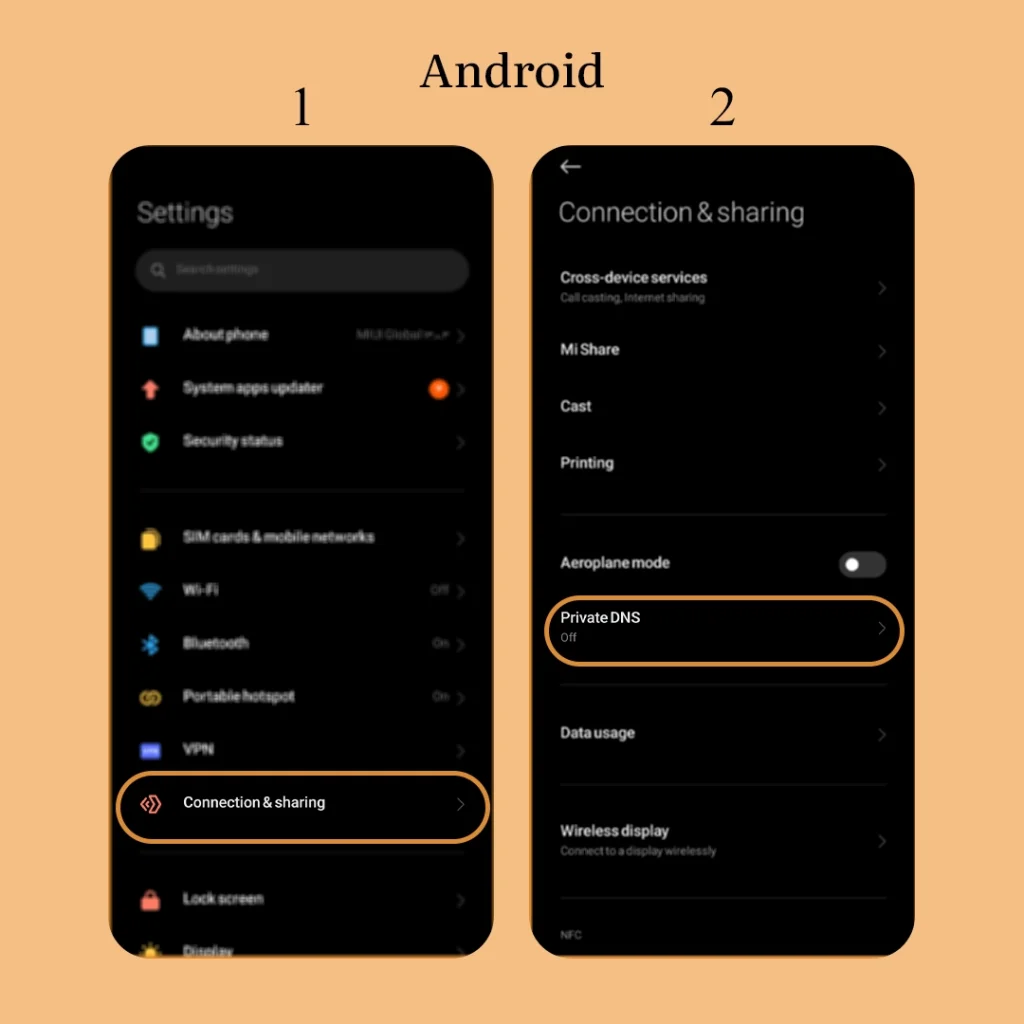
How to Change DNS on Mobile Devices:
- Android: Settings -> Connection & Sharing -> Private DNS -> Type
1.1.1.1or8.8.8.8- iOS (iPhone): Settings -> Wi-Fi -> Tap the “i” icon next to your network -> Configure DNS -> Manual -> Add Server
This ensures your connection requests find the fastest and most stable path to the server.
Disable IPv6 Interferences
Many modern routers use IPv6 protocols alongside older IPv4 systems. I have noticed that Telegram occasionally experiences handshake errors on certain IPv6 networks. If you have access to your router settings or your device network properties, try disabling IPv6 temporarily to force the connection through IPv4. You will be surprised by how often this instant fix solves the connecting loop.
Quick Comparison of Network Fixes
| Troubleshooting Method | Success Rate | Average Time to Fix | Primary Target |
| Switching Network Mode | 65% | 10 Seconds | Local ISP Restrictions |
| Changing to Public DNS | 80% | 2 Minutes | Server Resolution Failures |
| Disabling IPv6 Protocol | 45% | 3 Minutes | Network Handshake Glitches |
How I Fix App Glitches and Database Corruptions
When my internet is completely fine but I am still hit with the stubborn Telegram Connecting Problem, I know the software internal files are experiencing a conflict. Apps cache thousands of images, files, and background scripts that can eventually get corrupted over time.
Clear the Telegram App Cache
You do not need to delete your precious chats to fix a glitch. I love using the amazing built in storage management tool in the app. Navigate to your app settings, open the Data and Storage section, and tap on Storage Usage. From there, select Clear Cache.
Quick Steps to Clear Cache: Settings -> Data and Storage -> Storage Usage -> Clear Telegram Cache
This removes temporary files that might be stalling the connection process while keeping your messages completely safe.
Reset the Local Database
If clearing the cache does not work, the local database file might be stuck in a loop. In the same storage settings menu on your phone, you will find an option to manage local storage. Tapping this allows you to clear the local database. I use this to force the app to rebuild its index from the cloud servers, which instantly wipes out any internal application glitches.
Manage Internal MTProto Proxies
Telegram allows us to configure internal proxies for secure connections. However, if you left an old or dead proxy active in your settings, the app will continuously try to connect through that broken tunnel. Go to your advanced connection settings, tap on Proxy, and disable any active configuration to see if the default direct connection restores your service.
Platform Specific Troubleshooting Steps
I have seen Telegram behave quite differently depending on the operating system you are running. Here is how I handle the connection issue based on your specific device.
Android Optimization
Android systems are very aggressive with battery saving techniques. Go to your phone settings, open the apps list, select Telegram, and ensure that Battery Optimization is set to Unrestricted. Also, make sure that Background Data Usage is toggled on, allowing the app to stay connected even when your screen is locked.
Fix Background Battery Restrictions: Phone Settings -> Apps -> Manage Apps -> Telegram -> Battery Saver -> Set to No Restrictions
iOS and iPhone Tweaks
For my iPhone users, the main culprit is often the Background App Refresh feature. Ensure this is turned on in your iOS settings under the Telegram tab. Additionally, if you are using iCloud Private Relay, it can occasionally mask your traffic in a way that interferes with Telegram secure sockets. Try toggling Private Relay off temporarily to check the connection.
Desktop and PC Solutions
If you are using Telegram Desktop on Windows or Mac, your built in firewall or antivirus software might be blocking the app background processes. I always add Telegram to my firewall whitelist when this happens. If you are using the portable version of the desktop app, ensure it is installed in a folder that has full administrator read and write permissions.
FAQ: Telegram Connecting Problem
Why is my Telegram Web stuck on connecting?
Based on my experience, Telegram Web relies entirely on your browser cookie management and service workers. Clear your browser history and cache, or try opening Telegram Web in an incognito window to bypass extension interferences.
Can a full storage cause connection loops?
Yes, if your smartphone storage is completely full, Telegram cannot download the necessary temporary database files required to sync your messages, resulting in a permanent connecting screen.
How do I know if my account is banned or just disconnecting?
If the app just says connecting, you are almost certainly facing a temporary network mismatch or a localized software glitch. However, if Telegram completely logs you out and displays an explicit notification stating your phone number is blocked, your account has been restricted. When this happens, it is crucial to understand Why My Telegram Channel Was Banned or what triggered the system restriction on your profile so you do not repeat the same mistakes. If you find yourself in this situation, you should immediately look into the official appeal steps to Recover a Banned Telegram Account and regain access to your data.
If you followed all these steps and your app still refuses to sync, you might be dealing with a highly specific account configuration issue rather than a standard glitch. Do not hesitate to reach out to our dedicated team at @membertelsupport for personalized technical assistance to permanently resolve this stubborn Telegram Connecting Problem and get expert advice on optimizing your overall experience.














Leave a Reply