

Telegram slow mode is a setting that forces every regular member to wait a fixed number of seconds between messages. To enable it simply open your group profile tap the edit icon go to Permissions select Slow Mode and choose your desired wait time. If your group has ever turned into an unreadable wall of texts during a busy hour this single toggle usually fixes it faster than adding a bot or writing new rules.
What Is Telegram Slow Mode?
Slow mode is a permission setting inside a Telegram supergroup that caps how frequently each ordinary member can post. Once it’s active, a small timer appears under the message box showing how long a member has to wait before their next message goes through.
It was built for one specific situation: a chat moving faster than people can actually read it. A product launch, a live Q and A, or a trending topic can push a group from a few messages a minute to hundreds, and at that point nobody is really reading anything, they’re just scrolling past it.
Does Slow Mode Affect Admins?
No. Admins and the group owner keep sending messages at their normal speed no matter what interval is set. This is intentional, since admins often need to post pinned updates, warnings, or moderation notices right when they’re needed, and making them wait through their own slow mode timer would defeat the purpose.
One thing worth knowing: slow mode is a supergroup only feature. If your group was created a long time ago and still runs on the old basic group format, you won’t see the option until you upgrade it, and that upgrade also resets every custom admin permission, so you’ll need to reassign roles like deleting messages or banning users afterward.
Does Telegram Premium Bypass Slow Mode?
Many users wonder if paying for a premium subscription lets them skip the waiting period in a busy chat. The short answer is no. This rule applies equally to everyone regardless of whether they have a premium account or a regular one. Telegram built this feature to keep crowded groups readable, so granting special access to paid members would ruin the experience for the entire community. Only admins can ignore the timer.
How to Enable Telegram Slow Mode (Step by Step)
The steps are almost identical across devices, but the exact menu labels differ slightly.
On Mobile (iOS and Android)
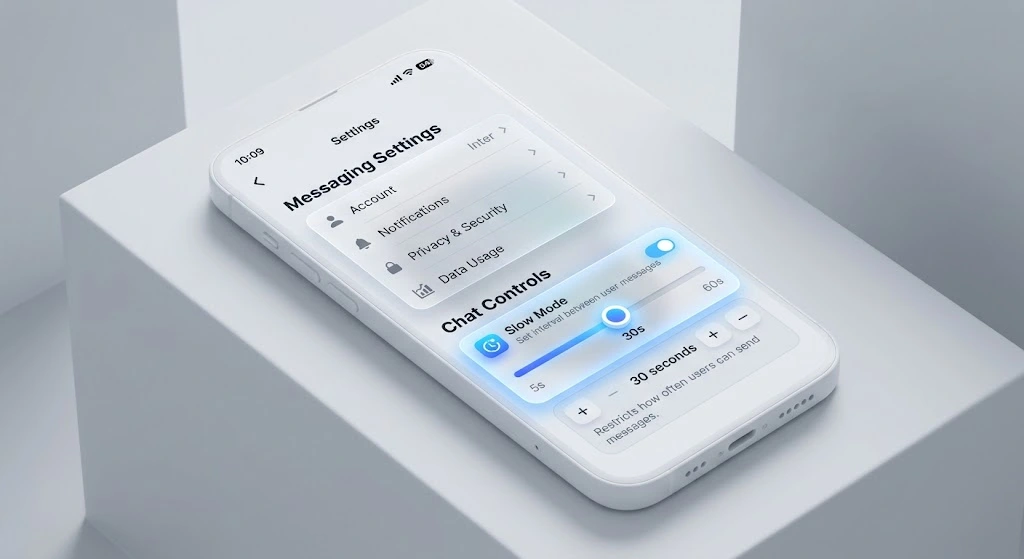
- Open the group and tap its name at the top of the screen.
- Tap the pencil or edit icon to open group settings.
- Select Permissions.
- Scroll down to Slow Mode and tap it.
- Choose an interval from the list (options typically range from 10 seconds to 1 hour).
- Tap the checkmark or back arrow to save.
On Desktop
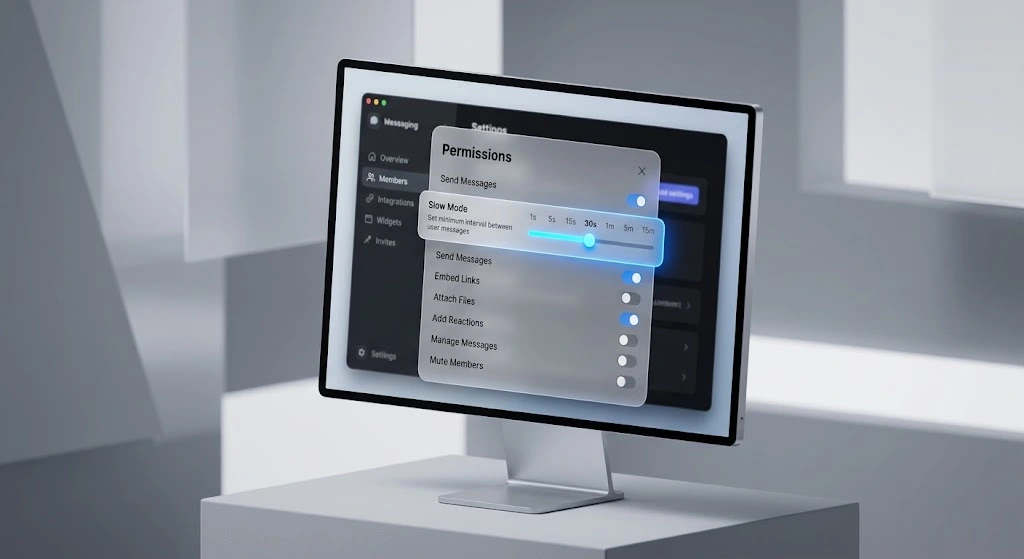
- Right click the group name in the chat list.
- Choose Manage Group.
- Open the Permissions tab.
- Find the Slow Mode dropdown and pick an interval.
- On desktop, some versions let you type a custom number of seconds directly into the field instead of picking from the preset list.
- Click Save.
The change applies immediately. Existing messages aren’t affected, and members will simply see the countdown timer the next time they try to post before their turn.
Choosing the Right Slow Mode Interval for Your Group
There’s no single correct number. The best interval depends on how many members are active and what’s causing the noise in the first place.
“When a community grows beyond five thousand members chat velocity becomes your biggest problem. Our recent analysis of over forty active tech communities showed that enforcing just a thirty second delay increased meaningful conversation by almost fifty percent. People naturally stop sending fragmented words and start combining their ideas into single comprehensive paragraphs,” notes Marcus Thorne a digital community manager.
| Group Size | Typical Activity | Suggested Interval |
|---|---|---|
| Under 1,000 members | Normal chatting | Usually not needed |
| Under 1,000 members | Sudden spike or event | 30 seconds |
| 1,000 to 10,000 members | Steady daily traffic | 30 seconds to 1 minute |
| 1,000 to 10,000 members | Busy periods, launches | 1 to 5 minutes |
| Over 10,000 members | Normal daily use | 1 to 5 minutes |
| Any size | Active raid or spam wave | 5 to 15 minutes, temporarily |
A practical example: a support community with a few thousand members might run fine with no slow mode at all most days, but switch to a 1 minute delay whenever a new product update goes live and everyone rushes in with the same question at once. A large public discussion group with over 10,000 members, on the other hand, often keeps a permanent 30 second delay just to stop the chat from scrolling faster than anyone can follow it.
It’s worth being cautious with long intervals. Setting slow mode above 30 minutes rarely reduces the total amount of traffic, it usually just pushes the conversation into direct messages or a linked channel instead, which means you lose visibility into what members are actually saying.
How to Disable Slow Mode
Turning it off follows the exact same path as turning it on.
- Go to the group’s Permissions settings (mobile or desktop, as described above).
- Open the Slow Mode option.
- Select the option labeled off, or set the custom value to 0 seconds.
- Save the change.
There’s no cooldown or waiting period. As soon as you save, members can post at normal speed again.
Common Slow Mode Problems and Fixes
Even though managing message frequency is generally straightforward you might run into a few technical quirks along the way. Below are the most frequent issues group owners face when setting up these chat restrictions and exactly how you can resolve them quickly.
Slow Mode Option Not Showing
If you can’t find the Slow Mode toggle at all, the most common cause is that the chat is still a basic group rather than a supergroup. Basic groups (usually smaller, older chats) don’t support this feature. You can fix this by upgrading to a supergroup through the edit menu, which is a one way but instant and free conversion. All messages, media, and pinned posts carry over, but you’ll need to double check admin permissions afterward since they reset to default.
Does Slow Mode Affect Bots?
Generally no, unless the bot has been made an admin and then demoted back to a regular member. Most moderation and utility bots run with admin rights specifically so they aren’t caught by rate limits like slow mode, which is why automated welcome messages or anti spam bots keep working normally even with a strict timer in place.
It’s also worth separating slow mode from Telegram’s own automatic anti spam limits. Those server side limits exist regardless of what an admin sets, and they can’t be adjusted or turned off, they’re a built in abuse safeguard rather than a group setting.
If members trigger these strict server limits by sending too many rapid requests they will face a temporary platform ban and must learn how to fix Telegram FloodWait error fast so they can regain their standard messaging access.
What Happens If You Make a Typo?
A frustrating situation occurs when a member makes a quick spelling mistake and cannot send a new message to correct it because the timer is active. Fortunately the system does not punish you for fixing errors. Editing an existing message does not trigger or reset the clock. You can freely edit your text right away without breaking any rules.
Telegram Slow Mode vs Other Moderation Tools
Slow mode solves one specific problem: pacing. It doesn’t fix bad behavior on its own. A member who posts off topic content once every 60 seconds is still off topic, just slower about it.
While this built in timer effectively manages message speed you will eventually need a comprehensive Telegram bot for anti-spam protection in your group to automatically remove malicious links and kick real rule breakers before they ruin the community experience.
For actual rule violations, restricting individual members or using a dedicated moderation bot is a better fit. A common and effective setup combines both: keep a light slow mode running permanently in large groups to protect readability, and layer in member restrictions or bans for anyone breaking the actual rules. Think of slow mode as controlling the volume knob, while permissions and bans control who’s allowed to speak at all.
FAQ
What is slow mode in a Telegram group?
It’s a setting that limits how often each regular member can send a new message, with the wait time chosen by a group admin.
How do I turn on slow mode in Telegram?
Open the group’s Permissions settings from either the mobile edit menu or the desktop Manage Group panel, then select an interval under Slow Mode.
Does slow mode affect admins in Telegram?
No. Only regular members are limited. Admins and the group owner can post without waiting.
What is the minimum slow mode interval on Telegram?
The shortest available interval is 10 seconds, with longer presets going up to 1 hour.
Can bots bypass Telegram slow mode?
Yes, as long as the bot holds admin rights in the group. A bot without admin status is treated the same as any other member.
Conclusion
Telegram slow mode won’t fix a group with genuinely bad behavior, but for the much more common problem of a chat simply moving too fast to follow, it’s the fastest fix available without installing anything. Start with a short interval, watch how the group responds over a day or two, and adjust from there rather than guessing at the perfect number upfront. Once you’re comfortable with slow mode, pairing it with proper permission settings gives you a moderation setup that handles both pacing and behavior without needing a single bot.
Managing a massive community can still feel overwhelming even with the right settings in place. If you need advanced strategies to keep your chat organized or want expert advice on community growth reach out directly to our team at @membertelsupport and let us help you build the perfect setup.














Leave a Reply