
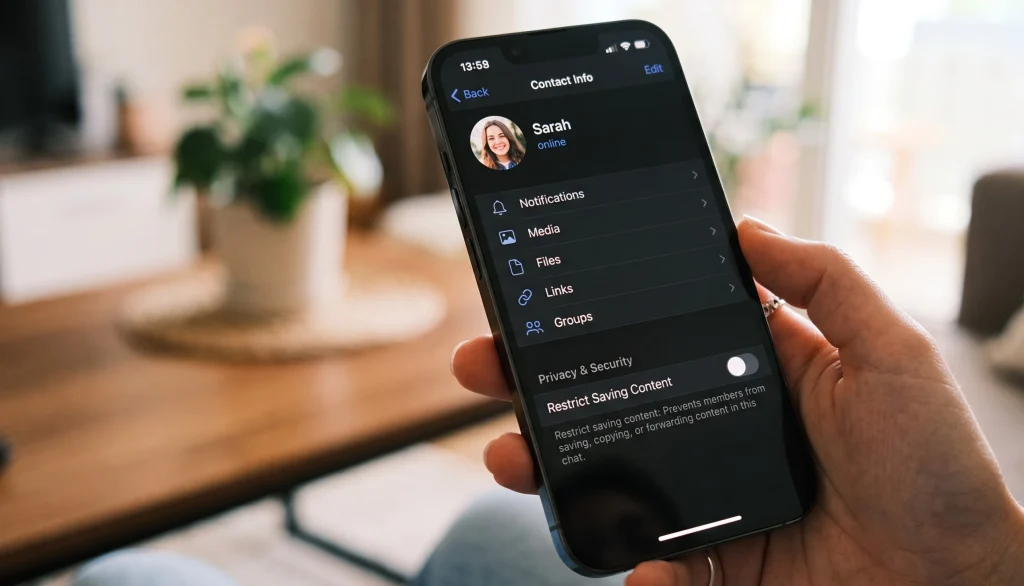
Telegram disable sharing private chat is a Premium setting that stops the other person in a one on one conversation from forwarding your messages, copying text, saving photos or videos, or taking a screenshot. It only works in individual chats, not groups or channels, and at least one person in the conversation needs an active Premium subscription to turn it on. You enable it from that person’s profile in a couple of taps, it applies only to that specific chat rather than your whole account, and you can switch it back off the same way whenever you want.
Now let’s get into the details, including what it can’t do and how to set it up on every device, because there’s more nuance here than most people realize.
Key Takeaways
- Disable Sharing only works in individual chats, not groups or channels
- It requires an active Telegram Premium subscription
- It blocks forwarding, copying, saving media, and screenshots inside that one chat
- It cannot stop someone from photographing their screen with another device
- You enable it from the recipient’s profile menu, and either person with Premium can turn it on
What Disable Sharing Actually Is
Telegram rolled this feature out in its March 2026 update, and it’s essentially an extension of something the app already offered creators. Back in 2021, Telegram gave group and channel admins a way to protect their posts from being forwarded or saved, mostly so paid content and exclusive material wouldn’t leak the moment someone joined. Disable Sharing brings that same protection down to personal, one on one conversations.
The idea is simple. Maybe you’re sending someone a passport photo, a signed contract, or details about something you’d rather not see screenshotted and passed around later. Once you flip this setting on for that chat, Telegram actively prevents the other person from forwarding your messages elsewhere, copying your text, saving your photos or videos to their device, and capturing the screen while your messages are visible.
Telegram’s own team framed the update as a way to build a bit more trust into everyday conversations, not just a tool for extreme cases. That framing matters, because it signals this is meant for ordinary situations, sending a friend your address, a coworker a draft, a partner a photo, rather than something you’d reach for only when things feel risky.
How It’s Different From Secret Chats
People tend to lump this together with Secret Chats, but they solve different problems. Secret Chats are about encryption. Messages sent through a Secret Chat are end to end encrypted and live only on the two devices involved, never on Telegram’s servers, and you can set them to self destruct after a timer. Disable Sharing doesn’t touch encryption at all. It’s a permission setting layered on top of your normal cloud chat, and its whole job is to restrict what the other person can do with content they’ve already received.
Think of it this way: Secret Chats control who can access the message in the first place. Disable Sharing controls what happens to it after it’s already on someone’s screen.
It’s Per Chat, Not Account Wide
One thing that trips people up: this isn’t a global privacy switch. You choose it chat by chat. You could disable sharing with a client you’re sending contracts to while leaving every other conversation exactly as it was. That flexibility is part of the point. It also means if you have five different people you talk to regularly, you’d need to turn it on separately in each of those five chats rather than flipping one master setting somewhere in your account.
If you ever want to turn it off, you go back through the same profile menu and select the option again to restore normal sharing for that chat.
How It’s Different From Group and Channel Protection
The original 2021 feature protects content an admin posts to a wide audience. Disable Sharing protects a conversation between exactly two people. Functionally they block similar things (forwarding, saving, screenshots), but Disable Sharing is currently limited to individual chats. As of now, it doesn’t extend to groups, so if you’re managing a community and want that same protection, you’ll still use the older group and channel setting. That’s also why something like downloading a video from a private group comes down to that group’s own protection rules rather than anything covered here.
What Gets Blocked (And What Doesn’t)
Here’s a clear breakdown of what changes once Disable Sharing is active in a chat.
| Action | Blocked? |
|---|---|
| Forwarding messages to another chat | Yes |
| Copying text from a message | Yes |
| Saving photos or videos to the device | Yes |
| Taking a screenshot | Yes, shows a “Screenshot Blocked” notice |
| Screen recording | Yes |
| Photographing the screen with a second device | No |
| Reading the message and manually retyping it | No |
That second to last row matters more than people give it credit for. Disable Sharing is a software level restriction, so it can stop the phone’s own screenshot function, but it has no way to stop someone from pointing another camera at their screen. If you’re sharing something genuinely sensitive, treat this feature as a strong deterrent against casual content theft, not as an airtight vault.
How to Set Up Telegram Disable Sharing Private Chat
The steps are nearly identical across platforms, with small differences in where the menu icon sits.
On Android
- Open the one on one chat you want to protect
- Tap the contact’s name at the top of the screen to open their profile
- Tap the three dot menu in the corner
- Select Disable Sharing
- Confirm on the screen that explains what will be restricted
On iPhone
- Open the chat and tap the person’s name at the top
- On their profile page, tap the three dot icon
- Choose Disable Sharing from the list
- Confirm to activate it
On Desktop or Web
- Open the chat, then click the contact’s name in the header to open their profile
- Click the three dot menu near the top of the profile panel
- Select Disable Sharing and confirm
Once it’s on, you’ll notice the change immediately. Long pressing (or right clicking, on desktop) a message no longer shows Copy, Forward, Share, or Save options, and Telegram posts a small notice in the chat confirming that sharing has been turned off.
Do You Need Telegram Premium?
Yes. Right now Disable Sharing is a Premium only feature, similar to other recent additions like flexible forwarding controls and voice message restrictions. Either participant in the chat needs an active Premium subscription to turn it on. If neither of you has Premium, the option simply won’t appear in the profile menu, which is the most common reason people report not being able to find it. If you’re still weighing the subscription, it’s worth thinking through who actually gets their money’s worth from Telegram Premium before you decide.
Troubleshooting: Why You Might Not See the Option
If you’ve gone through the steps above and Disable Sharing isn’t showing up, it’s usually one of these:
You’re in a group or channel, not a private chat. This feature currently works only in individual conversations. For groups and channels, look for the older Protected Content setting in the group’s admin panel instead.
Your app is outdated. This feature shipped in the March 2026 update, so if you’re running an older version of Telegram on any platform, update the app first.
Neither person has Premium. Since this is a Premium exclusive feature, check that at least one participant in the chat has an active subscription.
You’re looking in the wrong menu. The option lives inside the contact’s profile page, not in the chat’s own settings menu, which trips up a lot of people the first time.
Telegram Secret Chat vs Disable Sharing
If you’re trying to decide which privacy tool actually fits what you need, this comparison should make it easier.
| Feature | Secret Chat | Disable Sharing |
|---|---|---|
| Requires Premium | No | Yes |
| End to end encrypted | Yes | No |
| Available across all your devices | No, tied to one device | Yes |
| Blocks forwarding and saving | Yes | Yes |
| Blocks screenshots | Yes | Yes |
| Self destructing messages | Yes | No |
| Works within your normal cloud chat | No | Yes |
If encryption and message self destruction matter most to you, Secret Chat is still the stronger option, though it means starting a separate chat that only exists on the device you created it on. If you’d rather keep everything in your regular, synced conversation while still cutting off forwarding and screenshots, Disable Sharing is the more convenient middle ground.
Frequently Asked Questions
How do I disable sharing on Telegram?
Open the private chat, tap the other person’s name to open their profile, tap the three dot menu, and select Disable Sharing.
Does Disable Sharing block screenshots?
Yes. If someone tries to capture the screen while it’s active, Telegram blocks the attempt and shows a notice in the chat.
Is Disable Sharing free on Telegram?
No, it’s currently available only to Telegram Premium subscribers.
Why can’t I find the Disable Sharing option?
You’re most likely in a group chat instead of a private one, running an outdated app version, or neither participant has Premium. Update the app and confirm you’re in a one on one chat first.
Does Disable Sharing work in group chats?
Not yet. It’s limited to individual chats. Groups and channels have their own separate content protection setting.
Can the other person still copy what I sent them?
Not through Telegram’s copy, forward, or save options. They could still retype your text manually or photograph the screen with a separate device, since no messaging app can prevent that.
Final Thoughts
Telegram disable sharing private chat won’t turn the app into a vault, and it’s not meant to. What it does is close off the easiest, most casual ways your messages could end up somewhere you didn’t intend, a stray forward, a saved photo, a quick screenshot. For anything genuinely high stakes, pair it with a Secret Chat or just be mindful of who you’re talking to in the first place. But for everyday conversations where you want a bit more control over one specific chat, it’s a small setting that does exactly what it promises.
Still have questions about setting it up or running into an issue with your account? Message our team directly at @membertelsupport and we’ll help you sort it out.














Leave a Reply