
You can use Telegram as free cloud storage right now, without paying for Dropbox, Google Drive, or iCloud. Telegram doesn’t cap the total amount of data you can send yourself, and a small set of bots turn that raw storage into something that actually feels organized, with folders, search, and instant retrieval from any device.
Most people already use Telegram every day, but they never think of it as a place to dump files permanently. That changes fast once you realize your Saved Messages folder, a private channel, or a purpose built bot can hold documents, photos, and videos indefinitely, for free, synced across phone, desktop, and web.
This guide walks through exactly how that works, which bots are worth trusting, and where the free ride actually has limits.
Why Telegram Works as Free Cloud Storage
Telegram was built as a cloud based messenger from day one. Every chat, file, and message lives on Telegram’s servers rather than only on your device, which is the same principle that makes traditional cloud storage useful. The difference is that Telegram never marketed this as a storage product, so most users never explore it.
“People often see the unlimited space offer and completely misunderstand how the underlying infrastructure operates. Telegram relies on distributed server clusters originally optimized for quick message delivery rather than bulk file hosting. Users pushing terabytes of personal media through private channels are essentially riding on the excess server capacity of a messaging giant which works brilliantly but lacks the enterprise guarantees of a dedicated cloud service.” explains Dr Marcus Lin a senior cloud storage architect.
Unlimited Storage, No Subscription
There’s no storage cap tied to your account. You won’t hit a wall at 15GB the way you do with a free Google account, and you won’t get a notification asking you to upgrade. As long as you’re sending files through your own chats, channels, or bots, Telegram keeps them.
Compare that to what paid cloud services charge for similar capacity. Dropbox charges around $12 a month for 2TB. Google Drive and iCloud both sit close to $10 a month for the same amount. Telegram charges nothing for any of it, which is exactly why developers keep building tools around this idea.
However while the storage capacity is infinite the transfer speed is not always perfect. The platform actively limits download speeds for free users especially during peak hours which means pulling massive video archives will take noticeably longer than it would on a dedicated paid provider. You are essentially trading fast retrieval times for the financial benefit of paying absolutely nothing.
The 2GB File Size Limit You Should Know
The unlimited part applies to total storage, not to individual file size. Through the regular Telegram app, you can upload files up to 2GB each, or 4GB if you have Telegram Premium. That covers nearly everything a typical user needs: documents, photos, music, even most videos. That extra capacity is very tempting for people managing raw media files but you have to weigh the monthly costs carefully. Taking a moment to read about who should actually pay for Telegram Premium and exploring other powerful Telegram features helps you decide if upgrading is a necessity or if the free tier is perfectly adequate for your archive.
Bots are a different story. Many bots built on the standard Telegram Bot API can only handle uploads up to 50MB and downloads up to 20MB, because that’s the ceiling Telegram sets for bot traffic by default. Some developers get around this by running a local Bot API server, which raises the limit closer to 2GB, but that’s a technical workaround, not something the average user needs to worry about for everyday storage.
Moving gigabytes of data through your smartphone will easily test your patience and drain your battery. If you want to use this system seriously you should install the official desktop application on your computer. The desktop client handles bulk uploads beautifully and allows you to drag and drop dozens of items at once making the whole management process feel much more like a real computer drive.
Method 1: Use Telegram’s Native Saved Messages
Before you install a single bot, know that Telegram already gives you a built in storage folder called Saved Messages. It works like a chat with yourself.
Open Telegram, tap the search icon, and look for “Saved Messages” at the top of your chat list, or forward any file to it from an existing conversation. Everything you drop there stays available across every device where you’re logged into your account. Once you retrieve these documents on your phone they sometimes get buried deep inside system folders. Knowing exactly how to find downloaded files on Telegram saves you from the frustration of downloading the exact same heavy document multiple times.
How to Access and Organize Saved Messages
Saved Messages doesn’t give you folders in the traditional sense, but you can get close by using a few built in tools together.
Pin important files so they stay at the top. Use Telegram’s search bar inside the chat to find a file by name or by the text in its caption. Add short, consistent captions when you save something, since that caption becomes searchable later.
It’s a manual system, and it works fine for someone storing a few dozen files. Once you’re managing hundreds of documents or building an actual archive, that’s where dedicated storage bots start to matter.
To get around the lack of traditional folders you should strongly consider using a strict hashtag system. Whenever you upload something simply type a specific keyword preceded by a hash symbol in the caption like finance or familyphotos. Tapping that tag later instantly filters your chat history displaying only the items in that exact category. You can also group multiple private storage channels using the native chat folders feature in the application settings keeping your digital workspace totally separate from your personal chats.
Method 2: Create Your Own Private Channel as Storage
A private channel gives you more structure than Saved Messages, and it’s the method most storage bots actually rely on behind the scenes.
Step by Step: Setting Up a Private Channel with a Bot as Admin
Start a new channel from the Telegram menu and set it to private, since a public channel isn’t the right place for personal files. Skip adding contacts when prompted, since this channel is only for you.
To make this private space function exactly like a traditional hard drive you should definitely enable the discussion feature. Knowing exactly how Telegram topics work allows you to split your raw storage channel into neat dedicated folders like one specific room for financial receipts and another just for family videos.
Open a chat with BotFather, Telegram’s official bot for creating and managing bots, and use the /newbot command to generate your own bot along with an API token. Add that bot as an administrator of your new private channel, giving it permission to post messages.
From there, any file you send to the bot in a private chat gets automatically forwarded into your channel, where it stays permanently and stays searchable through Telegram’s own search. This is the exact mechanism behind most third party storage bots, and building it yourself gives you full control over who can access the channel.
Best Telegram Bots for Free Cloud Storage
If setting up your own bot sounds like more effort than you want, several existing bots already do this for you. Here are the ones worth trying, based on what they actually deliver.
Before jumping into storage options you might also need specific tools just to move massive archives around. Many developers have built dedicated Telegram bots to transfer large files quickly which help bypass standard upload bottlenecks. For instance if your backup consists mostly of compressed folders you can easily use a Telegram bot to receive ZIP files safely without having to extract them on your phone first.
Safe Bot
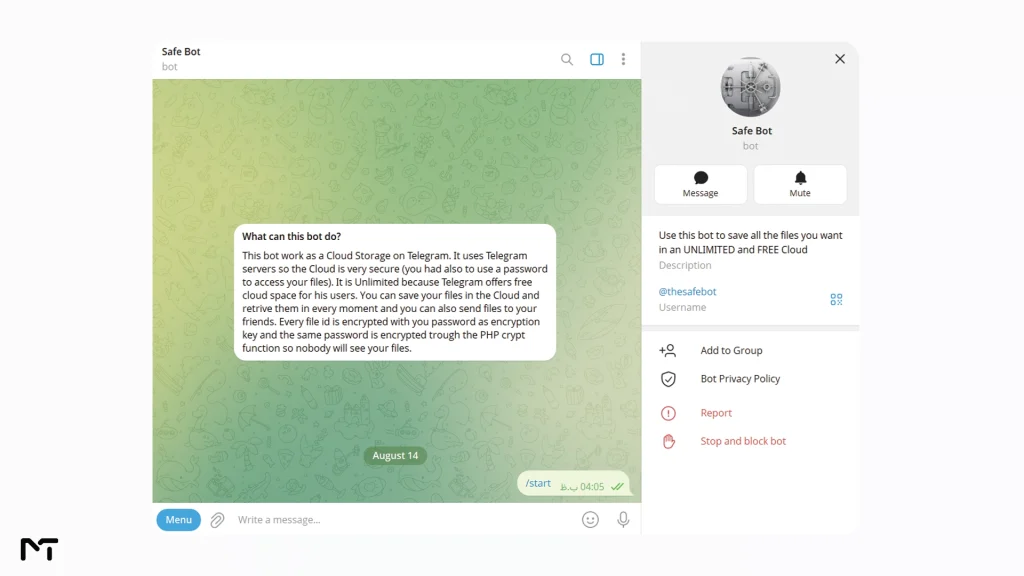
Safe Bot, found on Telegram as @thesafebot, is the simplest option for someone who just wants to drag files in and get them back later. You send it a file and it stores it in your own private cloud inside the bot, locked behind a password you set yourself.
Every file is encrypted using that password as the key, so retrieving anything later means typing the password back in. There’s no category system or complex menu, just a straightforward save and restore flow through simple commands like /start and /restore.
The tradeoff is the same as with any third party bot: you’re trusting it with your files rather than a channel you control directly, so it’s best suited for non sensitive documents, media backups, and anything you’d be comfortable losing access to if the bot ever went offline. Note that some storage bots do get pulled down or renamed over time, so if a specific bot username stops responding, treat that as a sign to move to a private channel setup you control yourself, covered in Method 2 above.
Infinite Cloud Bot
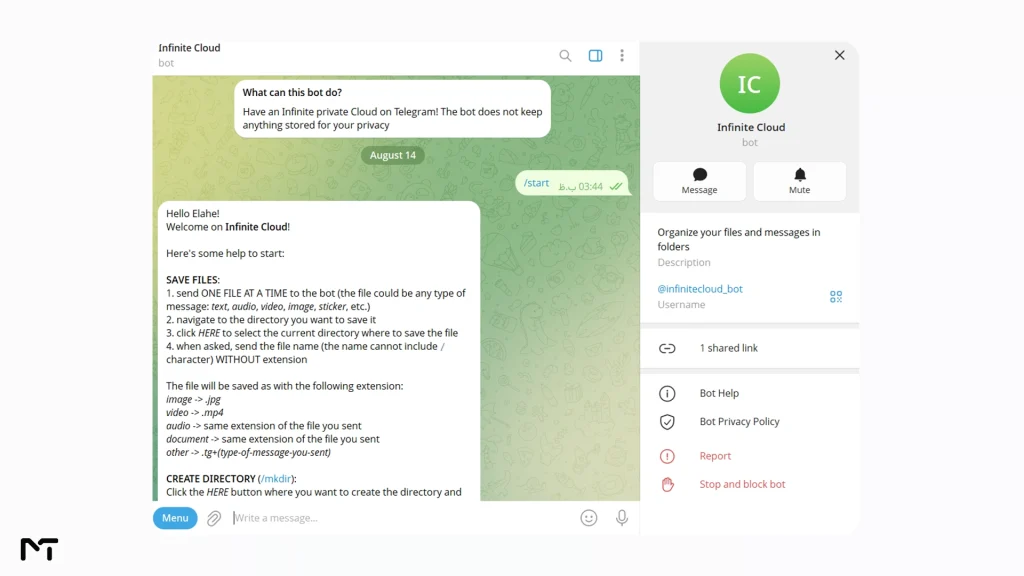
Infinite Cloud Bot takes a different approach and prioritizes privacy over convenience. It’s fully open source, and instead of storing your files on an external server, it only tracks a simple file structure using your own chat data, meaning your files never leave Telegram’s own infrastructure through the bot itself.
This makes it a better fit for anyone who wants the transparency of reading the bot’s code before trusting it with personal files. Since the project is open source, developers can also self host it, which removes the third party entirely from the equation.
FilesLink
FilesLink is built for people who want a real file management interface layered on top of Telegram’s raw storage. It runs as a self hosted service using Docker, connects to your own private channel, and generates instant download links for anything you upload, up to 2GB per file.
It’s not a bot you add from the Telegram search bar. You deploy it yourself on a server or a free hosting platform, then connect it to a bot token from BotFather. That extra setup step makes it the right pick for small teams or anyone managing a larger volume of files who wants a proper dashboard instead of scrolling through a chat.
Telegram Cloud vs Google Drive vs Dropbox
| Feature | Telegram Cloud | Google Drive (Free) | Dropbox (Free) |
|---|---|---|---|
| Storage limit | Unlimited | 15GB | 2GB |
| Max file size | 2GB (4GB Premium) | 5TB per file | 50GB per file |
| Monthly cost | Free | Free, paid tiers from $2/mo | Free, paid tiers from $12/mo for 2TB |
| Folder interface | Limited, needs a bot | Full native interface | Full native interface |
| File recovery/trash | Not available | 30 day trash | 30 day trash |
| Link sharing with expiry | Only through third party bots | Native support | Native support |
Telegram wins clearly on raw storage capacity and cost. Google Drive and Dropbox win on built in organization, file recovery, and sharing controls. The honest takeaway is that Telegram works best as a free backup layer or as storage for files you don’t need advanced management tools for, while Drive or Dropbox still make sense for active project files you’re editing and sharing constantly.
You must also manage your expectations regarding file retrieval times. If you ever ask yourself why is Telegram download speed so slow compared to paid alternatives remember that you are utilizing a free messaging infrastructure rather than a dedicated premium server optimized for bulk transfers.
Is It Safe to Store Files on Telegram?
Telegram’s cloud chats use server side encryption, and the company has kept files stored for years without deleting them, based on developer reports of files from as far back as 2017 still being downloadable. There is one massive detail you must keep in mind before moving your digital life over. Telegram has an automatic account deletion timer built right into the platform. By default if you do not open the application for six months the system deletes your profile entirely and permanently wipes every single photo document and channel associated with it.
You need to jump into your privacy settings to extend this timer to a full year but you still have to actively open the app occasionally to ensure your archive stays alive. That track record is part of why storage bots built on Telegram have grown so quickly.
You do need to be careful about copyright flags even in private spaces. If your storage channel gets flagged by automated systems for hosting pirated movies you might suddenly lose access. In such emergencies knowing how to fix this channel cannot be displayed on Telegram error becomes essential to recover your blocked content before it disappears.
The bigger risk isn’t Telegram’s infrastructure. It’s the third party bots themselves. A developer who built an S3 compatible storage system on top of Telegram put it plainly: you’re relying on the Bot API’s continued availability and Telegram’s ongoing tolerance of this use case, not a guaranteed enterprise service.
That’s a fair way to think about any bot in this space. Telegram itself isn’t going anywhere, but an individual bot could shut down, change its terms, or get taken over by a new developer.
Privacy Tips When Using Storage Bots
Never send passwords, banking details, or identity documents to a bot you didn’t build yourself, no matter how established it looks. Read a bot’s privacy notice before trusting it with anything personal, since not every bot discloses what it does with uploaded files. Favor open source bots when the files matter, since you or someone you trust can actually verify what the code does with your data. Remove bots you’ve stopped using from your account instead of leaving old permissions active indefinitely.
Frequently Asked Questions
Is Telegram cloud storage really free and unlimited?
Yes. There’s no storage cap on your account, and you won’t be charged for the amount of data you save. The only real limit is per file size, which tops out at 2GB through the regular app.
How do I use Telegram as cloud storage?
The fastest way is to forward files to your own Saved Messages folder. For more structure, create a private channel, add a bot as admin, and send files to the bot so it archives them in the channel automatically.
What’s the best bot to store files on Telegram?
Safe Bot is the easiest for beginners because it requires no setup. Infinite Cloud Bot is the better choice if privacy and open source code matter more to you than convenience.
Is it safe to store files on Telegram bots?
Telegram’s own infrastructure is reliable, but individual third party bots vary. Stick to well known, actively maintained bots, avoid sending sensitive personal information, and check whether a bot is open source if that matters to you.
Can I access my Telegram cloud storage from another device?
Yes. Anything saved to Saved Messages, a private channel, or a storage bot syncs automatically across every device signed into your Telegram account, including desktop, mobile, and the web app. Just keep in mind that downloading massive archives on mobile requires keeping the application open. Understanding why Telegram don’t download in background on Android and iOS ensures your heavy video files finish transferring properly even if you step away from your phone.
Conclusion: Telegram as Free Cloud Storage
Turning Telegram into free cloud storage doesn’t require complicated software or a paid plan. Between Saved Messages, a private channel you control, and bots like Safe Bot or Infinite Cloud Bot, you can back up everything from documents to media libraries without spending a cent. Start small with a test file in Saved Messages, then move to a dedicated bot once you know how much you’re actually planning to store. Building a personal cloud architecture is truly just the beginning of what this platform can do. Spending a little time mastering Telegram reveals dozens of hidden productivity tools that transform the application from a simple chatting screen into a powerful digital workspace.
Ready to set up your own Telegram storage system but not sure where to start? Send us a message at @membertelsupport and we’ll walk you through picking the right method for your files.














Leave a Reply