

You can mute Telegram notifications for specific hours by combining Telegrams own custom mute duration with your phones scheduled Do Not Disturb or Focus Mode because Telegram itself does not have a single setting that lets you pick an exact start time and end time inside the app. If you have come across a claim that Telegram has a built in schedule mute feature with recurring daily windows that description does not match anything Telegram has actually released.
What does exist and what genuinely works once you put the pieces together is what this guide walks through. This setup becomes especially critical if you manage a growing community and decide to Buy Telegram Members since scaling your audience naturally leads to a massive increase in daily alerts that you need to control.
Whether you’re trying to sleep through a busy trading group at night, get through a work block without every channel pinging your phone, or manage a large community without burning out, the method below gets you there without missing the messages that actually matter.
Can You Mute Telegram Notifications for Specific Hours Automatically?
Not directly inside Telegram, no. When you open a chat and tap Mute, Telegram gives you a list of durations such as one hour, eight hours, two days, or forever, plus a custom option where you type in any number of hours or days. Every one of those choices starts counting down the second you tap it. There’s no field anywhere in Telegram’s settings where you enter “10 PM to 7 AM” and have it repeat every night on its own.
This has led to some confusion, and a few articles online describe Telegram adding a recurring scheduled mute feature with names like “Schedule Mute,” complete with exact start and end time pickers. Those descriptions don’t line up with anything in Telegram’s official changelog or verified update history, and they read more like generated filler than a real feature announcement. It’s worth knowing this upfront so you don’t spend time hunting for a setting that isn’t there.
What Telegram does give you, paired with tools your phone already has, is enough to build the exact quiet hours you want, and in some ways it gives you more control than a single in app toggle would.
Method 1: Telegram’s Custom Mute Duration
This is the simplest option, and it works well when your quiet hours change from day to day, like an unpredictable meeting schedule, a rotating night shift, or a one time event you want to focus through.
Muting a Chat or Channel for a Set Number of Hours
On both Android and iPhone, open the chat, group, or channel you want to quiet down. Tap the chat name or the three dot menu at the top, then choose Mute or Notifications. You’ll see preset options like one hour, eight hours, and two days, along with a custom option where you enter any number of hours up to 365 days. Pick the number of hours that matches your quiet window, and Telegram automatically restores notifications once that time is up.
On Telegram Desktop, right click the chat in your list and select Mute Notifications, then choose your duration the same way. The setting syncs across your devices, so muting a chat on your phone also mutes it on desktop.
If your community is highly active silencing alerts during sleep is a core part of getting Telegram group management made easy and completely stress free.
Muting Several Chats at Once with Folders
If you’re trying to quiet down a whole category of chats rather than just one, group the chats you want silenced into a Telegram folder first. You still have to mute each chat individually, since Telegram doesn’t offer a bulk mute button, but having them organized in one folder makes it faster to work through the list and easier to see at a glance what’s currently muted.
Keeping your folders organized works perfectly alongside other top tools to manage Telegram groups and channels because it prevents your screen from becoming a messy wall of alerts.
Using Smart Notifications for Busy Chats
If you are dealing with a highly active chat but do not want to silence it entirely Telegram offers a helpful native feature called Smart Notifications. Instead of completely muting the group you can set the app to only alert you a specific number of times within a given timeframe such as twice every five minutes. You can find this setting by opening the notification preferences for any specific chat and tapping on Customize. This acts as a great middle ground when you want to avoid constant buzzing but still keep track of ongoing conversations.
Limitations of Custom Mute Duration
The catch is that this only counts down from whenever you set it, so if you want the same quiet window every single day, you have to remute the chat manually each time or remember to check that the mute is still active. It also applies per chat, so muting one busy channel does nothing for notifications from anything else on your account. For one predictable, recurring block of quiet time across your whole phone, the next method does the actual scheduling work.
Method 2: Scheduling Real Quiet Hours with Focus Mode or Bedtime Mode
This is where the “specific hours” part actually gets automated, because your phone’s operating system, not Telegram, is what supports true recurring schedules.
iPhone Focus Mode with Telegram Notification Exceptions
On iPhone, go to Settings, then Focus. Create a new Focus profile, or use the built in Sleep or Work profiles, and set a schedule with the exact start time and end time you want, repeating on whichever days you choose. Under that profile’s allowed apps and people, decide whether Telegram notifications are silenced completely or only allowed from certain contacts. Once the schedule is saved, iOS turns Telegram’s notifications on and off automatically at those exact times every day, without you touching the Telegram app at all.
Android Bedtime Mode or Scheduled Do Not Disturb with Telegram Priority Conversations
On most Android phones, open Settings, then Sound and Vibration or Notifications, then Do Not Disturb. From there you can create a schedule with a set start time and end time, repeating on whichever days you choose. Inside that schedule, decide whether apps like Telegram are blocked entirely or only allowed through for priority conversations. Many Android phones also have a separate Bedtime Mode under Digital Wellbeing that does the same thing specifically for nighttime hours, dimming the screen and muting notifications on a fixed schedule you set once.
Either approach gives Telegram the same treatment every day at the same clock time, which is the piece Telegram alone can’t do.
If you keep Telegram Desktop open while working or sleeping your phone schedule will not automatically silence your computer notifications. To ensure you do not get interrupted by desktop alerts you need to replicate this setup on your operating system. Windows users can search for Focus Assist or Do Not Disturb in their system settings to create daily quiet hours. Mac users can use the macOS Focus feature in the Control Center which mirrors the iPhone schedule. Setting this up ensures your computer remains just as quiet as your phone.
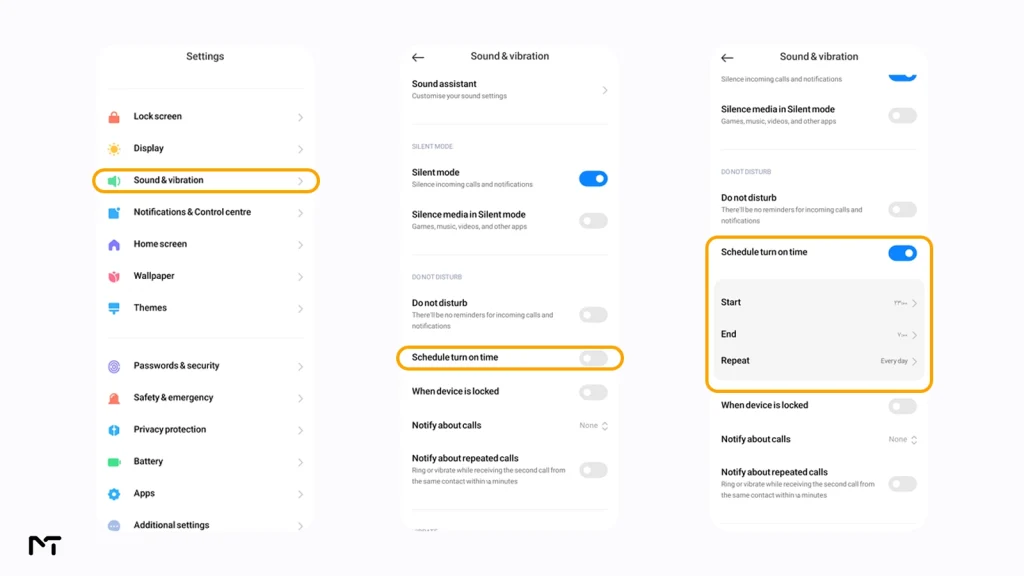
Real World Ways People Use This
A parent running a family group might set a nightly Do Not Disturb window from 9 PM to 6 AM so the group’s late night messages don’t wake anyone up, while still allowing calls from their partner through as a priority exception.
Someone managing a busy forex signal channel might use a Work focus profile during trading hours to stay alert to client questions, then switch to a personal profile in the evening that mutes the channel entirely until the next session opens. A channel admin can pair these quiet periods with the ability to schedule posts on Telegram channel ensuring content goes live perfectly on time even while their own phone remains completely silent.
A remote employee juggling several work groups might schedule Do Not Disturb around lunch and after hours, keeping only their manager and one or two teammates as priority contacts so nothing critical slips through while lower priority chats wait.
If you want to go beyond just silencing distractions and actually build a complete freelance workspace using Telegram productivity setting strict notification boundaries is your very first step.
Managing notification fatigue is essential for long term productivity and mental health. We consistently see that individuals who automate their messaging apps using system level focus tools experience a forty percent drop in daily distractions compared to those who try to manually mute individual chats. You have to let your phone operating system do the heavy lifting to avoid mental burnout says Julian Foster a digital wellbeing researcher.
Making Sure Important Chats Still Reach You
Scheduling quiet hours only works well if it doesn’t cut you off from messages you actually need, like a client, a family member, or an urgent alert from a channel you manage.
Setting Priority Contacts and Notification Exceptions
Inside your phone’s Focus or Do Not Disturb settings, look for an option to allow calls or messages from specific people or starred contacts even while the schedule is active. On iPhone this lives inside the Focus profile under People and Apps. On Android it’s usually found under Do Not Disturb settings as Priority Notifications or People. Add the contacts, or where your phone supports it, the specific Telegram conversations you can’t afford to miss, and everything else stays quiet for the hours you’ve set.
Inside Telegram itself, pin the chats you check most often so they’re the first thing you see once your quiet hours end, even if you missed the sound while it was active.
| Feature | Telegram Custom Mute | System Focus Mode |
|---|---|---|
| Best For | One off quiet periods | Daily recurring quiet hours |
| Automatic Repetition | No | Yes |
| Scope of Control | Single chat or channel | Entire app and phone |
| Urgent Exceptions | Not possible | Yes via priority contacts |
What to Do If Telegram Still Notifies You During Quiet Hours
If notifications keep coming through even after setting up a schedule, check a few common causes. Some phones require you to specifically add Telegram to the list of apps allowed to be silenced under battery or notification settings, since a small number of apps are exempted by default. Also check whether you marked any Telegram chats as priority or added them to a starred list on your phone, since that overrides the schedule on purpose. Finally, confirm the schedule’s days and times actually match what you intended, since it’s easy to set an end time on the wrong side of midnight by mistake.
Frequently Asked Questions
Does Telegram have a built in scheduled do not disturb feature?
No. Telegram only offers mute durations that count down from the moment you set them. Recurring quiet hours at a fixed time each day come from your phone’s Focus Mode or Do Not Disturb schedule, not from a setting inside Telegram.
Can Telegram automatically mute notifications every night?
Not on its own. You get this result by setting up a nightly Focus Mode or Do Not Disturb schedule on your phone and choosing to silence or limit Telegram during that window.
How long can you mute a Telegram chat?
Telegram lets you mute a chat for a custom duration ranging from about an hour up to 365 days, along with preset options like eight hours or two days.
Will muted Telegram chats still notify me if someone mentions me?
That depends on your phone’s notification settings rather than the Telegram mute duration alone. Check your exceptions or priority settings, and consider keeping mentions or replies allowed through if that’s important to you.
How do I stop Telegram notifications during work hours without missing anything urgent?
Set up a Work focus profile or a scheduled Do Not Disturb window that matches your work hours, then add your manager, key clients, or specific coworkers as priority contacts so only their messages get through while everything else waits.
Does muting a Telegram chat also mute it on my other devices?
Yes. Telegram’s mute settings sync across your phone, tablet, and desktop app, so a chat you mute on one device stays muted everywhere you’re logged in until the duration ends.
Does Telegram Premium include a scheduled mute feature?
No it does not. Upgrading to a paid Premium subscription gives you perks like larger file uploads and exclusive stickers but it adds zero advanced notification scheduling tools. Both free and premium users still need to use the built in focus modes on their devices to automate daily quiet hours.
Mute Telegram Notifications for Specific Hours: Final Thoughts
Muting Telegram notifications for specific hours comes down to using the right tool for the job. Telegram’s own custom mute duration works well for quick, one time breaks, while your phone’s Focus Mode or scheduled Do Not Disturb is what actually repeats the same quiet window every day without you lifting a finger. Set your priority contacts once, and you’ll stop getting pulled out of sleep or focus time by chats that can wait until morning.
Need help managing high volume Telegram channels or groups without losing track of the conversations that matter? Reach out to @membertelsupport on Telegram.














Leave a Reply