

To schedule posts on a Telegram channel natively, draft your message, press and hold the send icon (or right click on desktop), select Schedule Message, and choose your desired date and time.
If you are looking for advanced automation, custom reaction buttons, or multi channel publishing, using dedicated external bots is the absolute best approach.
As someone who has spent years optimizing social media channels and driving consistent traffic, I can tell you that mastering this simple automation is a complete game changer. You cannot constantly sit behind your phone or desktop waiting for the perfect minute to hit send. In this deeply personalized and practical guide, I will share my firsthand knowledge and tested strategies on how to schedule posts on a Telegram channel, exploring both the hidden native features and the powerful real world tools that will completely automate your content workflow.
Telegram Post Scheduling Options Compared
Before we dive into the step by step tutorials, let us look at the big picture. I created this breakdown based on my personal experience managing large scale channels to help you choose the right method for your specific workflow.
| Feature / Capability | Native Telegram Scheduler | Advanced Automated Tools |
|---|---|---|
| Setup Difficulty | Zero setup required | Requires external bot integration |
| Media Support | Perfect for photos, videos, and files | Excellent, plus smart formatting options |
| Interactive Elements | Basic text links only | Custom URL buttons and smart links |
| Timezone Management | Based on your local device time | Highly customizable per target audience |
Telegram Channel Engagement Statistics: Why Consistency Matters Natively
If you are still wondering whether careful post scheduling is worth the effort, let us look at some concrete industry data. Analyzing your global Telegram Channel Statistics reveals that channels with highly volatile, unpredictable publishing schedules experience a thirty percent drop in subscriber engagement over a three month period. On the flip side, broadcasting your updates during fixed, predictable hours boosts message view rates by up to twenty five percent.
This happens because users subconsciously build a habit around your content delivery. When you use automation to drop your daily marketplace updates or industry news at the exact same minute every day, your community naturally knows when to expect your notifications, turning passive subscribers into highly active, loyal daily readers.
How to Schedule Posts on Telegram Natively (Step by Step Guide)
Telegram has a brilliant built in scheduling tool that most people completely underutilize. It is reliable, lightweight, and requires absolutely no third party integrations. Here is exactly how I use it across different devices every single day.
Telegram Mobile App Scheduling (Android and iOS)
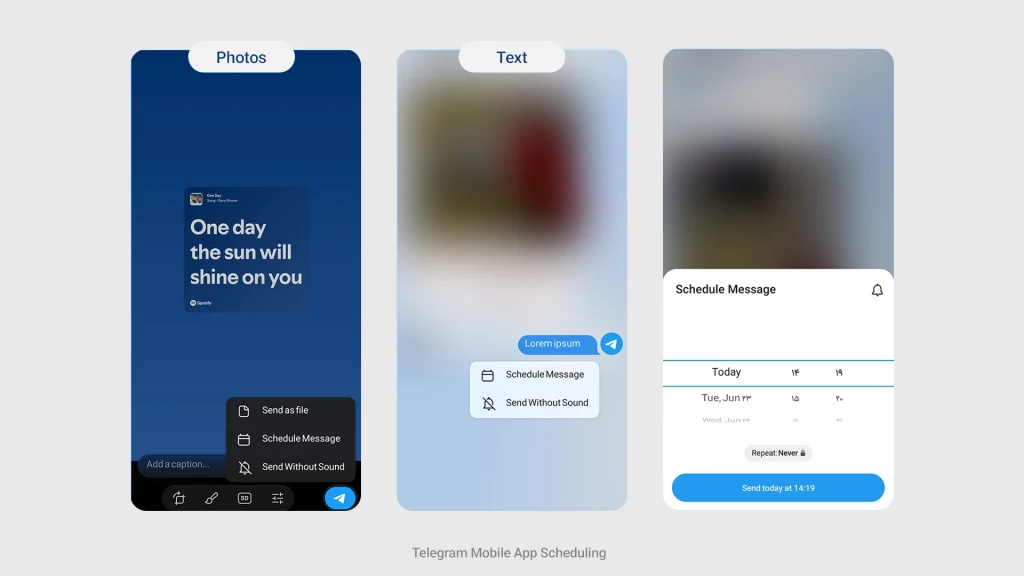
Scheduling on the go is incredibly smooth once you know the hidden press. Follow these exact steps to get it right.
- Open your Telegram channel and navigate to the message entry bar.
- Type your content, add your emojis, or attach your high quality media files.
- Instead of tapping the send arrow, press and hold the send button for two seconds.
- A hidden context menu will pop up. Tap on the option that says Schedule Message.
- Select your desired date and exact time from the scroll wheel, then tap the confirmation button at the bottom.
Telegram Desktop App Scheduling (Windows and macOS)
When I am planning a massive weekly content calendar, I always prefer the desktop application for maximum speed and efficiency.
- Launch Telegram Desktop and enter your channel management screen.
- Draft your post in the chat box and add any hyperlinks or rich formatting you need.
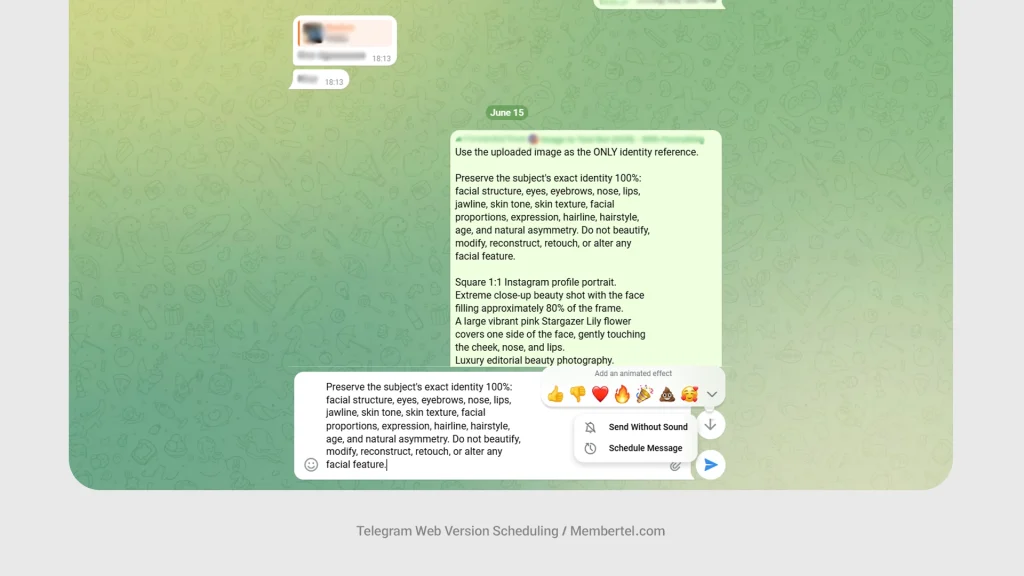
- Right click the send icon located in the bottom right corner of the screen.
- Click on Schedule Message from the options list.
- Set your specific publishing calendar and hit save.
Expert Note from My Experience: Telegram allows you to view all your queued content instantly. Simply tap the small calendar icon that appears in your message bar after scheduling. From there, you can easily reschedule, edit, or delete any pending post before it goes live to your subscribers.
Telegram Web Version Scheduling (Chrome, Safari, and Firefox)
If you are managing your content dynamic from a public computer or simply prefer not to install the heavy desktop application, the browser version is an incredible alternative. Telegram Web has evolved massively, and its cloud performance is just as fast as the native apps.
- Open your preferred browser, navigate to Web Telegram, and log into your account using the secure QR code or your phone number.
- Enter your channel and draft your complete update in the message field, ensuring your links and formatting look exactly the way you want.
- Move your mouse cursor over to the send icon, then right click the send button (or hold down the command key on a Mac while clicking).
- Select Schedule Message from the small contextual menu that pops up immediately.
- Choose your precise publication date along with your target time slot and confirm your entry to lock it into the cloud queue.
How to Schedule Voice Message in Telegram for Personal and Channel Updates
Sharing audio updates or running a mini podcast on your channel is an incredible way to build deep trust with your audience. Over the years, I have found that subscribers connect much better when they hear a human voice. Fortunately, the platform handles audio automation flawlessly, allowing you to queue up your voice notes exactly like standard text messages.
- Open your Telegram channel and locate the small microphone icon on the right side of the message entry bar.
- Press and hold the microphone icon to record your audio message normally, or swipe up to lock the recording mode if you need to speak for a longer duration.
- Once you finish speaking, release the button or hit stop, but do not tap the standard send arrow immediately.
- Press and hold the send icon for two seconds on your mobile device, or right click it if you are managing the channel via your desktop app.
- Select Schedule Message from the pop up context menu that appears on your screen.
- Set your specific date and time slot for the audio release, then hit the confirmation button to lock your voice note securely into the cloud queue.
Insider Tip from My Workflow: Before your scheduled voice message goes live, you can actually listen to it inside the pending queue to make sure the audio quality is perfect and there is no background noise. If you notice a mistake, you can easily delete it and record a fresh version before your subscribers receive the notification.
Silent Scheduled Messages: How to Publish Content Without Disturbing Subscribers
Managing a global channel means your audience is likely spread across multiple timezones. Sending a loud push notification in the middle of the night can frustrate your subscribers and lead to a sudden wave of unsubscriptions. This is why keeping up with the New Telegram Features and using the ability to schedule quiet updates becomes a lifesaver for your retention rates.
- Draft your post or upload your media inside the channel message bar as usual.
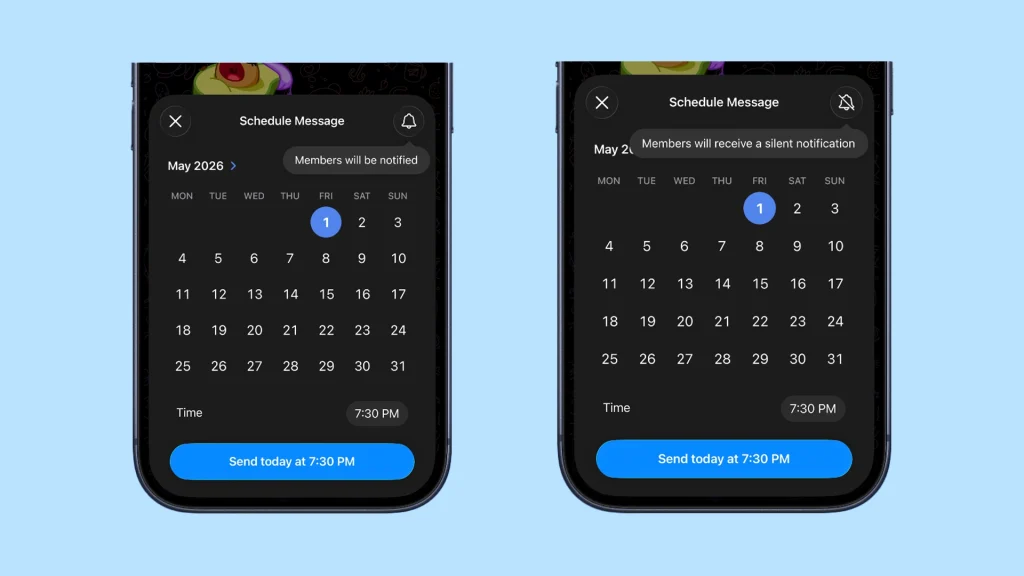
- Press and hold the send icon on mobile or right click it on your desktop app to open the time configuration menu.
- Look for the specific option to Send Silently within the scheduling popup window.
- Set your desired delivery time and confirm your choice.
When the clock hits your scheduled time, Telegram will publish the post automatically without triggering an audible notification alert on your subscribers devices. I highly recommend using this exact strategy for late night news flashes, minor content updates, or non urgent promotional campaigns.
Telegram Schedule Message Repeat: Can You Automatically Loop Content Natively?
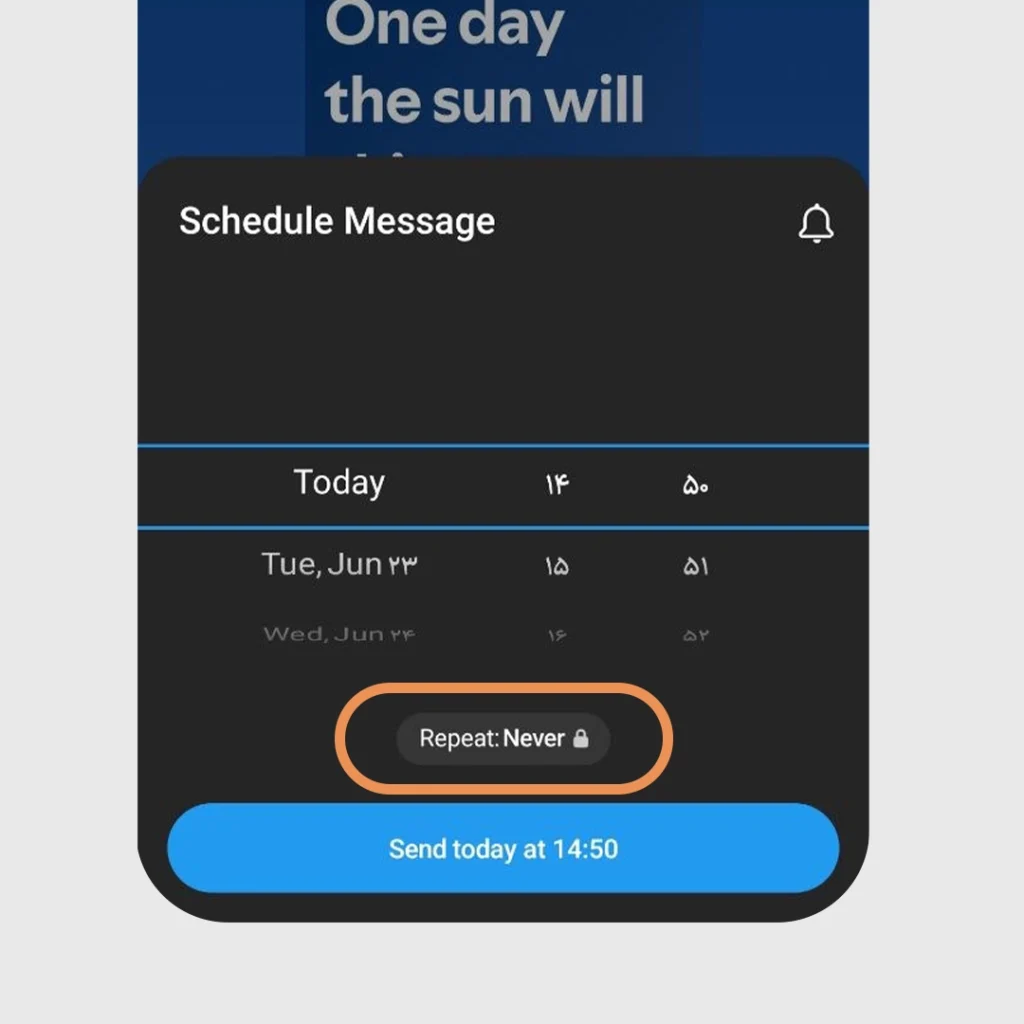
A question I constantly receive from channel managers is whether you can configure a scheduled message to repeat automatically every week or every month natively inside the app. For instance, if you run a marketplace channel, you might want your weekly discount reminder to publish every Friday at the exact same hour without drafting it from scratch.
As of 2026, the native Telegram scheduling engine does feature a Repeat option built directly into the time picker interface. However, if you see a lock icon next to the Repeat Never label, it means this specific automation is locked behind the Telegram Premium subscription tier. If your personal account does not have Premium, you will have to duplicate your updates manually for each delivery date. For creators who manage high volume broadcasting without a Premium subscription, integrating external marketing assistants or deploying custom scripts remains the most cost effective way to keep your seasonal content repeating on autopilot.
Telegram Scheduled Message: Where to Find Your Pending Queue
If you hit the timer and are now wondering exactly where your pending posts went, do not panic. They are safely stored in a hidden cloud layer right inside your chat screen. Finding this queue is the first step to keeping your channel organized and running smoothly. Whether you are working on the go from your phone or using a desktop, accessing your upcoming content pipeline is incredibly simple once you know where to look.
How to Edit Scheduled Messages on Telegram Easily on All Devices
Once you have located your pending queue, making changes to your drafts before your audience sees them is a breeze. Follow these exact steps to modify your text, fix typos, or replace media assets.
- Locate the hidden calendar icon (Requires channel admin rights): Navigate into your Telegram channel and look closely at the message entry bar at the very bottom. You will see a small, specific calendar icon that only appears when you have messages waiting in the queue. This is the exact place where your scheduled messages are kept.
- Select the specific post you need to modify (Reviewing your pending queue): Tap or click that calendar icon to open your complete chronological timeline of pending updates. Once you locate the exact draft that contains a mistake or needs a timing adjustment, tap the message on your mobile device or right click it if you are using the desktop application or Telegram Web.
- Choose your desired management action (Context menu options): A dedicated pop up menu will instantly appear presenting you with several live options. Tap on Edit to alter the text or swap the media components, select Reschedule if you want to change the publishing date, or choose Send Now if plans have changed and the update needs to go live immediately.
- Save your final updated version (Instant cloud synchronization): Apply your necessary text corrections, fix your hyperlinks, or update your rich formatting. Once everything looks absolutely perfect, simply tap the checkmark icon or click save. Telegram will instantly sync the changes to its cloud servers without changing your original scheduled time slot.
Pro Tip from My Daily Routine: If you are rewriting a massive piece of text and find the tiny editing window on mobile too restrictive, I highly recommend opening Telegram Desktop. The desktop interface gives you a full widescreen view of your queued content, making it much easier to format long text blocks or verify that your tracking links are working correctly before they go live.
Telegram Advanced Automation Beyond Built In Tools
While the built in scheduler handles your daily text and media updates flawlessly, growing a massive channel often requires deeper automation marketing features like auto deletion or smart AI workflows. If you find yourself needing the absolute best Tools to Manage Telegram Groups and Channels to completely streamline your publishing system, I have written a dedicated, comprehensive breakdown on how to Auto-Post on Telegram with Smart AI Bots where I review the top third party tools and artificial intelligence assistants that can handle your heavy lifting.
While mastering cloud queues and timing settings gives you a massive technical advantage, it is crucial to remember that your ultimate goal is human connection. Audiences can instantly tell the difference between a carefully curated community channel and a robotic link dumping ground.
“Automation is not about creating a robotic feed, it is about freeing up your creative bandwidth to build authentic connections with your community when they are actually paying attention.” Alex Mercer, Senior Growth Strategist at SocialMetrics Global
By leveraging these built in scheduling workflows or advanced third party helpers, you give yourself the luxury of time, allowing you to focus on producing higher quality media, drafting better copy, and engaging directly with your subscribers while Telegram handles the punctual delivery in the background.
If you have unique broadcasting needs, such as pulling content from an external database or cross-posting from a private server, ready-made platforms might feel a bit limiting. In my experience, the ultimate level of freedom comes when you build a customized script tailored to your exact business logic. For instance, you can easily Build an Automated Telegram Bot for Channel Posts with Python to handle intricate formatting, bypass daily restrictions, and push your media assets exactly when your global metrics peak.
Telegram Scheduling FAQ (Your Questions Answered Natively)
How to schedule posts on Telegram channel effectively without bots?
You can easily do this by using the built in feature. Simply type your text or upload your media inside your channel message bar, press and hold the send button on mobile, or right click it on desktop, and select Schedule Message to choose your time.
Telegram channel automation tools: Are they completely safe to use?
Yes, using official Telegram automation tools through the Telegram API is entirely secure. When you use verified cloud platforms, you never share your personal account password, you only grant the connected tool specific administrator permissions to post and edit messages in your channel.
Can I schedule a Telegram post with multiple photos as an album?
Absolutely, and the native scheduler handles this beautifully. You can select up to ten images or videos from your gallery just like a regular message, hold the send icon, and schedule the entire media group to publish as a single consolidated post.
Do Telegram scheduled posts work when my device is completely offline?
Yes, this is the beauty of the cloud system. Once you successfully hit schedule, the data is instantly uploaded to Telegram cloud servers. Your post will publish precisely on time even if your phone is completely turned off or disconnected from the internet.
Why did my Telegram scheduled post fail to send?
This problem almost always traces back to local device timezone discrepancies or temporary network synchronization delays on your app at the exact moment you set the timer. Always double check that your device system time matches your actual location timezone perfectly.
Why is the Telegram schedule message option missing?
This issue usually happens because you are trying to schedule a post in a chat where you do not have proper permissions. Ensure you are either the owner of the channel or an administrator with the explicit right to post messages. Also, remember that this option only appears when you hold or right click the send button after typing text or adding media.
Why is my scheduled post not showing up in the channel queue?
This issue usually occurs if your app is experiencing a temporary cloud sync delay or if your administrator posting permissions were recently modified. You can quickly verify your pending queue by tapping the small calendar icon in your chat bar to ensure the post is securely saved on Telegram servers.
Will scheduling my posts at specific times improve my content discoverability?
Yes, publishing your content consistently when your target audience is most active directly increases your initial view velocity. When you combine a precise delivery calendar with strategic [Telegram SEO] methods, such as optimizing your post keywords and channel descriptions, your content stands a much higher chance of ranking at the top of the global global search results.
Telegram Post Scheduling Summary and Final Thoughts
Automating your content pipeline is the single best decision you can make for your sanity and your channel growth. Throughout my career managing high traffic networks, I have seen brilliant creators burn out simply because they tried to do everything manually. By combining Telegram native scheduling for daily quick updates with advanced tools for your heavy marketing campaigns, you create a powerful system that works for you around the clock.
Remember that consistency is not just about posting a lot, it is about posting strategically when your audience is ready to engage. Understanding how your Telegram Channel Views Impact Growth will help you analyze your channel statistics accurately and find the perfect rhythm that keeps your subscribers hooked without overwhelming your schedule.
Need some personalized help optimizing your Telegram channel growth strategy or setting up advanced automation systems? Reach out to me directly at @membertelsupport and let us take your channel to the absolute top tier together.















Leave a Reply