

A Telegram silent message is a text, photo, or file that arrives on someone’s phone without making a sound or vibrating, even if that person has never touched their notification settings. You get there by holding down the send button until a small menu appears, then tapping Send Without Sound. No update to install, no setting buried three menus deep, nothing to configure ahead of time.
Thanks for checking before you hit send, by the way. That instinct is exactly what this feature exists for.
What a Silent Message Actually Is (And Why It’s Not the Same as Muting a Chat)
People mix these two up constantly, and honestly, the naming doesn’t help. A silent message is something the sender controls, for one single message, at the moment they send it. Muting a chat is something the recipient controls, for the whole conversation, until they decide to turn it back on.
Here’s the difference laid out plainly.
| Silent Message | Muted Chat | |
|---|---|---|
| Who decides | The sender, per message | The recipient, for the entire chat |
| How long it lasts | Just that one message | Until the recipient unmutes it |
| Visible afterward | Yes, a small crossed out bell icon shows next to that specific message | No special marker on individual messages |
| Best used for | A one time message sent at an odd hour | Permanently ignoring a loud group chat |
So if you mute someone’s chat, you’re the one who won’t hear anything from them anymore. If you send a silent message, you’re the one making sure your message doesn’t disturb them. Same word, opposite direction, which is probably why so many articles gloss over it entirely.
How to Send a Silent Message on Telegram
The steps are almost identical across Android, iPhone, and desktop, with one small difference in how you trigger the menu.
On Android and iPhone:
- Open the chat and type your message like normal.
- Instead of tapping the send button, press and hold it for about two seconds.
- A small pop up appears above the send button. Tap Send Without Sound.
- Your message goes out immediately, no notification sound, no vibration on the other end.
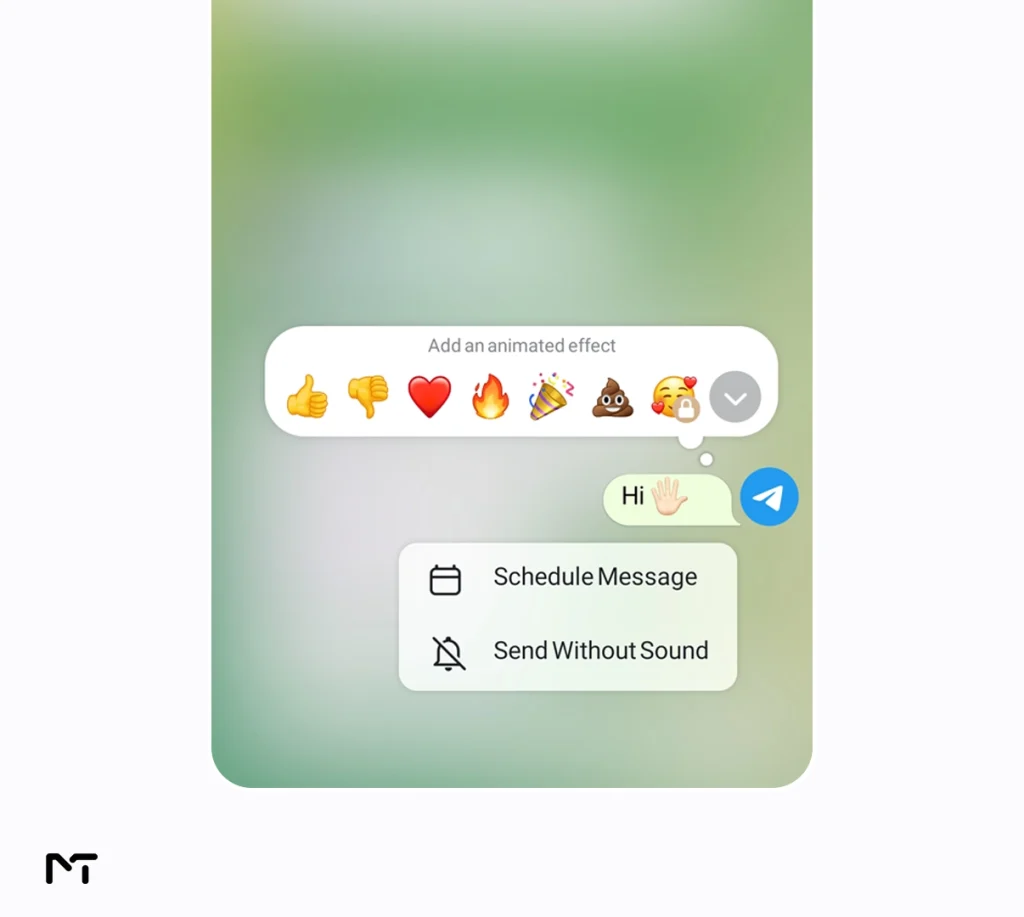
On desktop (Windows or Mac):
- Type your message in the chat window.
- Right click, or force click on trackpad, on the send icon instead of clicking it normally.
- Choose Send Without Sound from the menu that shows up.
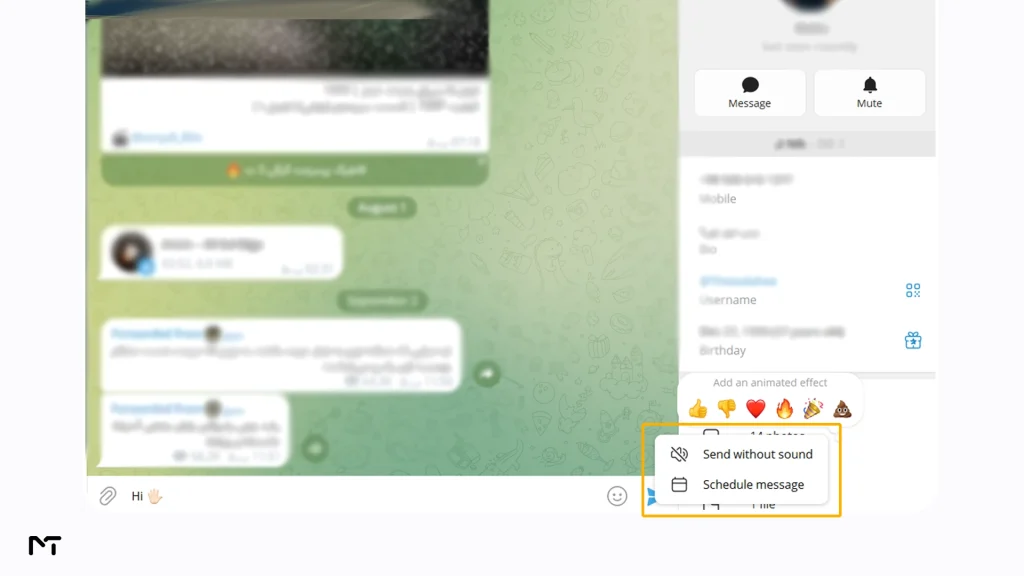
You might be wondering how to send a voice note or a quick video message silently since holding the microphone button starts recording instead of opening a menu. The trick is to swipe up on the microphone to lock your recording first. Once you finish speaking and hit the stop button a normal send arrow appears. You can then press and hold that new arrow exactly like you would for a text message until the silent option pops up.
There’s no separate setting to turn this on permanently for a contact. It’s a choice you make one message at a time, which is honestly the whole point. You’re not silencing the relationship, just this one text.
One small detail worth knowing: after you send it, a tiny bell icon with a line through it appears next to that message in the chat. That’s how the recipient can tell, if they scroll back later, that you were being thoughtful about the timing without them ever having to ask.
This same trick works when you are forwarding a message too not just writing a fresh one. While you might sometimes want to control message forwarding in Telegram channels to keep your content strictly private choosing to forward a file silently is purely about protecting the peace and quiet of your recipient. Long press the send button after choosing where to forward it and the Send Without Sound option shows up right there. Handy if you’re reposting an update from another channel and don’t want it landing on everyone’s screen with a ping at an odd hour.
Scheduling and Silent Sending Are Two Different Tools, Not One Combo
If you run a Telegram channel with subscribers spread across Europe, the Middle East, and beyond, you’ve probably wished you could schedule a post for a specific time and also guarantee it lands quietly. Reasonable wish. It’s just not how the feature works right now.
Both Schedule Message and Send Without Sound live in that same long press menu, but they’re separate choices. Pick one and the other doesn’t apply to that message. Telegram’s own bug tracker has an open request from users asking for exactly this combination, which tells you it genuinely isn’t built in yet, no matter what a few how to articles imply.
There is actually one major exception to this rule and it applies exclusively to Telegram channels. Channel administrators have a dedicated bell icon located right next to the text input box. Tapping this bell toggles the entire channel interface into a silent mode where the next post goes out quietly. Because this is a permanent toggle rather than a hidden menu option you can easily combine it with scheduling. You simply turn the bell off type your announcement and then press and hold the send arrow to pick a date and time. Your post will publish on schedule and remain completely soundless.
In practice, here’s how most people managing a channel with an international audience actually handle it. Scheduling solves the timing problem. You set a post to publish at 9am Berlin time so it lands during someone’s morning coffee instead of their 3am. Silent sending solves the noise problem for one off personal messages, like replying to a client in a different time zone without waking them the second they get an unexpected buzz. You end up using both regularly, just never on the same message at the same time.
After managing an English language Telegram blog aimed at a mostly European audience for a couple of years now, this is the distinction I wish more guides made clear from the start, because assuming you can combine them leads to a confusing five minutes of tapping around looking for a checkbox that doesn’t exist.
When a Silent Message Actually Makes Sense
- Messaging a friend or colleague you know is asleep, based on the time difference, but you don’t want your message waiting until morning either
- Replying to a work chat late at night when the content isn’t urgent enough to justify a sound
- Sending something to someone you know is in a meeting or a class, especially in group chats where a notification sound feels louder than it should
- Following up on a purchase or handling a late night inquiry without being intrusive is actually a core element of building excellent Telegram customer support for global businesses since your clients might be asleep on the other side of the world.
Workplace psychologist Marcus Thorne emphasizes that digital etiquette is the new foundation of professional trust. In his recent study on remote teams he found that colleagues who actively use features like silent messaging report twenty percent higher relationship satisfaction. He explains that removing the anxiety of waking someone up or interrupting their deep work shifts the dynamic from demanding immediate attention to genuinely respecting personal boundaries.
Frequently Asked Questions
Does the recipient know I sent it silently?
Not in the moment, no. Their phone shows the notification on screen exactly as usual, just without sound or vibration. The only way they’d notice is the small crossed out bell icon next to that message inside the chat itself, and most people never look closely enough to catch it.
Can I set every message to a certain contact as silent by default?
No. Silent sending is chosen per message. If you want a standing setting for one direction of communication, muting the chat is the closer tool, though that mutes what you receive from them, not what they receive from you.
Does it work in group chats and channels?
Yes, the same long press and Send Without Sound option works in groups and channels, which is where it tends to matter most since one loud notification can interrupt an entire community at once.
Can I forward a message silently, not just type a new one?
Yes. The Send Without Sound option isn’t limited to messages you write yourself. When you forward something, hold down the send button the same way, and the silent option appears right there in the menu.
Will silent messages still show up if the recipient has Do Not Disturb off?
Yes. That’s actually the point of the feature. It overrides the usual notification sound regardless of the recipient’s own phone settings, so you don’t have to hope they remembered to enable anything on their end.
Is there a way to undo it if I forget to choose the silent option?
Not after sending. If it matters enough, delete the message within the edit window and resend it correctly, or just wait, since most default notification tones aren’t as disruptive as we tend to assume they’ll be.
Does a silent message light up the phone screen?
No it absolutely does not. When you choose to send something without sound the notification slides into the recipient device quietly and keeps the screen completely dark. The only visual cue is the unread counter on the app icon increasing. They will only see the message the next time they actively pick up their phone and unlock the screen.
Final Thoughts: Telegram silent message
Sending a Telegram silent message takes about two extra seconds compared to a normal one and it is the kind of small habit that people notice without ever mentioning it. Much like how a warm Telegram welcome message automatically sets a positive tone for a new community member a silent late night text sets a permanent tone of respect in your professional relationships. Nobody thanks you out loud for the message that did not wake them up. They just quietly trust you a little more with the next one.
If something about silent messages still isn’t behaving the way this guide describes, or a specific chat setting seems stuck, reach out to @membertelsupport and someone will walk through it with you directly.














Leave a Reply