

Yes, you can forward messages from Telegram to WhatsApp automatically without writing a single line of code. The two most reliable ways to do this are using no code automation platforms like Make or Zapier, or setting up a dedicated forwarding bot that bridges both apps. Either route takes under 15 minutes to configure and runs on its own around the clock once it’s live.
If you manage a Telegram channel and also need to reach your audience on WhatsApp, you already know the pain of copy pasting every update by hand. This guide walks you through exactly how to set up a Telegram to WhatsApp auto forward system that holds up under daily use, with a clear breakdown of which method works best for your situation.
Key Takeaways
- No coding required: Both Make and Zapier connect Telegram to WhatsApp through visual drag and drop workflows.
- Two main options: Automation platforms give you more control; dedicated forwarding bots are easier to set up.
- Use the WhatsApp Business API for high volume or business critical forwarding to avoid account bans.
- Free tiers exist but come with monthly limits. Calculate your daily message volume before choosing a platform.
- One way by default: These setups push messages from Telegram to WhatsApp, not the other way around.
Why People Bridge Telegram and WhatsApp
These two apps dominate different slices of the global messaging market, which is exactly why you often need both. If you are still weighing the strengths of each platform before committing to a setup, a full comparison of Telegram vs WhatsApp breaks down where each one wins and where it falls short.
Telegram has crossed 1 billion monthly active users globally, with around 500 million people logging in every single day. WhatsApp sits further ahead with over 2 billion monthly active users and remains the dominant messaging platform across Europe, Latin America, and Southeast Asia.
One stat that stands out: more than 85% of Telegram users outside China also have WhatsApp installed. That overlap is why so many channel owners, community managers, and businesses end up running both simultaneously.
Here is where automatic forwarding makes the biggest practical difference:
- Crypto and trading signals: Signal channels on Telegram push market alerts to paying subscribers. Many of those subscribers also want the same alerts in WhatsApp groups where they coordinate with colleagues in real time.
- E commerce updates: Flash sale announcements, restock notifications, and shipping updates published on Telegram can reach a broader audience when simultaneously delivered to WhatsApp customer groups.
- Community management: Large communities often split across platforms based on geography. European audiences tend to prefer WhatsApp for day to day communication, while the same group may use Telegram for its channel features and file sharing capabilities.
- Internal team coordination: HR and operations teams sometimes use Telegram for company wide announcements but need the same information delivered to WhatsApp groups where field teams are most active.
Method 1: No Code Automation Platforms (Make and Zapier)
This is the most stable and scalable approach. Platforms like Make (formerly Integromat) and Zapier sit between your two apps. They watch your Telegram channel for new messages and instantly push that content to your chosen WhatsApp destination.
How Make Works for Telegram to WhatsApp Forwarding
Make uses a visual scenario builder where you connect modules in sequence. The workflow looks like this:
- Trigger: A new message appears in your Telegram channel or group.
- Action: Make captures the message content, whether that’s text, an image, a file, or a link.
- Processing (optional): A text parser module reformats the message if needed.
- Output: The message is pushed through the WhatsApp Business Cloud API to your target group or number.
Make’s free tier includes 1,000 operations per month, which covers roughly 30 messages per day before you need to upgrade. The Starter plan at $10.59 per month expands that to 10,000 operations, which is plenty for most channel operators.
One thing worth knowing about Make: message delivery is nearly instant. When a post lands in your Telegram channel, your WhatsApp destination receives it within seconds. That matters a lot for time-sensitive content like trading alerts or breaking news.
How Zapier Handles This (and Where It Falls Short)
Zapier is the more beginner friendly option, but it comes with trade offs. The free tier gives you 100 tasks per month, which is enough to test the setup but not enough for any channel posting more than three times a day.
Paid plans start at $19.99 per month for 750 tasks. For high frequency channels, the cost per message ends up higher than Make, which is why most serious channel operators eventually switch once they scale past casual use.
The bigger limitation on Zapier’s free plan is polling speed. Free accounts check for new Telegram messages every 15 minutes rather than in real time, which makes it unsuitable for time sensitive broadcasting. Paid plans close this gap considerably.
Platform Comparison at a Glance
| Feature | Make | Zapier |
|---|---|---|
| Free tier | 1,000 operations/month | 100 tasks/month |
| Paid entry | $10.59/month | $19.99/month |
| Update speed | Near instant | 15 min (free), faster on paid |
| Learning curve | Medium | Low |
| Best for | Cost efficiency, complex workflows | Beginners, simple setups |
A Practical Note on WhatsApp API Costs
Both platforms connect to WhatsApp through the official WhatsApp Business Cloud API provided by Meta. The API includes 1,000 free conversations per month. Once you exceed that threshold, Meta charges per conversation at rates that vary by country. If you are forwarding to an audience in the Netherlands or elsewhere in Europe, check the European API pricing before committing to a high volume setup.
Method 2: Using a Telegram Bot to Forward Messages to WhatsApp
If you prefer something fully contained within the messaging ecosystem, dedicated forwarding bots handle the relay without needing a separate automation platform account. Several developers have built bots specifically for Telegram to WhatsApp cross posting.
The general setup process looks like this:
- Search Telegram for a forwarding bot and start a conversation with it.
- Add the bot as an administrator to your Telegram channel so it has read access to new messages.
- Link your WhatsApp account by scanning a QR code the bot generates.
- Set your destination WhatsApp group or phone number inside the bot settings.
- Send a test message from your Telegram channel and confirm it arrives on WhatsApp.
Security note before you proceed: Any bot that asks you to link a WhatsApp account is handling your session data. Only use bots that explicitly state they connect through the official WhatsApp Business API. Never share your personal WhatsApp verification code or SMS one time password with any bot or third party service. If a bot cannot clearly explain how it handles your data, move on and find a different one.
My personal recommendation is to test any forwarding bot with a secondary WhatsApp account before connecting your main business number. This protects your primary account while you verify the bot’s reliability and uptime over a few days of real use.
One tool that comes up frequently in this category is WHAMetrics Bridge. Unlike Make or Zapier, it’s built specifically for mirroring messages between Telegram and WhatsApp, with no general purpose automation platform in between. It handles formatting adjustments automatically and doesn’t require your phone to stay on. If you’re looking for something more focused than a full automation platform, it’s worth looking into, though as with any third party service, verify how it handles your data before connecting a business account.
Setting Up Telegram to WhatsApp Forwarding with the WhatsApp Business API
For businesses that need maximum reliability and compliance with Meta’s terms of service, using the official WhatsApp Business Cloud API is the right path. This is also what keeps your account from being flagged as a spam source when you’re sending at scale.
Step 1: Set Up Your Meta Developer Account
Go to developers.facebook.com and create a business application. Inside your dashboard, add WhatsApp as a product and link the business phone number you want to use for outgoing messages. Meta walks you through number verification during this step.
Step 2: Create Your Telegram Bot and Configure the Webhook
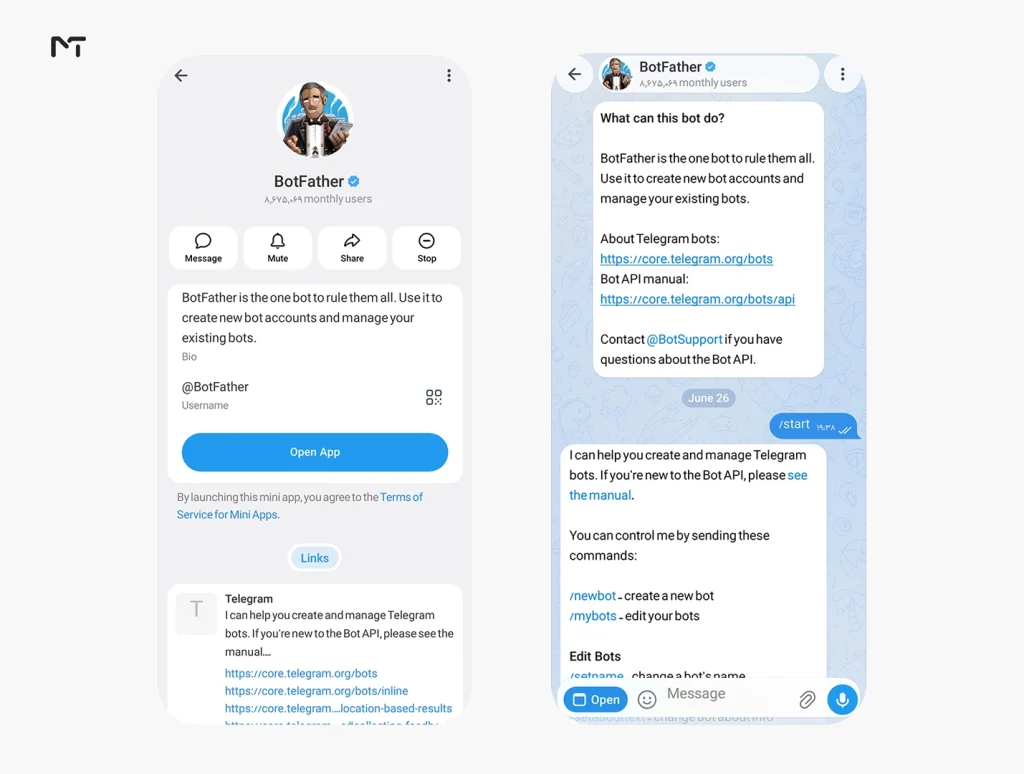
Open Telegram and search for BotFather. Send the /newbot command and follow the prompts to create a new bot. If you want to go deeper with what your bot can do beyond forwarding, the Telegram Bot API opens up a lot more possibilities.
Add this bot as an administrator to your Telegram channel with at least read message permissions. Without admin access, the bot cannot see new posts.
Step 3: Connect the Two in Your Automation Platform
In Make or Zapier, set up a new scenario or Zap with these two steps:
- Trigger: Telegram bot receives a new channel post
- Action: WhatsApp Business Cloud sends a message
Map the text field from the Telegram trigger output to the message body field in the WhatsApp module. For media messages, map the file URL from the Telegram output to the corresponding media field on the WhatsApp side.
Step 4: Handle Text Formatting
This step catches a lot of people off guard. Telegram uses its own markdown syntax for bold text, italics, and links. WhatsApp uses a different formatting system, and the two don’t translate automatically.
Add a text formatter module between your trigger and action. Set it to strip or convert Telegram HTML entities before the message reaches WhatsApp. This keeps your messages clean and readable on the receiving end.
Common Problems and How to Fix Them
Webhook drops its connection suddenly: This is the most frequent issue people run into. Open your automation platform’s task history and look at the last successful run. Nine times out of ten, either the WhatsApp API token has expired or your Telegram bot lost its administrator status in the channel. Refresh your API credentials and re confirm the bot’s admin permissions, and the connection comes back immediately.
Messages arrive out of order: This happens when your automation platform is under heavy load or processing a backlog. Make handles this better than Zapier because its webhook listening is continuous rather than polling based. If message order matters for your use case, Make is the better choice.
WhatsApp account flagged for spam: This almost always happens when messages are sent too fast or to numbers that have not opted in. Space your messages out and only send to groups or contacts who have explicitly agreed to receive automated updates. Always use the official API rather than unofficial WhatsApp clients.
Images or PDFs not arriving: Media forwarding requires the file URL from Telegram to be publicly accessible. Some Telegram media URLs expire after a short window. If media forwarding is failing, add an intermediate step that downloads and re uploads the file through your automation platform’s file handling module before passing it to WhatsApp.
Real World Use Cases
| Business type | Telegram source | WhatsApp destination | Best method |
|---|---|---|---|
| Crypto signal channel | Private paid channel | VIP subscriber groups | Make + WhatsApp API |
| E commerce store | Product update channel | Customer broadcast list | Zapier (simple setup) |
| News publisher | Public news channel | Regional audience groups | Make (real time speed) |
| Internal team comms | HR announcement channel | Department WhatsApp groups | Forwarding bot |
| Community manager | Multi topic channel | Filtered topic groups | Make + filter module |
Crypto traders tend to get the most immediate value from this setup. If you run or follow signal channels, pairing this forwarding system with the right crypto trading bots on Telegram creates a setup where alerts reach you instantly on both platforms regardless of which app you have open.
Frequently Asked Questions
Can I forward media files like images, videos, and PDFs automatically?
Yes. Both Make and Zapier support media forwarding when configured correctly. You need to map the file object or URL from the Telegram trigger to the media field in your WhatsApp action module. For PDFs and documents, the WhatsApp Business API supports these natively. Videos need to stay under WhatsApp’s file size limits, which are 16MB for standard accounts and higher for API users.
Will my WhatsApp account get banned for using auto forwarding?
Your account stays safe when you use the official WhatsApp Business Cloud API and keep your sending patterns reasonable. What typically triggers bans is sending high volumes of messages to numbers that haven’t opted in, or using unofficial third party clients that try to simulate WhatsApp traffic. Stick to the API, send only to groups or contacts who expect your messages, and you won’t have problems.
Can I filter messages so only certain posts get forwarded?
Yes. Make and Zapier both support filter modules that sit between the trigger and the action. You can set conditions like “only forward if the message contains the word ALERT” or “skip messages from certain users.” This is especially useful if your Telegram channel publishes a mix of content but you only want a specific category reaching your WhatsApp audience.
Do I need to keep my computer on for this to work?
No. Both Make and Zapier run on cloud servers. Once you activate your scenario or Zap, it runs continuously on their infrastructure regardless of whether your computer is on or off. The only things that can interrupt it are an expired API token or a change in your bot’s channel permissions.
Is there a free way to set this up permanently?
Make’s free tier covers roughly 30 messages per day, which works fine for low frequency channels or initial testing. Zapier’s free tier is more restricted at 100 tasks per month and really only works for very light testing. For anything approaching daily broadcasting, a paid plan on either platform becomes necessary fairly quickly.
Can I set up two way sync so WhatsApp replies come back to Telegram?
The methods covered here are one way only. True two way sync requires routing incoming WhatsApp messages back to a designated Telegram chat, which involves more complex webhook configuration and typically needs a CRM or custom API script handling the routing. It’s doable but goes beyond the scope of a standard forwarding setup.
What happens if my Telegram channel goes private or gets restricted?
If you change your channel’s privacy settings or the bot loses access, the automation stops receiving new messages immediately. Any posts made while the bot is disconnected will not be backfilled once access is restored. Check your task history in Make or Zapier regularly to catch these interruptions before they become a bigger problem.
Summary
Setting up Telegram to WhatsApp automatic forwarding is genuinely straightforward once you pick the right tool for your volume and use case. For most channel owners, Make on the free or Starter tier is the right place to start. It’s faster, cheaper at scale, and more flexible than Zapier for anything beyond a basic two step workflow. If you’re running a business account where deliverability matters, combining Make with the official WhatsApp Business Cloud API gives you the most reliable long term setup.
If you run into issues while building your forwarding workflow or want help getting more out of your Telegram channel overall, our team is available through @membertelsupport on Telegram.














Leave a Reply