

To disable autoplay videos on Telegram, open Settings, find the Autoplay controls for whichever version of the app you’re using, and turn off the toggle next to Videos. The exact menu changes depending on your platform, so here’s the short version for each one before we walk through the full steps.
Quick steps by platform
- Android: Settings, then Power Saving, then Autoplay. Turn off Videos and GIFs.
- iPhone: Settings, then Power Saving, then Autoplay. Turn off Videos and GIFs.
- Desktop (Windows, Mac, Linux): Settings, then Battery and Animations, then Autoplay. Turn off Videos and GIFs.
- Telegram Web A (web.telegram.org/a): Settings, then Animations and Performance. Uncheck Autoplay media.
- Telegram Web K (web.telegram.org/k): there is currently no built in toggle for this, so switch to Web A if it matters to you.
Why Telegram Autoplays Videos in the First Place
If you’ve ever opened a group chat and had three video clips start playing on their own, muted but moving, you already know what autoplay does. Telegram added this behavior to its mobile app first and later brought it to the desktop client, borrowing the same idea social apps like Instagram and Facebook use to keep feeds active without extra taps.
The videos start silently, so you won’t get blasted with sound out of nowhere. But the movement alone is enough to be distracting, especially in busy groups or channels that post a lot of clips. It also means your phone is decoding video in the background even when you never asked it to, which is where the battery and data concerns come from.
None of this is a bug.For many users the biggest reason to turn off this feature has nothing to do with data limits or battery life. It is purely about focus. When you open a chat to read an important message or catch up on a work conversation having multiple videos suddenly moving on your screen can be incredibly distracting. The human eye is naturally drawn to motion so these silent clips pull your attention away from the actual text and make the app feel chaotic.
.Shutting off the automatic playback gives you back a clean and calm chat environment so you can read without constantly losing your train of thought. It’s a default setting, and Telegram gives you full control over it once you know where to look.
Autoplay Versus Automatic Media Download: What’s the Difference
This is where most guides get sloppy, and it’s the part that causes the most confusion. Autoplay and Automatic Media Download sound like the same setting, but Telegram actually keeps them in two completely different menus.
| Setting | What it actually controls | Where it lives |
|---|---|---|
| Autoplay | Whether videos and GIFs start playing on their own once they’re already on your device | Settings, Power Saving on Android and iPhone, or Settings, Battery and Animations on Desktop |
| Automatic Media Download | Whether Telegram downloads photos, videos, and files to your device in the background at all | Settings, Data and Storage, Automatic Media Download |
Here’s the part people miss. A video has to be downloaded before it can autoplay. So if you only turn off Autoplay but leave Automatic Media Download on, Telegram will still quietly pull videos onto your device, they just won’t start playing by themselves anymore. Once you realize how much media the app saves quietly you might need to clean up your storage and find downloaded files on Telegram to free up space. If your real goal is cutting mobile data use, you need to adjust both settings, not just one. Combining these two adjustments is the smartest way to reduce data usage on Telegram especially if you are in multiple active channels.
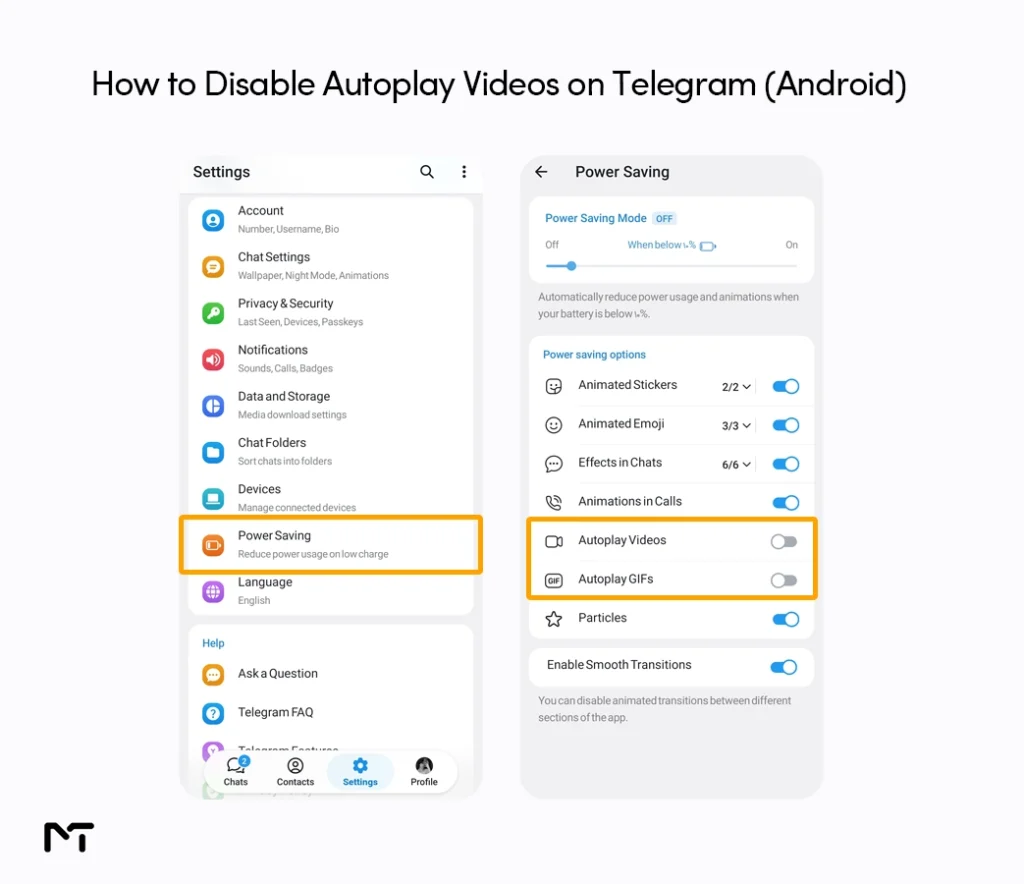
How to Disable Autoplay Videos on Telegram (Android)
- Open Telegram and tap the menu icon in the top left corner.
- Go to Settings.
- Tap Power Saving.
- Find the Autoplay section.
- Turn off the toggles next to GIFs and Videos.
You don’t need to switch on full Power Saving Mode to do this. The individual Autoplay toggles work on their own, so the rest of the app keeps its normal animations and effects. The setting saves the moment you flip the toggle, and you don’t need to restart the app for it to take effect.
You do not have to turn this off completely if you only care about saving battery life. At the very top of the Power Saving menu there is a slider that lets you set a specific battery percentage. If you set it to twenty percent Telegram will let videos play normally until your phone drops to that mark. Once your battery goes below that level the app automatically pauses all background video movement to help keep your phone alive.
How to Disable Autoplay Videos on Telegram (iPhone)
- Open the Telegram app and tap Settings in the bottom right corner.
- Tap Power Saving.
- Find the Autoplay section.
- Switch off GIFs and Videos.
On iPhone, autoplayed videos always start muted by default, so even before you touch this setting, you won’t get unexpected sound. Turning the toggles off just stops the movement itself. The same Power Saving screen also lets you limit background updates, though Telegram itself recommends leaving that one alone.
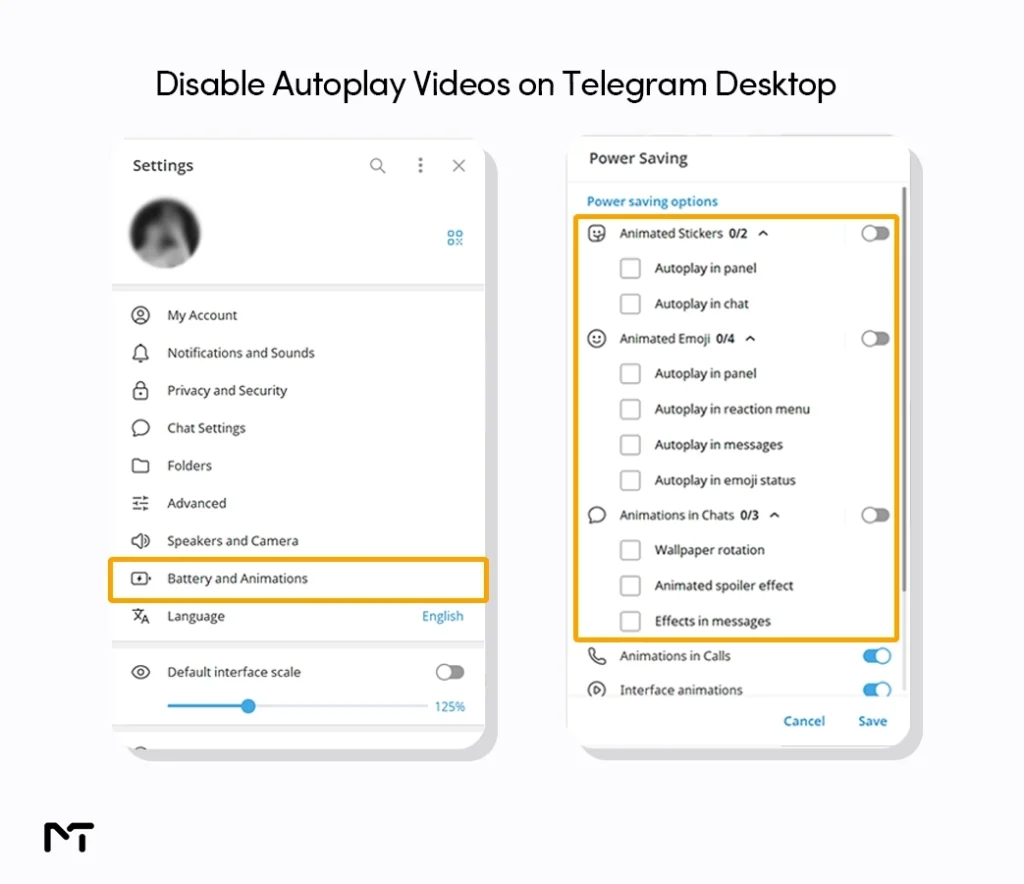
How to Disable Autoplay Videos on Telegram Desktop
- Open Telegram on Windows, Mac, or Linux.
- Click the menu icon, then go to Settings.
- Select Battery and Animations.
- Find the Autoplay section.
- Turn off GIFs and Videos.
Desktop users sometimes report that the option feels buried, and it is. Telegram groups it under battery and performance settings rather than under Data and Storage, which is where most people go looking first, and that mismatch is a common source of confusion even among longtime users.
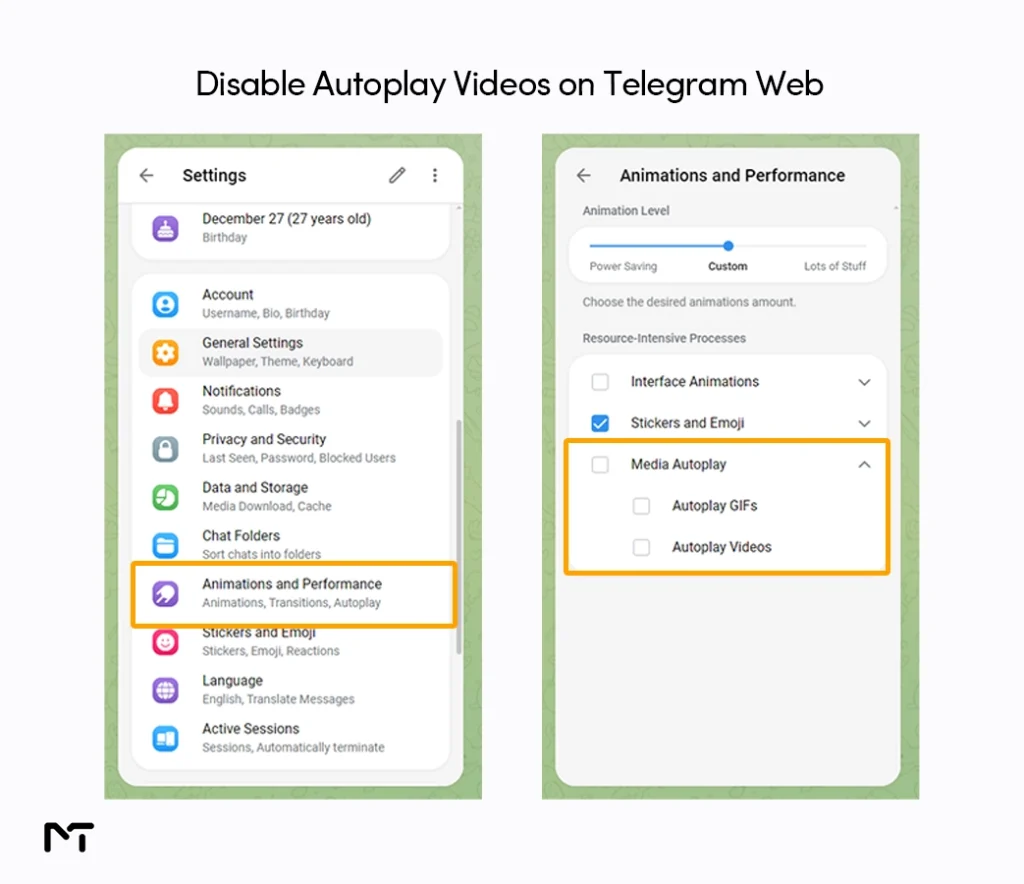
How to Disable Autoplay Videos on Telegram Web
Telegram runs two different web clients at web.telegram.org, and they don’t behave the same way here, which is where a lot of people get stuck. Moving away from mobile devices requires a different approach since you need to know how to use Telegram Web and Desktop effectively to manage these platform specific settings.
Telegram Web A (web.telegram.org/a)
- Open Telegram Web A in your browser.
- Click Settings.
- Go to Animations and Performance.
- Uncheck Autoplay media.
Telegram Web K (web.telegram.org/k)
Web K does not currently have a setting to turn off autoplay. It used to, but the toggle was removed in a recent update and Telegram hasn’t brought it back yet. If disabling autoplay matters more to you than which web client you use, switch to Web A instead. You can do that from the menu inside Web K, or by going straight to web.telegram.org/a in your browser.
Still Seeing Autoplay After Turning It Off? Here’s Why
If you disabled the toggle and videos are still moving on their own, it’s almost never a glitch. A few things are usually going on.
Round Video Messages have their own switch. These are the circular video clips people record inside chats. Telegram treats them as a separate category from regular videos, so turning off Videos alone won’t stop them. Go back into the Autoplay section under Power Saving on mobile, or Battery and Animations on Desktop, and make sure Round Video Messages is off too, if that option is visible on your version.
Already downloaded clips may still play once. If a video was downloaded to your device before you changed the setting, it can sometimes still autoplay the next time you scroll past it, since the toggle mainly controls new playback going forward rather than clearing what’s already cached.
If you want to stop those older clips from looping immediately you just need to clear your device cache. Go to Settings then Data and Storage and select Storage Usage. Tapping the clear cache button deletes those temporary files so the next time you open your chats Telegram is forced to apply your new playback rules.
You changed the setting on one device only. Telegram settings are usually tied to the device and app version you’re using, not synced automatically across every platform. If autoplay is off on your phone but still happening on desktop, you’ll need to repeat the steps there separately.
You’re using Telegram Web K. If you’re on web.telegram.org/k and can’t find any autoplay setting at all, that’s not a mistake on your part. The toggle simply isn’t there right now. Switch to Web A if you want control over this.
If none of that fixes it, closing and reopening the app after making the change usually clears it up.
Does Disabling Autoplay Actually Save Data and Battery?
Yes, and the reasoning is straightforward even without needing to guess at exact numbers. Every video that autoplays has to be decoded and rendered in real time, which uses processing power and, by extension, battery, whether or not you actually wanted to watch it. On mobile data, that also means bytes are being spent on clips you might have scrolled straight past anyway. Making this simple tweak is actually one of the first steps to fix high battery and data usage when the app starts draining your phone resources.
Dr Marcus Thorne a mobile network researcher explains that background video processing is one of the easiest things you can fix to improve device performance. He notes that leaving media playback on autopilot in busy chat groups can drain your battery up to fifteen percent faster while eating through hundreds of megabytes of background data every week even if you never intentionally watch the clips.
| Autoplay On | Autoplay Off | |
|---|---|---|
| Data usage | Videos start streaming as soon as they’re visible, even if you never watch them | Videos only play when you tap them, so nothing streams unless you choose it |
| Battery | Background video decoding happens continuously while scrolling through media heavy chats | Decoding only happens when you actively open a video |
| Storage and cache | More temporary video data builds up from clips you never intended to watch | Cache stays smaller since fewer videos are processed automatically |
If you’re on a limited mobile plan or you’re in a group that posts a lot of video content, turning autoplay off is one of the simplest changes that adds up over time, especially paired with the Automatic Media Download settings covered above.
Frequently Asked Questions
Why does Telegram autoplay videos?
Telegram added autoplay to match the behavior of other social apps, letting video content start moving in chats and channels without you needing to tap anything first. It’s a default setting, not something forced permanently, and you can turn it off at any time.
How do I stop videos from autoplaying on Telegram Android?
Go to Settings, then Power Saving, then find the Autoplay section, and switch off the toggles for GIFs and Videos. The change takes effect right away.
Does disabling autoplay stop Telegram from downloading videos too?
No. Autoplay only controls whether videos already on your device start playing automatically. To stop Telegram from downloading media in the background at all, you need to adjust Automatic Media Download separately, which lives under Data and Storage rather than Power Saving.
Why is autoplay still working after I turned it off?
Usually it’s because Round Video Messages has its own toggle, a video was already cached before you made the change, or you only disabled it on one device. Check each of those, and restart the app if the setting still doesn’t stick.
Can I disable autoplay for GIFs but keep it on for videos, or the other way around?
Yes. Telegram lists GIFs and Videos as separate toggles inside the Autoplay section, so you can turn off one without touching the other.
Can I disable autoplay on Telegram Web?
Only on Web A, through Settings, then Animations and Performance. Web K doesn’t have this setting at the moment, so switch to Web A if you need it.
Final Thoughts
Autoplay videos on Telegram are easy to live with once you know exactly where the setting hides and how it’s different from media downloads. Whether you’re trying to save mobile data, stretch your battery a little further, or just stop your chats from feeling like a busy social feed, disabling autoplay videos on Telegram takes less than a minute once you’re in the right menu.
If you manage channels or groups and want your audience to have a cleaner, less distracting experience with the content you post, it’s worth mentioning these settings to your members directly, since most people have never gone looking for them.
Need help fine tuning your channel’s content or growth strategy on Telegram? Reach out to @membertelsupport and we’ll walk you through it.














Leave a Reply