
You connect Tonkeeper to a Telegram mini app by opening the mini app inside Telegram, tapping its wallet connection button, choosing Tonkeeper from the list, and then approving the session request inside the Tonkeeper app itself. The whole process runs through a protocol called TON Connect, and it takes less than two minutes once you know where to tap.
That sounds simple on paper, but a lot of people get stuck somewhere in the middle. Maybe the mini app freezes on the connection screen. Maybe Tonkeeper doesn’t show up as an option. Maybe you’re just not sure if approving the request is safe in the first place. This guide walks through the exact steps, explains what’s happening behind the scenes so you’re not blindly tapping buttons, and covers the security checks worth doing before you connect any wallet to any app inside Telegram.
What Is TON Connect and How Does Tonkeeper Use It
TON Connect is the standard bridge between TON wallets and the apps that want to talk to them. Instead of an app asking for your recovery phrase or private key directly, it sends a connection request through TON Connect, and your wallet handles the approval on its own end. Tonkeeper, along with more than thirty other wallets on the network, uses this same protocol, which is why the setup feels almost identical no matter which mini app you’re connecting to. Understanding how these seamless integrations function makes it clear why many users favor this ecosystem when comparing Telegram mini apps vs traditional mobile apps for their daily digital activities.
Think of it less like a login form and more like a handshake. The mini app introduces itself. Tonkeeper checks who’s asking and shows you the request. You decide whether to accept. Nothing about your funds moves until you take a separate, explicit action later on.
How TON Connect Protects Your Private Key
Your private key never leaves Tonkeeper. When a mini app wants to know your wallet address or wants you to sign a transaction, it sends that request through an encrypted bridge, and Tonkeeper signs it locally on your device. The mini app only ever receives what you choose to share, usually just your public wallet address once the connection is approved.
This matters because it means a malicious mini app can ask for a connection, but it can’t actually pull funds out of your wallet without you separately approving a transaction and seeing exactly what that transaction contains.
What You Need Before You Connect Tonkeeper to a Telegram Mini App
Before you start, make sure you have these two things ready:
- Tonkeeper installed and set up. If you haven’t created a wallet yet, download Tonkeeper from its official website or app store listing, then back up your recovery phrase somewhere offline. Never store it as a screenshot or in a chat, including Telegram itself.
- The Telegram mini app you actually want to use, opened from a trusted source. Launch it from the official bot link, a pinned message in a verified channel, or a link you already know is legitimate. Avoid opening mini apps from random forwarded messages or ads promising free tokens.
How to Connect Tonkeeper to a Telegram Mini App: Step by Step
Once you have both Tonkeeper and the mini app ready, the actual connection only takes a handful of taps. Here’s exactly what happens at each stage, so you know what to expect before you start.
Step 1: Open the Mini App Inside Telegram
Tap the bot or the menu button that launches the mini app. It opens inside Telegram’s built in browser, so you never leave the app itself.
Step 2: Find and Tap the Connect Wallet Button
Most mini apps place this in the top corner or on the main screen, usually labeled “Connect Wallet” or just a wallet icon. Tap it to bring up the list of supported wallets.
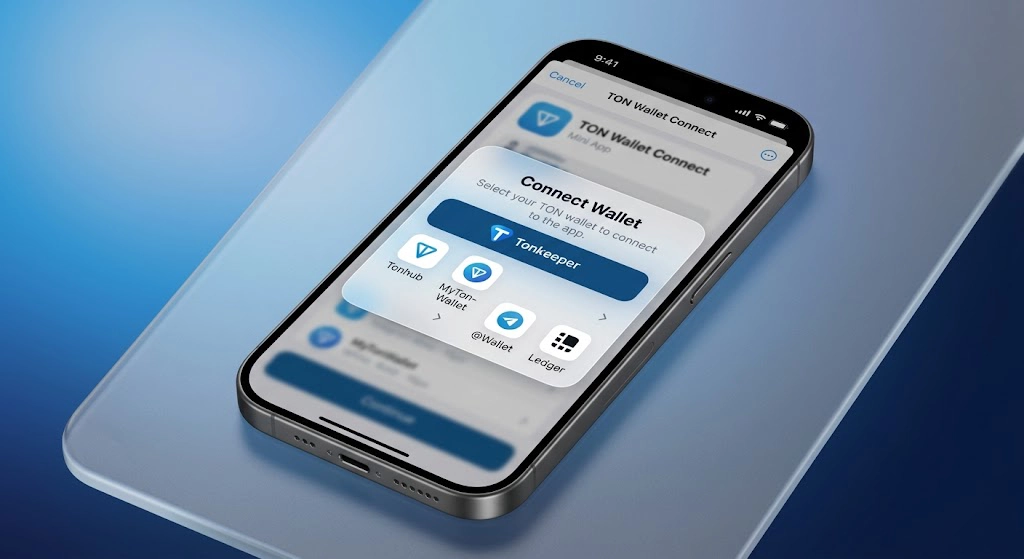
Step 3: Select Tonkeeper From the Wallet List
You’ll typically see several options here, including Tonkeeper, TON Space, MyTonWallet, and others. Choose Tonkeeper.
Step 4: Review and Approve the Request Inside Tonkeeper
Telegram hands off to the Tonkeeper app, or opens a QR code if you’re on desktop and using Tonkeeper on your phone. Tonkeeper shows you which app or domain is requesting the connection. Read this carefully. If the name doesn’t match the mini app you opened, cancel and start over.
If you are doing this on a computer screen the process changes slightly. The mini app will display a square barcode on your monitor instead of opening the wallet automatically. You need to grab your smartphone open the Tonkeeper application tap the scanner icon located in the top right corner and point your camera at the computer display. The approval prompt will then instantly appear on your phone screen allowing you to sign the request securely.
Step 5: Confirm and Return to the Mini App
Once you approve, Tonkeeper sends your wallet address back to the mini app, and you’re automatically returned to Telegram. The mini app should now show your wallet as connected, often displaying your balance or a shortened version of your address.
That’s the entire flow. From this point, anything involving an actual transaction, like a swap, a purchase, or sending tokens, triggers a separate approval prompt in Tonkeeper. Whether you are engaging with decentralized games or making purchases through Telegram payment bots a connection alone never authorizes automatic spending.
One crucial detail many beginners overlook is the need for network fees. While the initial connection process is completely free any subsequent action like claiming a reward or confirming a swap requires a tiny amount of Toncoin to process on the blockchain. If your wallet balance is completely empty the initial connection will succeed but your future transactions will fail instantly. Always keep a small fraction of a coin in your account to cover these network costs. If you find your wallet empty before making a transaction you should learn how to buy TonCoin on Telegram like a pro to quickly fund your account and avoid failed network requests.
The true brilliance of the connection architecture lies in its strict separation of environments. Based on recent network security analyses over eighty percent of compromised assets in the decentralized space happen because users unknowingly paste their seed phrases directly into malicious websites. By keeping the private key locally encrypted on your phone and forcing all approvals through a native wallet interface we effectively eliminate the most common phishing vectors. This operational security advantage was thoroughly documented by Dr Marcus Vane a lead blockchain security analyst.
How TonBridge Bot Makes Connecting Tonkeeper Even Easier
If you’d rather skip hunting through settings menus or troubleshooting a stuck connection screen, TonBridge Bot handles the entire TON Connect flow for you inside a single chat. You open the bot, tap connect, and it walks you through pairing Tonkeeper in a couple of taps, without needing to dig through a mini app’s interface to find the right button.
This is especially useful if you manage multiple wallets or connect to several mini apps regularly, since TonBridge Bot keeps track of your active sessions in one place instead of leaving you to check each app separately.
Tonkeeper vs TON Space: Which Wallet Should You Connect
Telegram’s built in wallet, TON Space, and the standalone Tonkeeper app both work with TON Connect, but they’re built for slightly different users.
| Feature | Tonkeeper | TON Space |
|---|---|---|
| Setup location | Separate app download | Built into Telegram’s Wallet section |
| Multi account support | Yes | Limited |
| DeFi and NFT features | Extensive | Basic |
| Platform availability | iOS, Android, browser extensions, desktop | Inside Telegram only |
| Recovery method | Seed phrase | Seed phrase, with some email recovery options |
| Best for | Users who want full control and advanced features | Users who want the simplest, all in one Telegram experience |
If you already live inside Telegram for everything and don’t need advanced DeFi tools, TON Space is the lower friction choice. If you’re managing several wallets, using NFT marketplaces, or want a wallet that also works outside Telegram, Tonkeeper is the stronger pick, which is also why most active mini app users end up connecting it.
Security Tips Before You Connect Any Wallet to a Telegram Mini App
- Only open mini apps from sources you trust. Official bot links, verified channels, or apps you searched for directly are safer than links forwarded from strangers or unfamiliar groups.
- Read every prompt Tonkeeper shows you. A connection request should clearly display the app or domain name. If it looks unfamiliar or misspelled, don’t approve it.
- Never share your recovery phrase, under any circumstance. No legitimate mini app, bot, or support account will ever ask for it. If something asks, it’s a scam.
- Watch for fake token names during transactions. A scam token can copy the exact name and image of a real one. Always verify the token’s contract address rather than trusting how it looks.
- Clean up old connections periodically. Go into Tonkeeper’s settings and disconnect any mini apps you no longer use. Fewer active sessions means fewer things that could go wrong later.
Troubleshooting Common Tonkeeper Connection Issues
The mini app doesn’t list Tonkeeper as an option. Update both Telegram and Tonkeeper to their latest versions first, since older versions sometimes miss newer wallets in the list. If it’s still missing, the mini app itself may only support a limited set of wallets.
The connection request never shows up in Tonkeeper. Close and reopen both apps. If you’re connecting from desktop, make sure you’re scanning the QR code with the same Tonkeeper account you intend to use, not a secondary one.
The mini app shows connected but your balance looks wrong. Give it a moment to sync, and pull down to refresh if the app supports it. If the balance still looks off after a minute, disconnect and reconnect the wallet.
You approved the wrong request by accident. Open Tonkeeper’s settings, find the connected apps list, and remove the session immediately. Approving a connection alone doesn’t put your funds at risk, but it’s still good practice to clear it.
FAQ
How do I connect Tonkeeper to a Telegram mini app?
Open the mini app, tap its connect wallet button, choose Tonkeeper, and approve the request that appears inside the Tonkeeper app. The whole process runs through TON Connect and takes under two minutes.
Is it safe to connect Tonkeeper to a Telegram bot or mini app?
Yes, as long as you’re opening the mini app from a trusted source and you check the app name shown in the connection prompt. TON Connect never exposes your private key to the app, and a connection alone can’t move your funds.
What’s the difference between Tonkeeper and TON Space?
Tonkeeper is a standalone wallet with more advanced features and multi account support, while TON Space is built directly into Telegram’s Wallet section and works well for simpler, everyday use.
Do I need Tonkeeper to use Telegram Stars?
No. Telegram Stars run on Telegram’s own internal system and don’t require a TON wallet. Tonkeeper is only needed when a mini app involves actual TON blockchain transactions.
If you are still confused about which currency serves which purpose reading about the difference between Telegram Stars and TON will help you decide exactly when you need a blockchain wallet.
Can I disconnect a mini app from Tonkeeper later?
Yes you have full control over your connections. Open the Tonkeeper app tap the settings gear icon and look for the Connected Apps menu. This section displays a list of every single service currently linked to your wallet. Just tap on any name you no longer recognize or use and select disconnect to instantly revoke their access.
Final Thoughts
Connecting Tonkeeper to a Telegram mini app really does come down to those five steps: open the app, tap connect, pick Tonkeeper, review the request, and approve it. Once you’ve done it once, every future mini app follows the same pattern, so the friction mostly disappears after your first try. As developers continue to build more advanced tools the future of Telegram mini apps on TON blockchain looks incredibly promising for everyday users who want everything in one place.
Ready to skip the manual steps and manage every wallet session from one place? Open TonBridge Bot right now and get connected in under a minute. If you run into any issue along the way, our support team is here to help at @membertelsupport.