

If you’re serious about productivity, knowing how to use Telegram Web and Desktop effectively can save you time and help you manage conversations with ease. Many professionals use these versions to streamline communication, collaborate in teams, and keep their workflows organized. In this guide, we’ll explore everything from setup to advanced optimization strategies.
Telegram Web vs Telegram Desktop: Key Differences
| Feature | Telegram Web (K & A) | Telegram Desktop |
| Installation | None (Browser-based) | Full Software Installation |
| Versions | Web K (Fast) & Web A (Feature-rich) | Single Desktop Client |
| Calls | Limited (Voice only in some versions) | Full Voice & Video Calls |
| Secret Chats | Not Supported | Supported |
| Multiple Accounts | Limited by Browser Session | Supports Multiple Accounts |
Getting Started: Mastering the Browser Version
If you’re on a guest computer or simply don’t want to install extra software, the Web version is your best friend.
How to Set Up Telegram Web
- Navigate to the official web.telegram.org URL.
- Choose your login method: By default, it asks for a QR code, but you can select “Log in by phone number” at the bottom.
- Enter your phone number with the correct country code.
- Check your mobile app for the login code (Telegram sends it internally, not via SMS, unless requested).
- Once entered, your chats will sync instantly across the browser.
💡 Expert tip (Dr. Lina K., Cybersecurity Analyst): “Always log out of Telegram Web after use, especially on shared devices. Browser sessions are less secure compared to desktop apps.”
Sometimes users ask whether it’s possible to log in without sharing personal details. While Telegram typically requires verification, guides on How to Use Telegram Without a Phone Number show alternative approaches such as using virtual numbers. This is great for privacy, but for everyday use, linking your own number remains the most secure method.
How to Link and Scan Telegram Web
Once you’re on the login page, you’ll notice that typing a code isn’t the only way. To start using the browser version more efficiently, you should link your mobile account via QR code:
- Open the site on your PC.
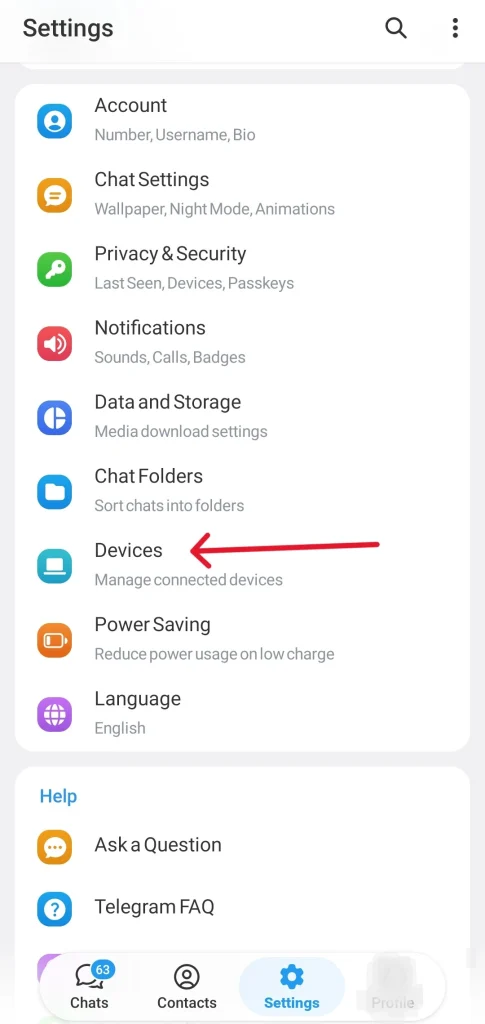
- On your phone, go to Settings > Devices > Link Desktop Device.
- Scan the QR code on your screen. This instant sync ensures all your folders and chats are available without typing a password every time.
Understanding Telegram Web K vs. Telegram Web A
One of the most common questions is the difference between the two official web versions.
- Telegram Web K: Known for its incredible speed and stability. It’s optimized for older systems and slower connections. You can access it via
webk.telegram.org. - Telegram Web A: This version is more visually polished and features the latest animations. It often receives new features faster than Web K. You can access it via
weba.telegram.org. My Experience: If you want a smooth, app-like experience with more visual flair, go for Web A. If you’re working on a low-spec laptop, Web K is your best bet.
File Management & Communication
Now that you’re logged in, you might wonder how Telegram handles your data and calls within a browser environment.
Advanced Drag and Drop Support
One of the standout features of the browser version is the seamless drag and drop functionality. You can simply drag multiple files, images, or even blocks of text directly from your computer folders or other browser tabs into the Telegram Web chat area. This is significantly faster than the mobile attachment process and is a huge reason why professional creators prefer the web client for content management.
Where Do Telegram Web Downloads Go?
Unlike the Desktop app, which has a dedicated folder, Telegram Web relies on your browser’s settings.
- Default Location: Files usually land in your PC’s system Downloads folder.
- Pro Tip: You can change this by going to your browser settings (Chrome/Edge/Safari) and toggling “Ask where to save each file before downloading” for better organization.
Can You Make Calls on Telegram Web?
A common question I get is: Can you call on Telegram Web? As of 2026, while the Telegram Desktop app fully supports high-quality voice and video calls, the Web version has limitations. While you can listen to voice messages, full-featured Telegram Web video calls are best handled through the Desktop application for better stability and camera integration.
How to Log Out of Telegram Web
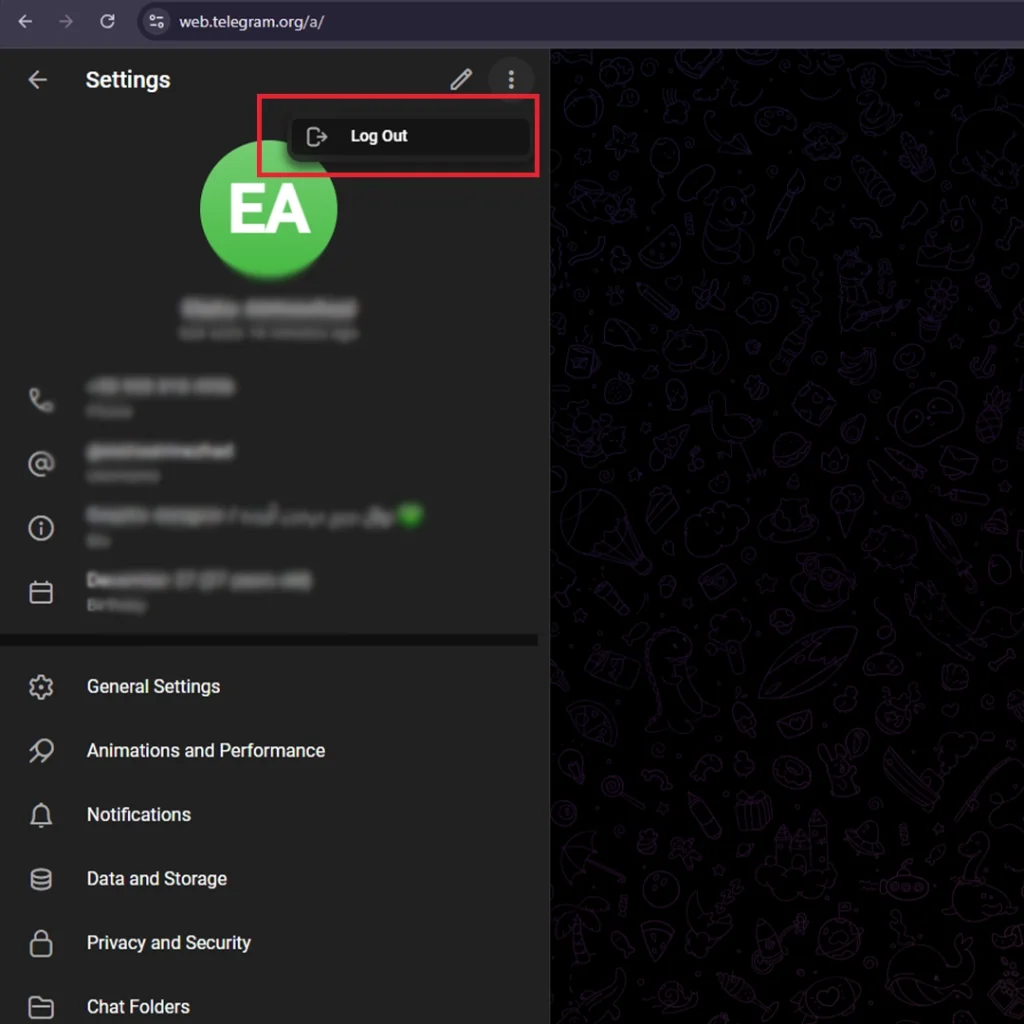
Security is just as important as functionality. Many users wonder how long does Telegram Web stay logged in? By default, your session remains active until you clear your browser cache. To log out safely:
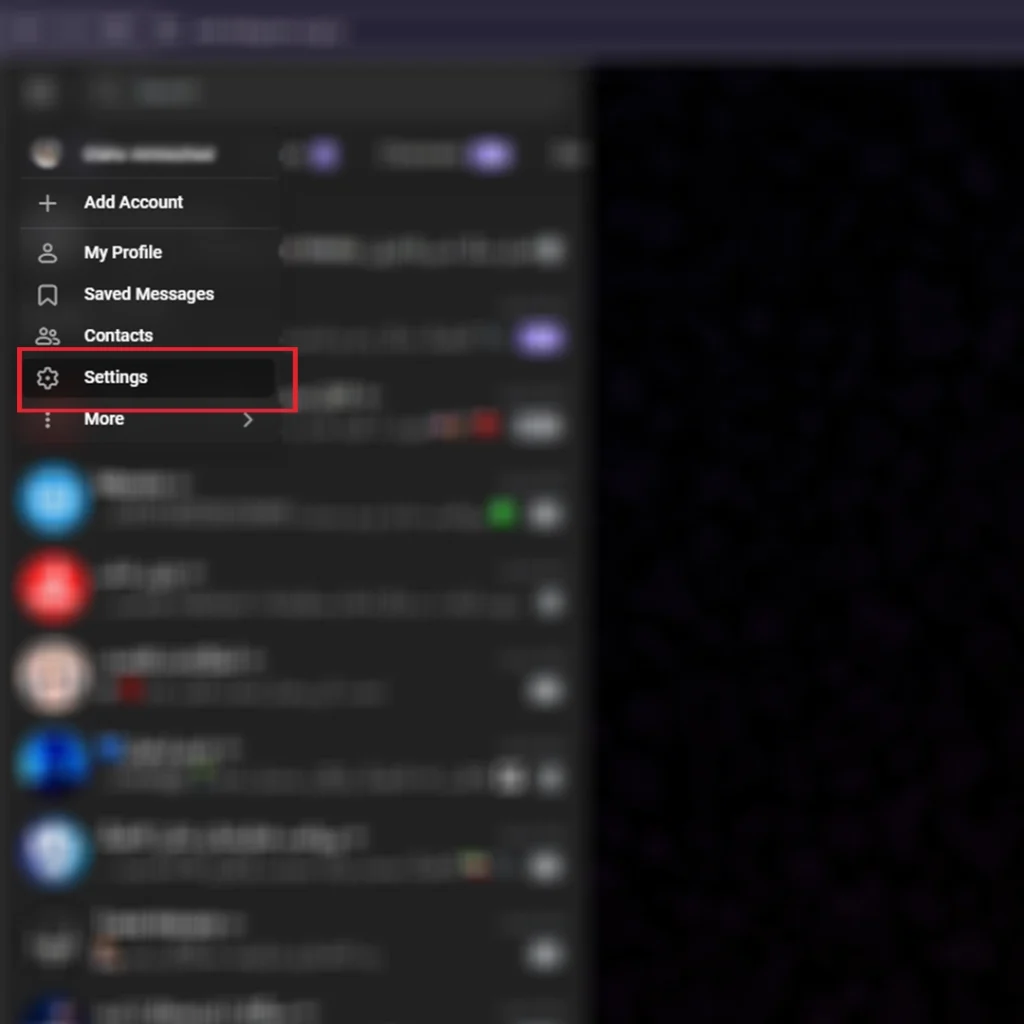
- Click the three-line menu (Settings).
- Click on your profile and select Log Out.
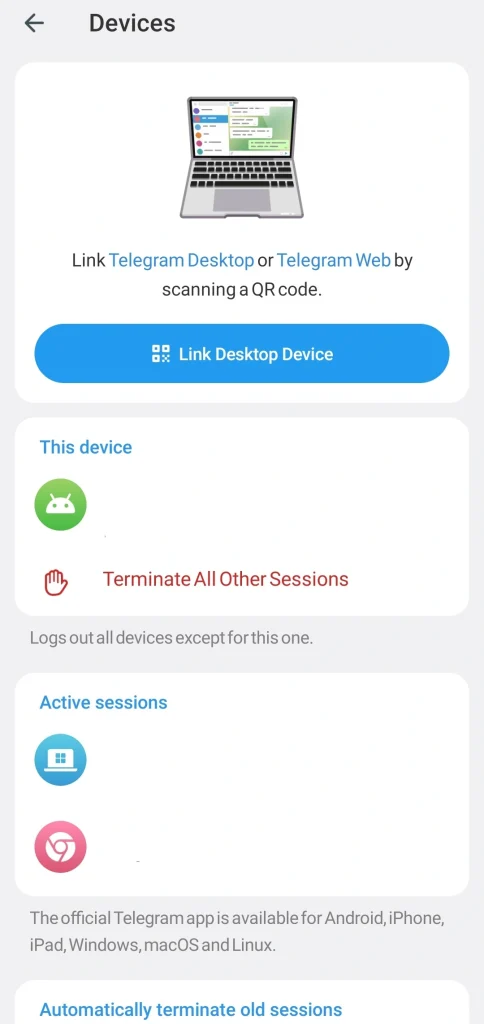
- Note: You can also terminate the session remotely from your phone via Settings > Devices.
Troubleshooting Common Telegram Web Issues
Even with the latest 2026 updates, you might face some hurdles while using the browser version. Here is how to fix the most common problems without losing your data.
QR Code Not Loading
This is usually a browser cache issue. Try refreshing the page or opening Telegram Web in an incognito window. You should also ensure that your phone camera lens is clean and your internet connection is stable enough to sync the data.
Not Receiving the Login Code
Remember that Telegram sends the login code to your active app on another device first rather than via SMS. If you do not have access to your phone, you must wait for the countdown timer to end and then select the option to receive the code through a traditional text message.
Constant Connecting Status
If you see a constant connecting message at the top of the screen, your local network might be blocking the Telegram servers. In many cases, switching between the Web K and Web A versions resolves this issue because they often use different server routes to establish a connection. If you still experience connectivity issues, you may need to configure a reliable Telegram proxy to establish a stable connection directly within your browser settings.
How to Install and Use Telegram Desktop
- Download the app from the official website.
- Install and log in via QR code or phone number.
- Syncs seamlessly with your mobile app.
📌 Pro Tip: Use Desktop for heavy media sharing, managing groups, or handling multiple channels professionally.
Another important aspect of using Telegram Desktop effectively is keeping your account safe. Focusing on Telegram Account Security ensures that your login sessions, files, and group activities remain private and protected. By enabling two-step verification and regularly reviewing active sessions, you add an extra layer of protection while enjoying all the advantages of the desktop version.
Productivity Hacks for Telegram Web & Desktop
To truly master these platforms, you need to go beyond basic messaging and leverage advanced tools. Here are some expert tips to optimize your workflow:
Global Search and Navigation
Use the Ctrl + K shortcut on Windows or Cmd + K on Mac to quickly jump between different chats or find specific files. This universal search bar eliminates the need to scroll through hundreds of conversations to find a single piece of information.
Multi Window Multitasking
On the Desktop version, you can right click on any chat and select Open in Separate Window. This allows you to keep an important project chat open on one side of your screen while browsing other messages in the main app.
Message Scheduling and Quiet Hours
Instead of sending a message immediately, you can right click the send button and select Schedule Message. This is perfect for team leaders who want to organize tasks without disturbing employees during their off hours.
Organizing with Custom Folders
If your chat list is cluttered, go to Settings and create custom Folders for Work, Clients, or News. These folders sync instantly between your browser and mobile device, keeping your professional environment clean and focused. Also, you can view Stories directly from your chat list in both Web and Desktop versions, ensuring you never miss an update from your contacts.
| Action | Windows/Linux | macOS |
| Search Chats | Ctrl + K | Cmd + K |
| Previous/Next Chat | Alt + Up/Down | Cmd + Up/Down |
| Edit Last Message | Up Arrow | Up Arrow |
| Close Current Chat | Esc | Esc |
Security Best Practices
- Enable Two-Step Verification under Settings.
- Regularly review Active Sessions to remove unknown devices.
- Keep your app updated for the latest security patches.
Expert Insight (Mark J., Digital Privacy Specialist):
“Using Telegram Desktop with two-step verification significantly reduces the risk of account hijacking, which is a growing concern among users.”
- Remote Termination: If you forget to log out on a public PC, don’t panic. Open your mobile app, go to Settings > Devices, find the active web session, and click Terminate Session. This is the most effective way to ensure your Telegram Web remains private.
Real-World Applications
- Remote Teams: Use Telegram Desktop for file sharing and real-time collaboration.
- Creators: Manage large subscriber channels more effectively.
- Students: Organize study groups and share resources faster.
📊 Stat Highlight (DataReportal, 2024):
- Telegram has 900M+ monthly active users.
- Desktop users account for 28% of total traffic, showing its growing adoption among professionals.
Common FAQs
Q1: Why is my Telegram Web not loading or showing a white screen?
This issue is usually caused by outdated browser cache or a local network restriction. Try clearing your browser’s cache and cookies, or open Telegram Web in an Incognito or Private window. If you are on a work or school network, it might be blocking Telegram, so try switching to a different network or using a VPN.
Q2: What is the main difference in speed between Telegram Web K and Web A?
Telegram Web K is designed to be lightweight and fast, making it ideal for older computers or unstable internet connections. Telegram Web A is more modern and feature rich, but it may run slightly slower on low spec devices because it relies on more complex animations and graphics.
Q3: Can I receive voice calls on Telegram Web?
As of 2026, voice calls are supported in the latest versions of Telegram Web, but video calls are generally not supported. For high quality video conferencing and stable voice calls, it is strongly recommended to use the Telegram Desktop app instead of the web browser client.
Q4: How do I manage multiple accounts on Telegram Web?
You cannot log into multiple accounts in the same browser session. To use more than one account, you must either use different browsers (e.g., Chrome for account one, Firefox for account two) or use Incognito mode for the second account.
Q5: Can I post Stories from Telegram Web or Desktop?
You can view Stories on both Web and Desktop versions. However, posting new Stories is only supported on the Telegram Desktop app and not through the web browser client.
Conclusion Mastering Your Telegram Experience
Learning how to use Telegram Web and Desktop effectively is more than just a convenience because it is a productivity game changer for any professional. By choosing the right version for your specific needs whether it is the lightning fast Web K version, the feature rich Web A client, or the robust Desktop app, you ensure your workflow remains uninterrupted and your data stays secure. The key to a professional Telegram presence is balancing accessibility with security and I recommend always monitoring your active sessions to maintain full control over your account.
Over to You
Did this guide help you decide between Telegram Web and Desktop? Perhaps you have discovered a hidden shortcut or a feature in the latest 2026 update that I missed in this guide. I am truly curious to hear about your experience and would like to know which version you find more reliable for your daily tasks. Please drop a comment below so we can discuss these tools further and help the community grow. If you run into any technical glitches or need personalized advice on managing your Telegram setup, our expert team is ready to assist you at @membertelsupport.







Leave a Reply