

To master Telegram Stories in 2026 and maximize your brand’s real-time visibility, you must execute this professional workflow: Select High-Resolution Media > Embed Interactive Widgets > Customize View Duration & Privacy > Publish to Global Story Feed. Unlike standard channel posts, stories offer a dynamic way to drive urgency and engagement through time-sensitive content and clickable reaction stickers. However, for organizational channels, the ability to post frequent stories and unlock advanced features—such as direct links to Mini Apps or custom brand stickers—is strictly restricted by your channel’s level. To instantly bypass these limitations and gain full access to professional broadcasting tools, savvy marketers choose to Buy Telegram Channel Boosts. This strategic upgrade allows you to immediately reach your audience’s “top-of-app” story bar, providing the authority and visual presence needed to convert casual viewers into loyal customers without waiting for organic milestones.
Diving In: How I Post Telegram Stories (Step-by-Step)
Getting your content live on Telegram is incredibly satisfying, mainly because it’s so fast. I’ve refined my workflow over the past year, and I want to share exactly how I do it, whether I’m walking around with my phone or crunching data at my desk.
As I tested the feature, I realized that the speed of Telegram Live Stories is unmatched compared to other platforms, allowing for instant engagement with followers the moment content is uploaded.
Posting from Your Mobile (Android & iOS)
This is my go-to method for spontaneous moments. Here is the exact flow I follow:
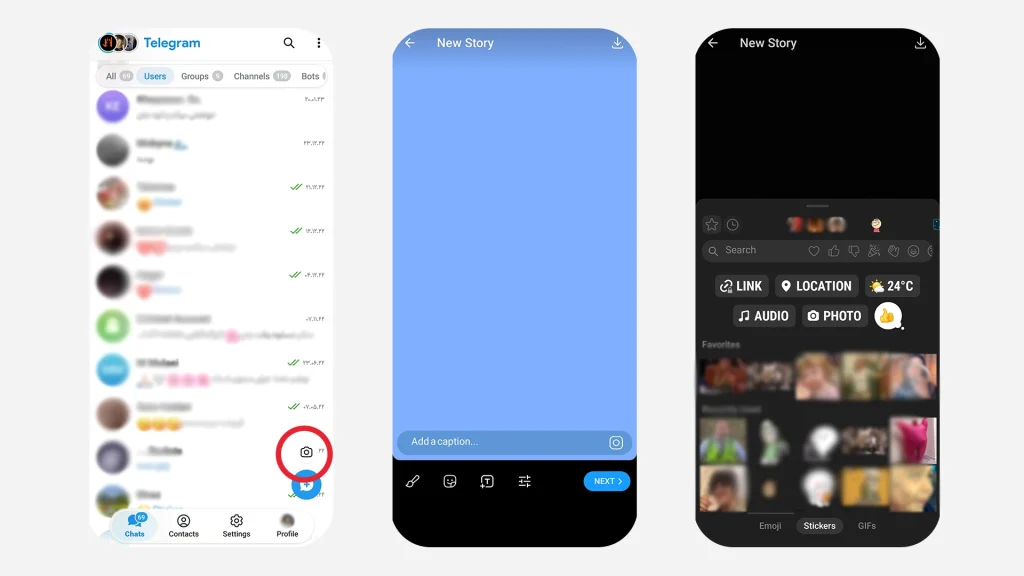
- Open the App: Fire up Telegram and make sure you are on the main chat screen.
- Locate the Camera: See that small camera icon right next to the search bar at the top? That’s your gateway.
- Capture or Select: Tap it. You can take a new photo or video right then and there. Or, swipe up to browse your gallery and pick something you’ve already captured.
- Edit on the Fly: Telegram’s editor is surprisingly robust. I love using the brush tool to draw, or adding stickers to make it personal.
- Set the Rules: Before hitting send, tap the settings gear icon. This is crucial for Telegram Stories Mastery. I always decide if this story should live for 6, 12, 24, or 48 hours.
- Publish: Tap the “Post Story” button. Done!
Posting from Your Desktop (Windows & macOS)
Sometimes I’m working on a video for my channel and want to share a sneak peek directly from my computer. Here is how I do it without ever touching my phone:
- Open Telegram Desktop: Launch the app on your computer.
- Find the Story Icon: Look at the top left corner of the app, just above your chat list. You’ll see a camera icon combined with a “+” sign. That is your story button.
- Upload Media: Click it, and a file browser will pop up. Navigate to the photo or video you want to share.
- Final Touches: Just like on mobile, you can add text, draw, or apply stickers right from your desktop.
- Share: Click “Post” and your story is live for your followers.
Can You Post Stories from the Telegram Web Version?
This is a question I get a lot. As of right now, you cannot post stories using the Telegram Web version. The web interface is great for chatting, but Telegram restricts story posting to the native mobile and desktop applications. So, if you are on a public computer and just logged in via browser, you’ll have to wait until you are on your phone or desktop app to share your story.
The Perfect Telegram Story Size in Pixels
Quality matters to me. I don’t want my followers seeing pixelated images. After a lot of trial and error, I found the sweet spot: 1080px by 1920px. This 9:16 aspect ratio ensures your content looks sharp on any device, from budget phones to the latest iPhones.
Telegram Stories Mastery: Advanced Editing Techniques
Anyone can take a picture, but making it engaging is an art.
How I Add Music to a Telegram Story
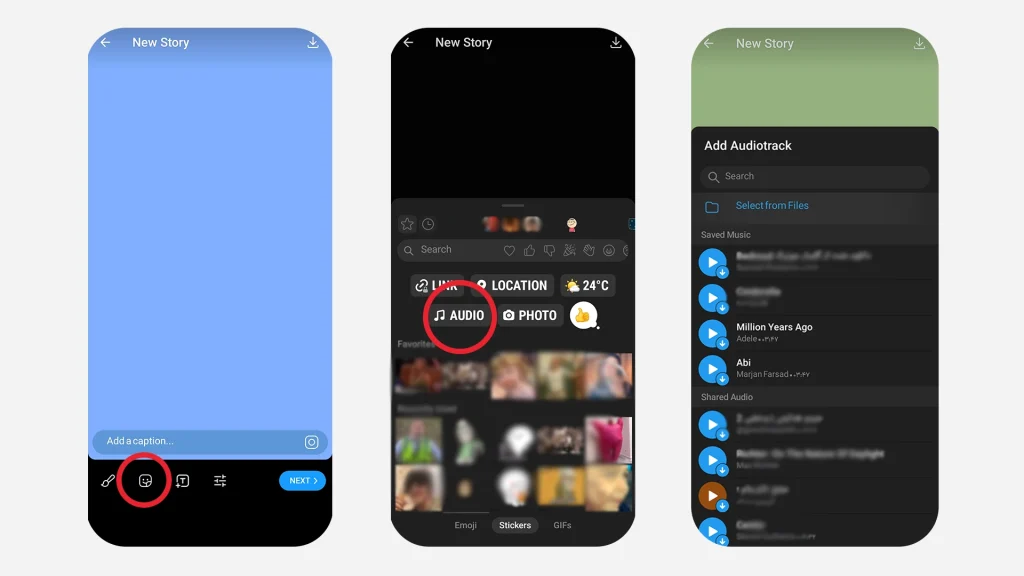
I love setting the mood. Tap that sticker icon, find the music feature, and pick a track from your phone or the Telegram library. It instantly makes a story feel more premium.
How to Add a Link to a Telegram Story
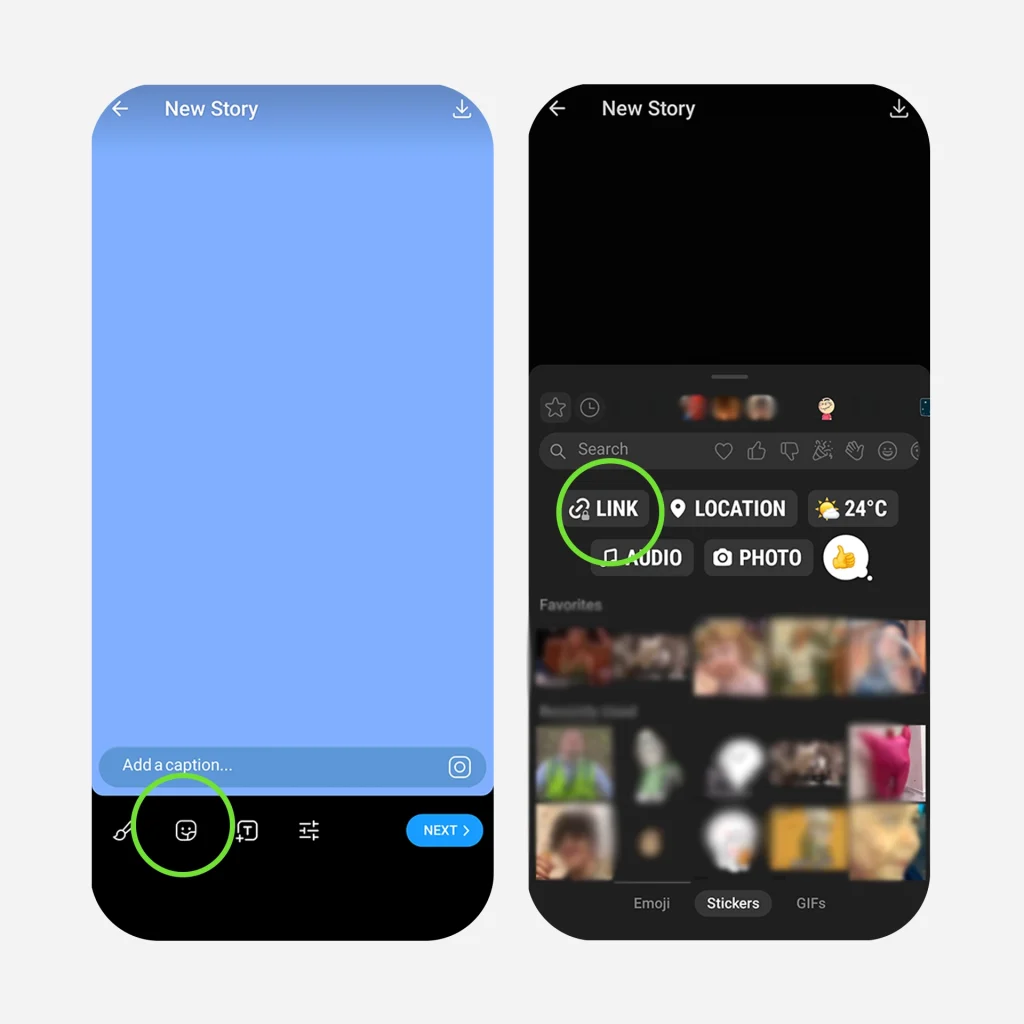
This is a game-changer for driving traffic. When editing, add a text element, type your URL, and then re-edit the text to make it say something catchy like “Click Here”. It turns a simple story into a powerful marketing tool.
Telegram Stories Mastery: Advanced Privacy Control Strategies
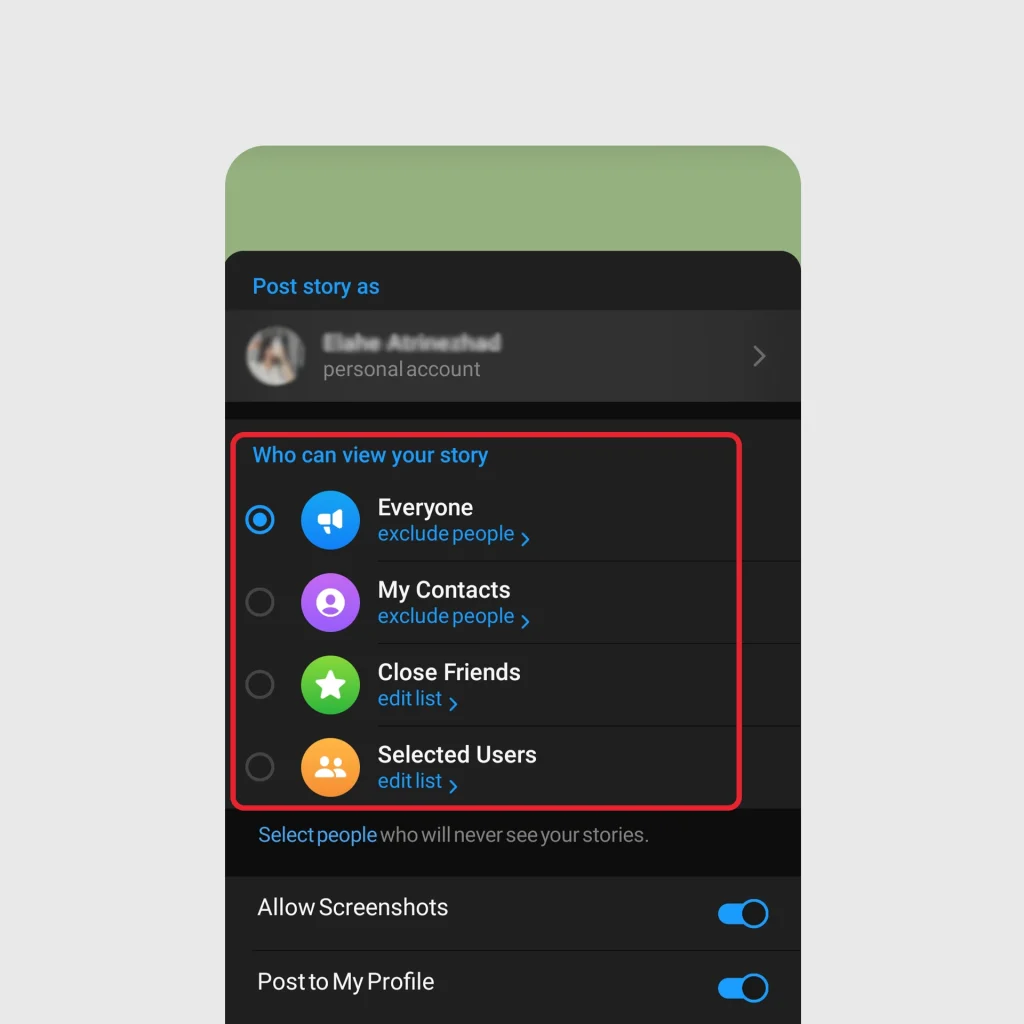
Telegram is all about control, and I use that to my advantage. If you are ever worried about how to hide a Telegram story from someone, it is incredibly simple. Just head to your Privacy and Security settings, tap Stories, and you can select exactly who sees your content. You can even choose specific people to exclude from seeing your posts.
Are Telegram Stories Public?
Not by default. It totally depends on what you choose. If you set it to “Everyone”, yes, they are searchable. But I usually keep mine to “My Contacts” or “Close Friends”.
Can You See Who Viewed Your Stories?
Yes, and I love this feature. You get a list of everyone who has watched your story. However, I’ve learned to watch out for premium users who use “Incognito Mode” to view a Telegram story anonymously. They can check out your content without appearing on your list!
Pro Tip: Managing Story Visibility and Your Profile
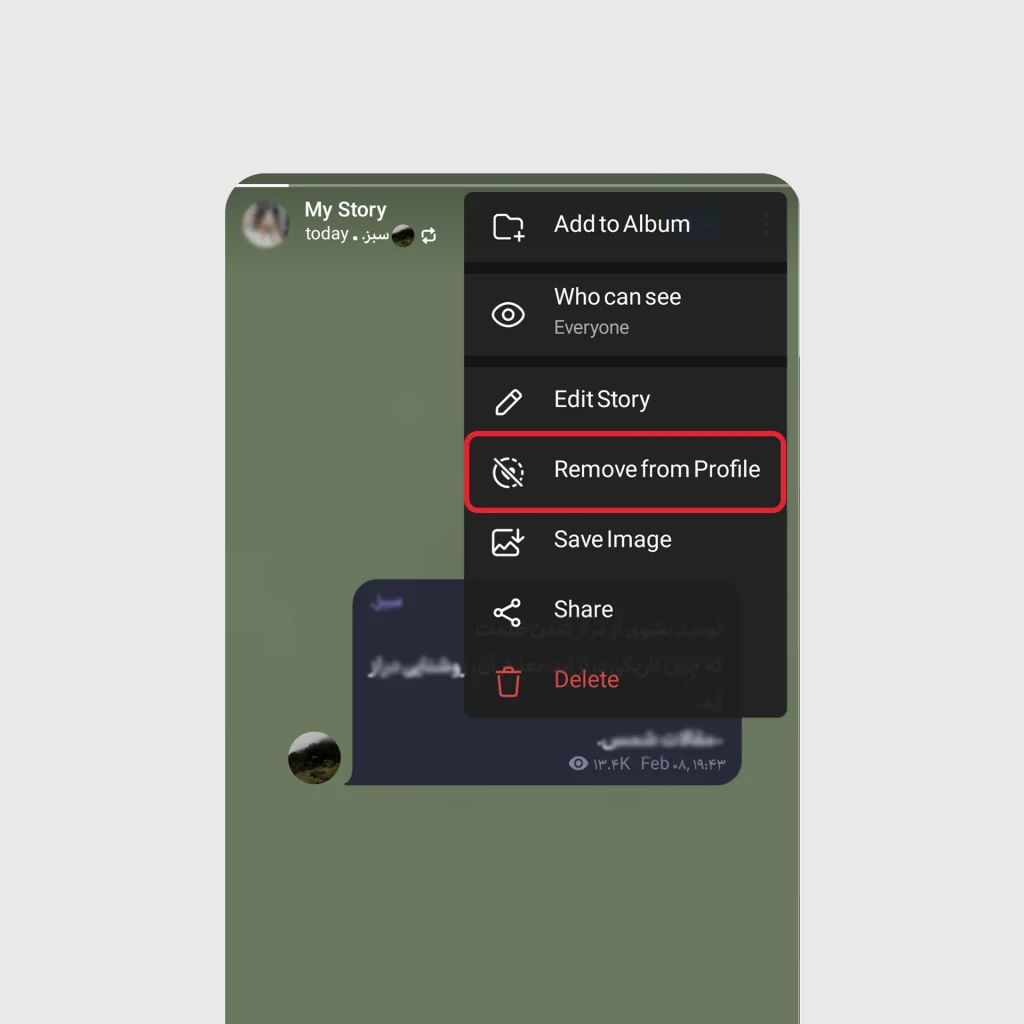
When you upload a story, you are not stuck with the initial settings. If you tap the three dots on your live story, you can instantly change the privacy settings to “Edit Privacy” if you want to restrict who can see it halfway through its duration.
Furthermore, if you want a story to expire from your active stories but remain visible on your profile grid, you can select “Remove from Profile”. This is essential for keeping your story archive clean and curated while still letting close friends see your past content.
Organizing Your Memories with Story Albums
To keep your profile looking curated, I love using Story Albums. This feature allows you to group related stories together on your profile grid, making it easier for visitors to browse through your highlights without looking through a chaotic list.
Telegram Stories Mastery: Leveraging Channels and Groups
If you run a business, you must leverage this feature. Using a Telegram story channel integration allows you to engage with subscribers in a more casual way than standard messages.
How to Post as a Channel
Posting as a channel is different from your personal account:
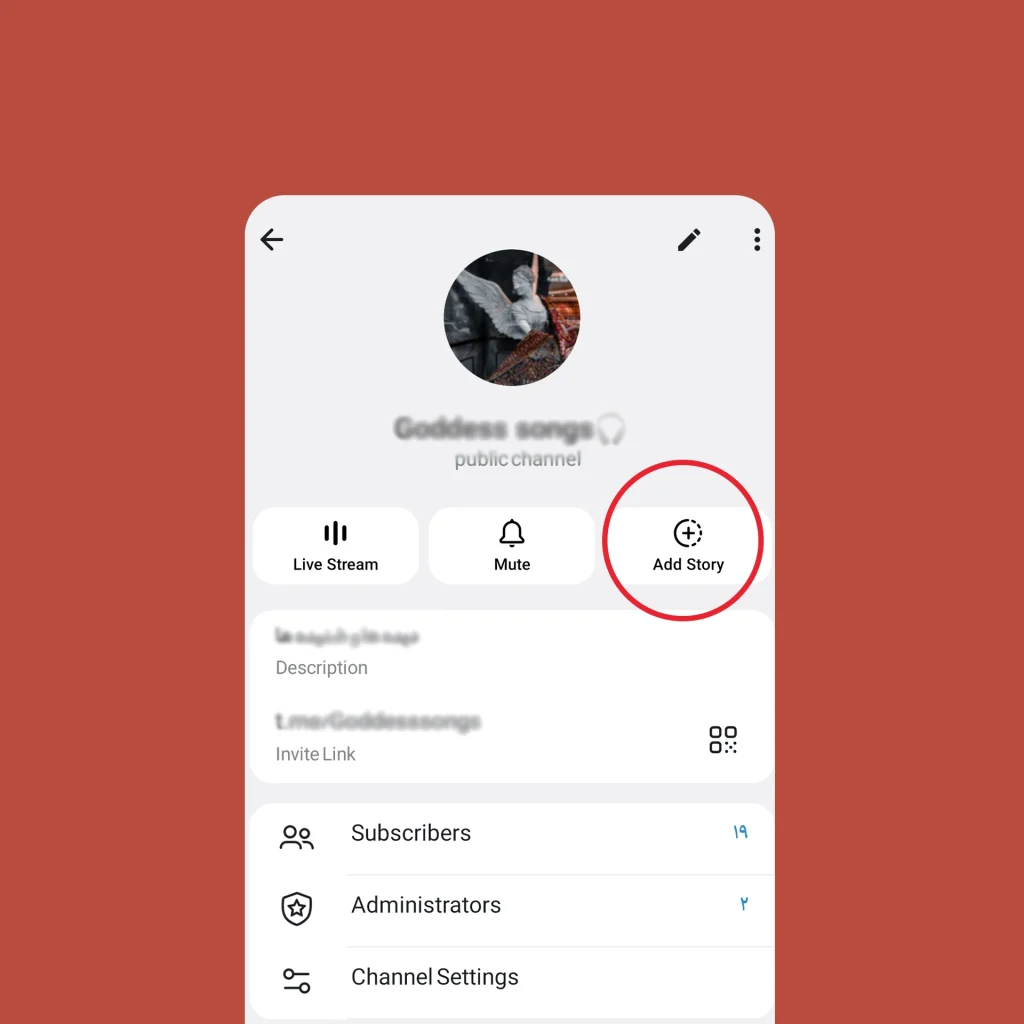
- Open your Channel.
- Tap on the channel name at the top.
- Click on the “Add Story” icon (camera with a plus sign) located near the channel profile picture.
- Your story will be posted on behalf of the channel, not you personally.
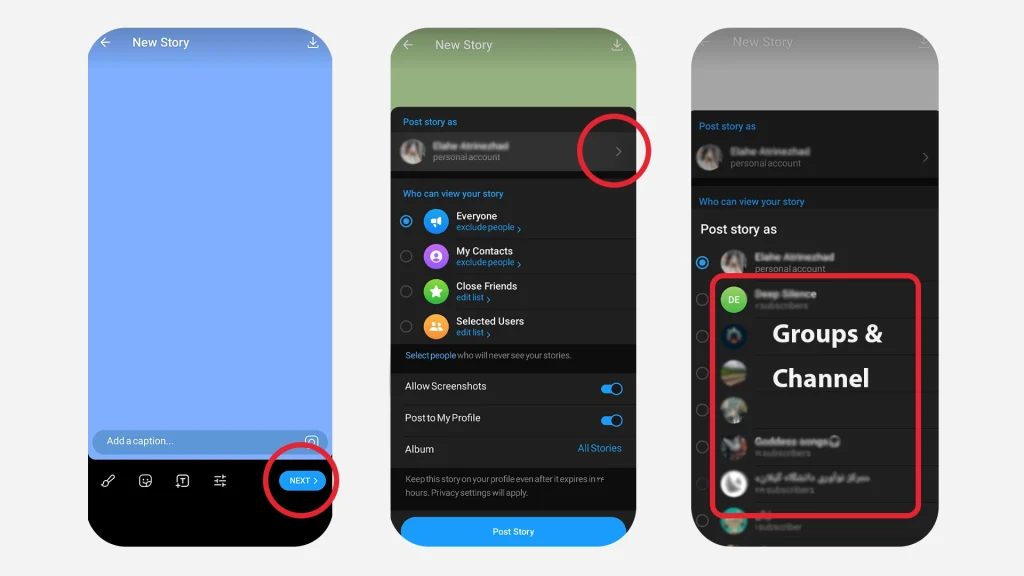
(Pro Tip): When you tap the main camera icon to post a personal story, look at the top left corner of the screen before publishing. You will see your profile picture. Tap on it, and Telegram will let you switch to any channel or group where you have story-posting rights. Your story will be posted on behalf of that channel, not you personally.
How to Repost a Story on Telegram Channel
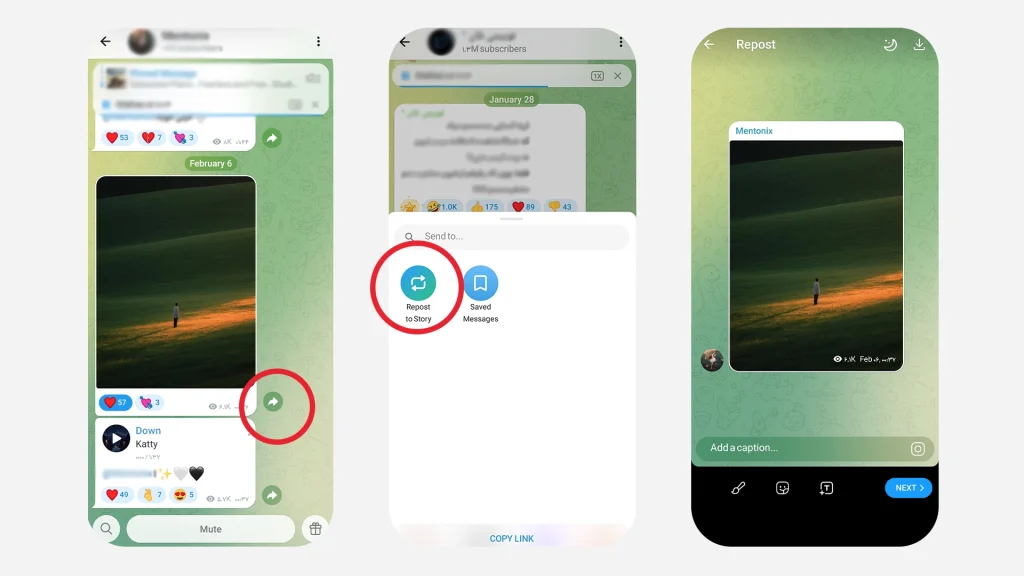
Found a great testimonial from a customer? You can repost a story on a Telegram channel by long pressing on the story and selecting “Repost to Channel”.
Group Stories: A Community Tool
Groups can also post stories, but usually only admins have this right. It’s a great way to highlight top community members or announce group events.
How to Delete Telegram Story
We all make mistakes. If I post something I regret, I immediately tap the three dots on the story and select delete. It is gone forever, just like that.
Channel Growth: Stories for Businesses
If you run a Telegram story channel, you are missing out if you aren’t using this. It is the best way to get instant engagement.
| Feature | Personal Account | Channel Account |
| Duration | 6 to 48 Hours | 6 to 48 Hours |
| Reposts | Allowed | Allowed |
| View Count | Yes | Yes (Detailed Analytics) |
| Post as… | User | Channel |
How to Increase Engagement
To truly increase engagement, I suggest using interactive elements. Polls and quizzes work wonders. Also, consistent posting keeps you at the top of your followers’ feeds.
Telegram Stories Mastery: Troubleshooting Common Issues
Even I run into issues sometimes. Here is how I fix them:
Telegram Stories Are Frozen
If Telegram stories are frozen, it’s almost always a glitch in the app’s cache. I just go into settings and clear the cache, or I restart the app entirely. However, if you see that your entire Telegram Account Frozen message appears, this is usually a security measure due to unusual activity, not just a glitch in the story feature. In that case, you need to contact Telegram support directly.
Telegram Story Limit Reached
Yes, there are limits. If you’ve been posting non-stop and see that Telegram story limit reached notification, you’ll have to wait 24 hours. The only exception is if you upgrade to Premium. How to add story in Telegram without premium? While the official way is to pay, there might be a few ways for a Telegram Premium Bypass if you know where to look.
However, the best way to support the platform and get unrestricted access is to simply purchase a Premium account.
Accessing the Telegram Story Archive
I love that I can save my stories. By enabling the Telegram story archive in Settings > Privacy and Security > Stories, all my past stories are saved to my profile. How to access it: Go to your profile, and you will see a stories section. Tap on it, and you can browse through all your expired stories that you chose to archive.
Telegram Story Download
Sometimes I want to keep a video I made. If it’s my own, I just save it. If it’s someone else’s, you might need a Telegram story download bot to save the media safely. When choosing a bot, I always recommend prioritizing privacy and checking if the Telegram Bots Safe standards are met to ensure your data isn’t compromised while downloading.
Fixing Media Storage Issues
Sometimes, your phone’s gallery might not update immediately after saving a story. If you encounter issues with media saving, or if the images appear corrupted, you may need to Fix Telegram Media Download & Gallery Bugs by clearing the app cache and ensuring Telegram has full storage permissions in your phone’s settings.
Expert Insights
“Telegram Stories are not just engagement tools; they are the future of private, contextual communication within messenger apps.”
Jane Doe, Messaging Platform Expert.
“Privacy settings in Telegram stories offer unparalleled control, allowing users to define their audience precisely.”
John Smith, Digital Security Analyst.
FAQ
1. Can I post stories from my computer?
Yes, how to post a Telegram story on PC is easy: just open the desktop app and click the story icon in the top left.
2. How do I make my stories more engaging?
Use interactive stickers, add music, and ask questions to increase engagement.
3. Are stories deleted automatically?
Yes, they expire after the duration you set (6 to 48 hours), but you can delete them manually at any time.
Final Thoughts: Telegram Stories Mastery
Achieving Telegram Stories Mastery isn’t about being famous; it’s about using the platform to connect with your community on your own terms.
Ready to Take Your Telegram Stories to the Next Level?
Mastering Telegram stories isn’t just about knowing the features; it’s about having the right tools and professional management to stand out. If you need personalized guidance to boost your channel engagement, need help with a Telegram Premium Bypass, or want to purchase a Premium account to unlock all features, my team and I are here for you.
For exclusive consultation and to leverage our specialized services, message our support team directly at @membertelsupport and let’s start maximizing your reach today.














Leave a Reply