
I still remember the frustration of waiting for a high-priority work video to finish buffering, only to realize my How to Fix Telegram Media Download strategy was completely non-existent back then. I’d stare at that loading circle for minutes, and even when it finished, the file was nowhere to be found in my gallery. If you are dealing with files that won’t download, media that refuses to open, or photos that seem to vanish into thin air, I’ve got you covered. In this guide, I’m sharing the exact steps I took to turn my Telegram from a buggy mess into a high-speed media machine.
A question I often get while helping people with downloads is: Can Admins Track You when you save their content? Knowing The Truth About Downloading From Telegram is vital for your privacy, especially in public channels.
Why Your Files Are Stuck at 0%
Usually, when people ask why Telegram files not downloading, they assume the app is down. From my experience, it’s almost always a local conflict.
I once spent an hour troubleshooting my internet, only to realize my Telegram cache was so bloated it couldn’t accept a single new kilobyte. Here is the reality of 2026: Telegram is a data hungry beast. If you haven’t cleared your “Storage Usage” in the last month, your downloads will crawl or stop entirely.
Another culprit is the proxy or VPN. While we need them for access, many free proxies limit file sizes. If your text messages send but your media stays grey, try toggling your connection or switching to a dedicated MTProto proxy that supports large data packets.
If you feel like your Telegram Download Speed So Slow even after clearing the cache, you aren’t alone. Sometimes the bottleneck is the app’s server allocation for your region, and it can be as annoying as having Telegram Not Working right when you need it most.
The Mystery of the Missing Gallery Media
One of the most common questions I get is why Telegram files not showing in gallery. It’s incredibly annoying to see a photo inside the chat but find your phone’s photo app completely empty.
The truth is, Telegram tries to be “polite” by not cluttering your phone. You have to manually tell it to be messy!
- For Android users: You need to go into Chat Settings and enable “Save to Gallery.”
- The .nomedia ghost: I once found that my phone had automatically created a hidden file called .nomedia in my Telegram folder. This file tells your Android system “don’t look here for photos.” Deleting that tiny file fixed everything for me instantly.
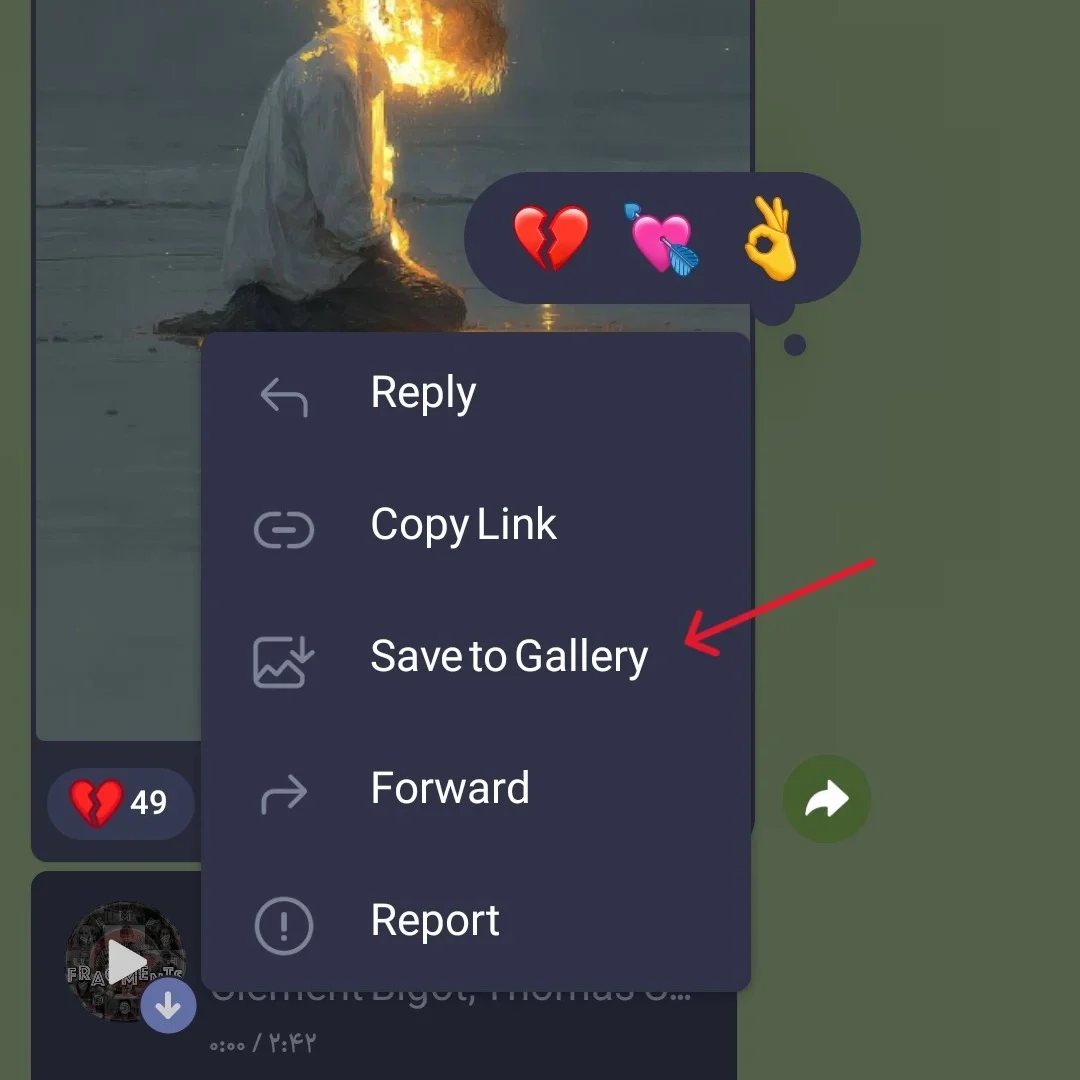
Once you fix the visibility, you might still need to Find Downloaded Files on Telegram within your system folders. It’s a common headache, similar to that mini-heart attack when you ask, Why Did My Telegram Chat Disappear? only to realize it was just archived.
When Files Simply Refuse to Open
So, you’ve managed to download the file, and it’s sitting right there, but it won’t launch. If you’re wondering why Telegram files not opening, the answer usually lies in the file extension.
Telegram allows us to send absolutely anything, from obscure CAD drawings to high-end 4K video formats. Your basic phone gallery often doesn’t have the “brain” to read these. I always keep a universal media player like VLC or a robust File Manager app on my home screen. Most of the time, the file isn’t broken; your phone just doesn’t have the right key to unlock it.
If your Telegram Messages Are Not Sending along with your files, the issue might be the file size. For heavy lifting, I personally use a Telegram Bot to Receive ZIP Files or specialized Telegram Bots to Transfer Large Files Quickly to bypass the usual upload limits.
Quick Fix Comparison Table
| Common Bug | Root Cause | My Personal Solution |
|---|---|---|
| Download Stuck | Cache Overload or Proxy Limit | Clear Cache in Data Settings |
| Hidden in Gallery | Permissions or Sync Disabled | Toggle “Save to Gallery” ON |
| File Won’t Open | Unsupported Format / Codec | Use VLC or Third-Party Player |
| Corrupted Media | Interrupted Connection | Delete and Redownload on Wi-Fi |
Expert Insight for 2026
“The shift in 2026 towards higher privacy encryption means that Telegram’s interaction with mobile operating systems is tighter than ever. Users must proactively manage their ‘All Files Access’ permissions to ensure seamless media flow between the app and the device storage.”
Tech Infrastructure Analyst
Real-World Application
Last week, a colleague sent me a 1.5GB zipped archive. It wouldn’t download on my cellular data. I realized my “Automatic Media Download” settings were capped at 100MB to save data. By simply lifting that limit for one-time use, I had the file in seconds. Sometimes the “bug” is just a safety feature doing its job too well.
FAQs: How to Fix Telegram Media Download
Is it safe to clear the Telegram cache?
Absolutely. I do it every week. It doesn’t delete your messages or photos from the cloud; it just frees up your phone’s physical memory so it can breathe again.
Why does my download restart from zero?
This usually happens when your IP address changes mid-download (like switching from Wi-Fi to Data). Try to stay on one stable connection until the bar hits 100%.
Can a virus prevent files from opening?
It’s rare on Telegram, but if a file has no icon or a strange extension like .exe on a mobile phone, don’t try to force it open. Stick to trusted media types.
Final Thoughts: How to Fix Telegram Media Download
Fixing these issues isn’t about being a tech genius; it’s about knowing which hidden buttons to press. If you follow this workflow, you’ll never have to worry about a missing video or a stuck download again.
Did this help you find your missing files? Let us know which fix worked for you. And if you’re stuck with a weird bug we haven’t mentioned yet, our support team is happy to help at @membertelsupport.














Leave a Reply